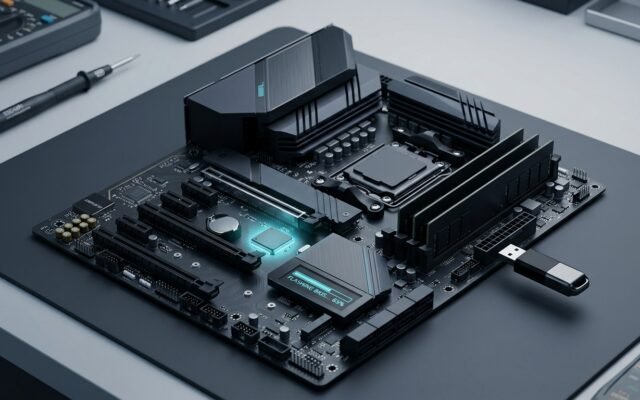

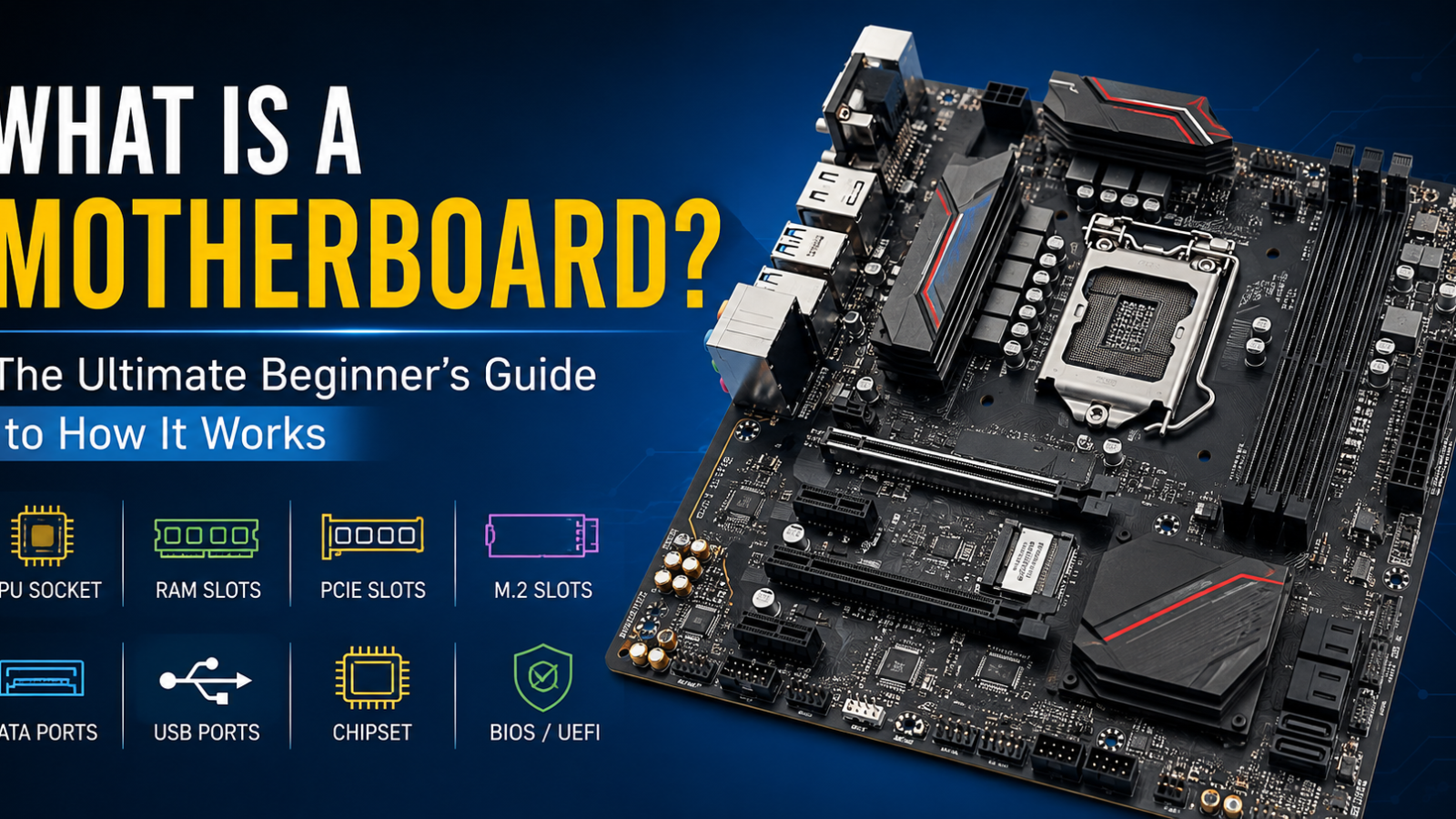
If you have ever looked inside a desktop PC, you have probably seen a large circuit board covered with slots, connectors, chips, and tiny components. That board is the motherboard, and it is one of the most important parts of a computer.
So, what is a motherboard? In simple terms, a motherboard is the main circuit board that connects the major hardware components of a computer. It allows the CPU, RAM, GPU, storage drives, power supply, USB devices, networking hardware, and other components to communicate with each other.
Think of the motherboard as the computer’s central highway system. Different components use it to exchange data and receive power and instructions. Without a suitable motherboard, the individual parts of a PC cannot work together as a complete system.
Understanding what a motherboard does is especially useful when building a PC, upgrading computer hardware, troubleshooting problems, or choosing compatible components.
What Is a Motherboard?
A motherboard is the primary printed circuit board (PCB) inside a computer. It provides physical connections and electrical pathways that allow different hardware components to communicate.
The motherboard itself does not normally perform the calculations handled by the CPU or render graphics like a GPU. Instead, it provides the platform that allows these components to work together.
A typical computer motherboard may include:
- A CPU socket
- RAM slots
- PCIe expansion slots
- M.2 storage slots
- SATA connectors
- USB ports and internal USB headers
- Power connectors
- BIOS/UEFI firmware
- A motherboard chipset
- Voltage regulation components
- Audio hardware
- Ethernet and sometimes Wi-Fi hardware
The exact components depend on the motherboard model and platform.
A Simple Example
Imagine building a gaming PC with a processor, graphics card, memory, and SSD.
The CPU performs calculations.
The RAM temporarily stores data the CPU needs quickly.
The GPU handles graphics processing.
The SSD stores your operating system, games, and files.
The motherboard provides the connections and communication pathways that allow all of these parts to function as one computer.
What Does a Motherboard Do?
One of the most important questions after asking what is a motherboard is: what does a motherboard do?
The motherboard performs several important jobs.
1. Connects Computer Components
The motherboard provides sockets and slots for components such as the CPU, RAM, GPU, and storage devices.
Each component needs a compatible connection. For example, the processor goes into a specific CPU socket, while a graphics card normally connects through a PCIe slot.
2. Enables Communication
The motherboard provides high-speed communication pathways between components.
For example, when you launch a game, information can move between your storage drive, RAM, CPU, and GPU through the motherboard’s interconnects.
3. Distributes Power
The motherboard receives power from the power supply and distributes appropriate power to various components.
Voltage regulation circuitry helps convert and regulate power for the CPU and other parts of the system.
4. Provides Expansion Options
Motherboards allow you to add hardware such as:
- Graphics cards
- Sound cards
- Network adapters
- Capture cards
- Additional storage
- USB expansion cards
The number and type of expansion options depend on the motherboard.
5. Provides External Connectivity
Your motherboard also provides connections for external devices, including:
- USB keyboards
- Mice
- Printers
- External storage
- Ethernet cables
- Monitors on supported systems
- Headphones and speakers
Main Motherboard Components
Understanding the major motherboard components makes it much easier to understand how a computer works.
CPU Socket
The CPU socket is where the processor is installed.
Different CPU generations and manufacturers use different socket designs. Because of this, you cannot simply install any CPU into any motherboard.
The CPU socket must match the processor’s supported socket and platform requirements.
RAM Slots
RAM slots hold the system’s memory modules.
Desktop motherboards commonly use DIMM slots. Smaller systems may use different memory formats.
The motherboard determines factors such as supported memory type, maximum capacity, number of slots, and supported speeds.
For example, a motherboard designed for DDR5 memory cannot use DDR4 memory simply because the modules look similar.
Motherboard Chipset
The motherboard chipset helps manage communication and features provided by the platform.
Modern CPUs handle many functions that older chipsets once managed, but the chipset still plays an important role in determining connectivity, expansion options, storage support, and other motherboard features.
Different chipsets can offer different levels of features and upgrade support.
PCIe Slots
PCIe, or Peripheral Component Interconnect Express, is a high-speed interface used for expansion devices.
The most familiar example is a graphics card.
PCIe slots can also be used for:
- Network cards
- Sound cards
- Capture cards
- Storage adapters
- Other expansion hardware
PCIe comes in different physical and electrical configurations, such as x1, x4, x8, and x16.
M.2 Slots
M.2 slots are commonly used for compact storage devices, particularly NVMe SSDs.
An M.2 SSD can connect directly to the motherboard without the traditional SATA data cable used by many 2.5-inch SSDs and hard drives.
However, not every M.2 slot supports the same interfaces, so it is important to check the motherboard specifications before purchasing an SSD.
SATA Ports
SATA ports connect compatible storage devices such as:
- SATA SSDs
- Hard disk drives
- Optical drives
They are still useful when a PC needs additional affordable storage.
USB Ports
Motherboards provide USB connections for external peripherals and devices.
Depending on the model, you may find different USB versions and connector types. Faster USB standards can provide higher data-transfer speeds for compatible devices.
Internal USB headers are also used to connect front-panel USB ports on a PC case.
Power Connectors
The motherboard receives power from the power supply through dedicated connectors.
A main motherboard power connector provides general board power, while an additional CPU power connector supplies power to the processor area.
Properly connecting these cables is essential when building a PC.
BIOS and UEFI
BIOS is a traditional term commonly used for motherboard firmware. Modern systems generally use UEFI, which is its more advanced successor.
This firmware starts the computer before the operating system loads.
It initializes hardware, performs startup checks, provides configuration options, and helps begin the operating system boot process.
VRM
The Voltage Regulator Module (VRM) controls and regulates power supplied to the CPU.
VRM quality becomes particularly important on motherboards designed for powerful processors or demanding workloads.
A capable VRM design can help provide stable power under sustained loads, although overall cooling and motherboard design also matter.
CMOS Battery
The small coin-cell battery on many desktop motherboards helps maintain certain firmware settings and the system clock when the PC is powered off.
A depleted battery can sometimes cause the system clock to reset or firmware settings to revert.
Audio and Networking Components
Many motherboards include built-in audio hardware and Ethernet networking.
Some higher-end models also include Wi-Fi and Bluetooth.
This means you may not need separate expansion cards for basic audio and network connectivity.
How Does a Motherboard Work?
To understand how a motherboard works, imagine it as a sophisticated communication network.
When you turn on your PC, the motherboard’s firmware begins initializing the hardware. It checks important components and prepares the system for the operating system.
Once the operating system starts, different components continuously exchange data.
For example, suppose you open a game stored on your SSD.
First, the storage drive provides the required data. The data is loaded into RAM, where it can be accessed quickly by the CPU. The CPU processes instructions, while the GPU handles graphics-related tasks.
The motherboard provides the electrical connections and communication pathways that allow these components to exchange information.
The motherboard therefore acts less like the “brain” of the computer and more like the infrastructure that connects the brain, memory, storage, graphics system, and peripherals.
Types of Motherboards
Motherboards come in different sizes called form factors. The form factor affects the physical dimensions of the board and its compatibility with PC cases.
ATX
ATX is one of the most common full-size desktop motherboard formats.
ATX boards generally provide:
- Multiple RAM slots
- Several PCIe slots
- Multiple storage connections
- Plenty of internal headers
- Good expansion flexibility
They are popular for gaming PCs, workstations, and general-purpose desktop systems.
Micro-ATX
Micro-ATX motherboards are smaller than standard ATX boards.
They can provide many of the features needed for a normal desktop PC while fitting into smaller cases.
Micro-ATX can be a good choice if you want a compact computer without moving all the way to an ultra-small form factor.
Mini-ITX
Mini-ITX motherboards are designed for compact computers.
Their smaller size makes them useful for small-form-factor gaming PCs, home servers, media systems, and other space-conscious builds.
The trade-off is usually fewer expansion slots and less room for additional hardware.
E-ATX
E-ATX generally refers to motherboards larger than standard ATX.
These boards are often designed for high-end systems and may provide additional expansion capability, memory capacity, or other features.
Because dimensions can vary between manufacturers, always check the exact specifications and case compatibility.
Why Is a Motherboard Important?
The motherboard is important because it determines which hardware components can work together.
Compatibility
The motherboard must be compatible with your CPU, RAM, storage devices, case, and other components.
Choosing an incompatible motherboard can prevent a PC from functioning correctly.
Connectivity
The motherboard determines how many USB ports, storage connections, expansion slots, networking features, and other interfaces are available.
Expansion
If you plan to add another SSD, capture card, expansion card, or other hardware later, you need a motherboard with enough available connections.
Upgrade Potential
A motherboard can also influence your future upgrade options.
For example, a motherboard may support several generations of compatible processors or provide additional RAM and storage capacity.
However, upgrade support depends on the specific platform, firmware, chipset, and manufacturer specifications.
How to Choose the Right Motherboard
Choosing a motherboard is easier when you know what components and features your PC needs.
1. Check CPU Compatibility
Start with the processor.
Check the motherboard’s supported CPU socket and processor compatibility list. Do not assume that two CPUs from the same manufacturer will automatically work with the same motherboard.
2. Check RAM Support
Confirm whether the motherboard supports the type of RAM you intend to buy.
Also check:
- Maximum memory capacity
- Number of memory slots
- Supported memory speeds
- Dual-channel or other supported configurations
3. Choose the Right Form Factor
Make sure the motherboard fits your PC case.
ATX, Micro-ATX, and Mini-ITX cases have different compatibility requirements.
4. Consider PCIe Expansion
If you are installing a dedicated GPU or other expansion cards, check the number and configuration of PCIe slots.
5. Check Storage Support
Look at the number of M.2 slots and SATA ports.
If you plan to install several SSDs or hard drives, make sure the motherboard has enough connections.
6. Look at USB Connectivity
Check both the rear I/O ports and internal headers for the USB connections you need.
7. Consider Wi-Fi and Ethernet
If you need wireless networking, choose a motherboard with built-in Wi-Fi or plan to use a separate adapter.
For wired connections, check the included Ethernet capability.
8. Consider Power Delivery
If you are installing a powerful CPU, pay attention to the motherboard’s VRM design, heatsinks, and overall power-delivery capabilities.
9. Think About Future Upgrades
Do not only consider what you need today.
If you expect to add more RAM, storage, or expansion cards later, choose a motherboard with enough capacity and connectivity.
10. Set a Sensible Budget
A more expensive motherboard is not automatically better for every user.
Spend money on the features you actually need rather than paying extra for features that will never be used.
Motherboard vs CPU: What’s the Difference?
The motherboard and CPU have completely different jobs.
The CPU is the main processor responsible for executing instructions and performing calculations.
The motherboard provides the platform that connects the CPU to the rest of the computer.
A simple analogy is a city.
The CPU is like a central office performing important work, while the motherboard is the network of roads and infrastructure connecting that office to homes, warehouses, power systems, and other facilities.
Both are essential, but they perform very different functions.
Common Motherboard Problems
Like any computer hardware, motherboards can develop problems.
PC Not Turning On
A PC that shows no signs of power may have an issue with the power supply, power cables, front-panel connections, motherboard, or another component.
Always check basic power connections before assuming the motherboard has failed.
No Display
A no-display problem can have many causes, including RAM, GPU, CPU, monitor cables, firmware settings, or the motherboard itself.
Motherboard diagnostic LEDs or POST codes, when available, can make troubleshooting easier.
RAM Detection Problems
Incorrectly installed memory, incompatible RAM, faulty modules, or motherboard problems can prevent a PC from detecting memory correctly.
Reseating the RAM and checking the motherboard manual can be useful troubleshooting steps.
BIOS Problems
A firmware issue can prevent a system from booting normally.
Some motherboards provide recovery features or BIOS flashback functions, but the exact process varies by manufacturer.
Overheating VRMs
A motherboard’s VRMs can become hot when supplying power to a demanding CPU.
Poor airflow, excessive CPU power demands, or inadequate motherboard cooling can contribute to high VRM temperatures.
Damaged Ports
USB, audio, networking, or other ports can become damaged through physical stress or electrical problems.
If a single port stops working, test other ports to determine whether the problem is isolated.
Boot Problems
A PC that gets stuck during startup may have issues involving the boot drive, firmware configuration, RAM, CPU, or other hardware.
Motherboard diagnostic indicators can help narrow down the problem.
Frequently Asked Questions
What is a motherboard in a computer?
A motherboard is the main circuit board inside a computer. It connects the CPU, RAM, storage, GPU, power system, expansion cards, and other hardware so they can communicate and work together.
What does a motherboard do?
A motherboard connects computer components, provides communication pathways, distributes power, supports expansion devices, and provides connections for external peripherals.
Is a motherboard important for gaming?
Yes. While the motherboard does not usually provide the primary graphics or processing performance in a gaming PC, it determines CPU compatibility, RAM support, expansion options, storage connectivity, networking, and other features important to a gaming system.
Can you use any CPU with any motherboard?
No. The CPU must be compatible with the motherboard’s socket, chipset, firmware, and supported processor list. Always check the motherboard manufacturer’s specifications before buying a CPU.
How long does a motherboard last?
A motherboard can potentially last for many years when properly installed and operated. Its practical lifespan depends on component quality, operating temperatures, usage, electrical conditions, and whether its features remain suitable for your needs.
What are the main parts of a motherboard?
Common motherboard components include the CPU socket, RAM slots, chipset, PCIe slots, M.2 slots, SATA ports, power connectors, BIOS/UEFI firmware, VRMs, CMOS battery, USB connections, audio hardware, and networking components.
Can a motherboard improve PC performance?
A motherboard does not normally increase performance in the same direct way as upgrading a CPU or GPU. However, a suitable motherboard can support faster memory, newer storage, stronger CPUs, better connectivity, and useful expansion options.
How do I know which motherboard I need?
Choose a motherboard based on your CPU, RAM type, PC case, storage requirements, GPU and expansion needs, networking requirements, upgrade plans, and budget. Start by selecting your CPU platform, then find a compatible motherboard with the features you need.
Conclusion
So, what is a motherboard? It is the central circuit board that connects the major parts of a computer and allows them to communicate and operate as a complete system.
The motherboard provides the CPU socket, RAM slots, PCIe expansion slots, storage connections, power connections, firmware, networking, audio, and many other essential features.
For beginners, the most important thing to remember is that the motherboard is the foundation of a PC build. It does not replace the CPU, GPU, or RAM, but it provides the infrastructure that allows those components to work together.
Whether you are building a gaming PC, upgrading an existing computer, or learning about computer hardware, understanding what is a motherboard gives you a strong foundation for understanding how the rest of a computer works.