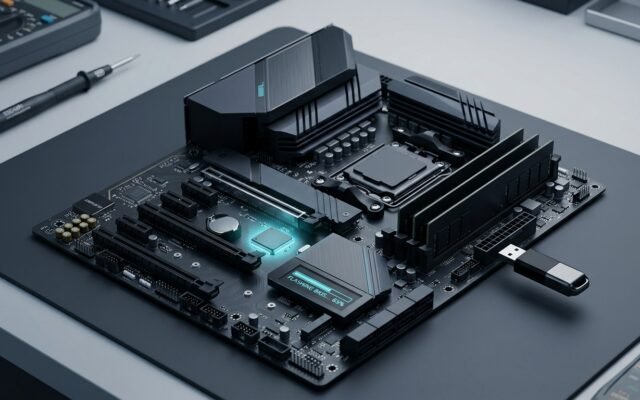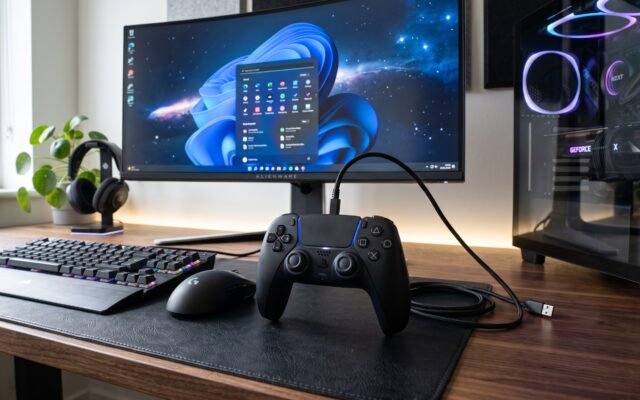


Graphics problems, game crashes, screen flickering, and unexpected performance drops can sometimes be caused by an outdated or incompatible graphics driver. Learning how to update GPU drivers can help you resolve these issues, improve compatibility with new games and applications, and keep your graphics hardware working correctly.
This guide explains how to identify your graphics card and update NVIDIA, AMD Radeon, and Intel graphics drivers on Windows 11 and Windows 10. You’ll also learn how to verify a successful installation and troubleshoot common driver problems safely.
Best AM4 CPU for Gaming in 2026 Best Picks
Quick Answer: How to Update GPU Drivers
To update GPU drivers, identify your graphics card in Windows Device Manager, visit the official NVIDIA, AMD, or Intel support website, and download a driver compatible with your GPU and operating system. Run the installer, follow the instructions, restart your computer if required, and check the installed driver version to confirm the update.
The 6 basic steps
- Open Device Manager and expand Display adapters.
- Identify your graphics card model and Windows version.
- Visit your GPU manufacturer’s official driver website.
- Download the driver that matches your hardware and operating system.
- Run the installer and follow the on-screen instructions.
- Restart your PC if required and verify the installed driver version.
What Are GPU Drivers and Why Should You Update Them?
A graphics processing unit (GPU) is the hardware responsible for rendering images, videos, games, and other visual content. A GPU driver is software that allows Windows and applications to communicate with that hardware.
Without a suitable graphics driver, your computer may not use the GPU’s full capabilities. You might experience display problems, application errors, limited graphics features, or reduced gaming performance.
Updating your graphics driver can help with:
- Game compatibility: New drivers may include optimizations or fixes for recently released games.
- System stability: Driver updates can resolve bugs that cause crashes, freezes, or visual glitches.
- Software support: Certain graphics applications and features require compatible drivers.
- Security: Some driver releases address vulnerabilities.
- Graphics functionality: Updates may introduce improvements or support for specific hardware and features.
However, installing the latest driver does not guarantee higher frames per second (FPS). Results depend on your GPU, game, processor, settings, and the changes included in the particular driver release.
Before You Update Your GPU Drivers
A little preparation can help prevent installation errors.
Before downloading anything, check the following:
- Identify your GPU: Determine its exact model and manufacturer.
- Check your Windows version: Find out whether you use Windows 11 or Windows 10.
- Check your current driver: Record the installed version so you can compare it after installation.
- Choose a compatible package: Match the driver to your graphics hardware and supported operating system.
- Save your work: Close games, video editors, and other demanding applications.
- Prepare for recovery: Consider creating a Windows restore point before making a significant driver change.
- Check your PC manufacturer’s website: Laptop and prebuilt-PC users may need customized drivers.
Remember that integrated graphics are built into a processor or system-on-chip, while a dedicated GPU is a separate graphics processor. A laptop may contain both, so check which device needs updating.
How to Check Which GPU You Have
There are three straightforward ways to identify your graphics hardware.
Method 1: Use Device Manager
- Right-click the Windows Start button.
- Select Device Manager.
- Expand Display adapters.
- Read the names of the listed graphics devices.
- To check the current driver, right-click the GPU and select Properties.
- Open the Driver tab and note the driver version and date.
If two graphics devices appear, your PC probably has both integrated and dedicated graphics.
Method 2: Use Task Manager
- Press Ctrl + Shift + Esc to open Task Manager.
- Select Performance.
- Choose GPU 0, GPU 1, or another listed GPU.
- Check the graphics model shown in the panel.
This method is useful for identifying graphics hardware and checking its activity. The exact information displayed depends on your hardware and Windows version.
Method 3: Use DirectX Diagnostic Tool
- Press Windows + R.
- Type
dxdiagand press Enter. - Wait for the diagnostic tool to collect system information.
- Open the Display or Render tab, depending on your configuration.
- Look for the graphics device name and driver details.
If Windows shows Microsoft Basic Display Adapter, it may be using a generic display driver rather than the full driver for your graphics hardware. Check your computer’s specifications or manufacturer’s support page to identify the correct GPU before downloading a replacement driver.
How to Update GPU Drivers on Windows 11 and Windows 10
Windows Update is a convenient starting point because it can provide graphics drivers selected for your device. However, it may not offer every driver release available from the GPU manufacturer.
Update GPU drivers in Windows 11
- Open Start → Settings.
- Select Windows Update.
- Click Check for updates.
- Open Advanced options → Optional updates, when available.
- Expand Driver updates.
- Select a suitable graphics driver and click Download & install.
- Restart your PC if requested.
Menu names and available options can vary between Windows builds and devices.
Update graphics drivers in Windows 10
- Open Start → Settings.
- Select Update & Security → Windows Update.
- Click Check for updates.
- Look for View optional updates or the corresponding optional-driver section, if available.
- Select the relevant display driver and install it.
- Restart your computer if required.
Important: Windows 10 reached the end of ordinary support on October 14, 2025. In 2026, eligible users may have access to Extended Security Updates, but Windows 10 no longer receives its usual free security and quality updates. Consider moving to a supported operating system.
If Windows Update doesn’t provide the driver you need, check the official support resources for your GPU or computer manufacturer.
How to Update NVIDIA GPU Drivers
NVIDIA provides graphics drivers for compatible GeForce and other supported products. You can use the official driver website or supported NVIDIA software.
Steps to update NVIDIA drivers manually
- Identify your NVIDIA GPU model through Device Manager.
- Visit the official NVIDIA driver download page.
- Select your product series, exact GPU model, and compatible operating system.
- Choose the appropriate driver type and review the available release information.
- Download the recommended driver package.
- Run the downloaded installer and follow its instructions.
- Restart your computer if prompted.
- Return to Device Manager and check the installed driver version.
You can also use the official NVIDIA drivers page and NVIDIA’s supported application for automatic driver notifications and updates.
Game Ready vs. Studio drivers
NVIDIA offers two familiar driver options for many supported GeForce GPUs:
- Game Ready drivers: Generally suited to gamers who want support and optimizations for new releases, updates, and downloadable content.
- Studio drivers: Designed for creators working with supported creative applications, including video editing, animation, photography, and design.
Choose based on your primary workload and the requirements of your applications. NVIDIA describes the intended uses of these driver types on its official resources.
Should you perform a clean installation?
A clean installation may help when persistent driver problems remain after a standard update. However, most users can begin with the normal installation process. A clean installation is not necessary for every driver update.
How to Update AMD Radeon GPU Drivers
AMD provides compatible graphics drivers and AMD Software: Adrenalin Edition for supported Radeon products.
Steps to update AMD graphics drivers
- Identify your exact AMD Radeon GPU model.
- Visit the official AMD drivers and support page.
- Find your graphics product and select its compatible driver.
- Alternatively, use AMD’s official automatic detection tool when supported.
- Download the appropriate driver package.
- Run the installer and follow the instructions.
- Restart your computer if required.
- Check Device Manager or AMD Software to confirm the installed version.
AMD Software: Adrenalin Edition can provide driver information and update options for supported hardware. Available features and installation choices depend on the product. Consult the AMD Software Help Center if the installation fails.
How to Update Intel Graphics Drivers
Intel supplies graphics drivers for supported integrated graphics products, Intel Arc graphics cards, and other compatible devices.
Steps to update Intel graphics drivers
- Open Device Manager and identify your Intel graphics product.
- Check your laptop or computer manufacturer’s support page for a recommended driver.
- Visit Intel’s official Driver & Support Assistant page.
- Install and run Intel Driver & Support Assistant if your device is supported.
- Review the available graphics driver updates.
- Download and install the compatible package.
- Restart your computer if required.
- Check the driver version in Device Manager.
You can also search for your graphics model in the Intel Download Center.
Laptop users should check the computer manufacturer’s recommended driver first. Some manufacturers customize graphics drivers for their specific systems. Intel’s generic driver can be a useful alternative, but an installation may affect device-specific compatibility or customizations.
How to Update GPU Drivers on a Laptop
Updating laptop graphics drivers requires extra care because many laptops use hybrid graphics.
For example, your laptop might use Intel integrated graphics for everyday tasks and an NVIDIA or AMD GPU for demanding games. These devices can have separate drivers.
Follow these recommendations:
- Check Display adapters to identify every graphics device.
- Visit your laptop manufacturer’s official support website.
- Search by the exact laptop model or serial-model identifier requested by the manufacturer.
- Check which graphics drivers are available for your Windows version.
- Install the recommended driver for the appropriate device.
- Restart if prompted and verify the installation.
Generic drivers from NVIDIA, AMD, or Intel may also be suitable, depending on the model. If a generic driver causes compatibility problems, consider returning to the laptop manufacturer’s recommended package.
How to Verify That Your GPU Driver Updated Successfully
After installation, verify that Windows recognizes the GPU and the expected driver version.
- Open Device Manager → Display adapters.
- Right-click your GPU and select Properties.
- Open the Driver tab.
- Compare the displayed driver version with the version you installed.
- Check the device status and look for warning symbols.
- Open the relevant NVIDIA, AMD, or Intel software to confirm the update when applicable.
A successful installation does not require a benchmark test. If the GPU appears correctly, there are no new device errors, and your applications work normally, further testing is optional.
GPU Driver Update Methods Compared
| Method | Best for | Main consideration |
|---|---|---|
| Windows Update | Users who want to check Windows-provided driver updates | May not offer every vendor release |
| Official GPU website | Users who know their exact graphics model | Correct model and OS selection is essential |
| Official GPU software | Users with supported NVIDIA, AMD, or Intel products | Features and availability vary |
| Computer manufacturer’s website | Laptop and prebuilt-PC users | Drivers may include device-specific customizations |
| Device Manager | Basic driver updates, reinstallations, and rollback | Automatic search may not find the newest vendor driver |
For most users, start with Windows Update or the computer manufacturer’s support page. If you need a particular supported release, check the official GPU manufacturer’s website.
Common GPU Driver Update Problems and How to Fix Them
A graphics driver installation can fail for several reasons, including an incorrect download, unsupported hardware, or an existing driver conflict. Work through the following checks before trying advanced removal tools.
1. GPU driver installation fails
Confirm that the package matches your graphics card and Windows version. Download it again from the official manufacturer if necessary, close demanding applications, and restart your PC.
If the installer displays an error code, check the manufacturer’s support documentation for that specific message.
2. The wrong driver was downloaded
Stop the installation if the package identifies an incompatible GPU or operating system.
Return to the official support page, confirm the exact hardware model, and select a compatible package. Don’t force an incompatible driver onto the device.
3. Windows cannot detect the graphics card
Open Device Manager and check Display adapters and other devices for warning symbols.
Restart the computer and check the manufacturer’s driver page. If the device continues to appear as Microsoft Basic Display Adapter, verify the hardware model and reinstall the appropriate supported driver.
Persistent detection problems may indicate a hardware, firmware, or operating-system issue rather than a driver-version problem alone.
4. The screen flickers after an update
Restart Windows if it is responsive. Check the manufacturer’s release notes and confirm the installed driver version.
If the flickering began immediately after the update, consider rolling back to the previous working version using Device Manager.
5. Games crash or perform worse after updating
First, restart the PC and test the affected game again. Check for game updates and known driver issues.
If the new driver appears responsible, return to a previously stable version. Remember that poor performance can also result from overheating, application settings, or other hardware and software issues.
6. Your PC shows a black screen
If the problem begins during installation, give Windows time to finish before forcing a shutdown. You can also try Windows + Ctrl + Shift + B, which attempts to reset the graphics driver.
If the screen remains black, recovery steps depend on the computer and severity of the problem. Windows Recovery Environment, Safe Mode, or the manufacturer’s support service may be needed. Avoid repeatedly interrupting system recovery or an installation that is still progressing.
7. Windows reinstalls a different driver
Check the installed version after Windows Update runs. Windows may deliver a different compatible driver than the one you installed manually.
If the change causes a problem, check the manufacturer’s recommended package and seek guidance from Microsoft or your computer manufacturer before attempting to block or override driver updates.
8. No newer driver is available for an older GPU
Some older graphics cards no longer receive regular driver releases. In this situation, use the latest compatible version officially available for your hardware and operating system.
Don’t assume that a driver intended for a newer model will work with your card.
9. A laptop driver causes compatibility problems
Return to the laptop manufacturer’s support page and check for a device-specific graphics driver. Some systems rely on manufacturer-specific customizations that may not be included in a generic package.
If necessary, use Device Manager’s rollback option to restore a previously working driver.
When should you use Display Driver Uninstaller?
Display Driver Uninstaller (DDU) and similar removal utilities are advanced troubleshooting options, not standard steps for every update.
Consider a dedicated removal utility only when normal installation, reinstallation, or rollback fails to resolve a persistent driver problem. Obtain it from its legitimate publisher and follow the instructions carefully.
Should You Always Install the Latest GPU Driver?
No. Updating regularly can be helpful, but installing every release immediately is not necessary for every user.
Consider updating when:
- A game or application requires a newer compatible driver.
- You experience graphics errors or crashes.
- The manufacturer addresses a relevant security issue.
- Release notes identify a fix for your specific problem.
- You need a supported graphics feature or compatibility improvement.
If your system works reliably, your software is supported, and a new update offers no relevant benefit, keeping the existing driver may be reasonable.
Before installing an update, read the release notes and compatibility information. The newest release is not automatically the fastest or most stable option for every GPU.
Frequently Asked Questions About How to Update GPU Drivers
1. How do I update GPU drivers in Windows 11?
Open Settings, navigate to Windows Update, and check for available updates. Look under Advanced options and Optional updates for graphics driver updates. Alternatively, download a compatible driver from the official NVIDIA, AMD, Intel, or computer manufacturer’s support website.
2. How do I update GPU drivers in Windows 10?
Go to Settings, select Update & Security, and open Windows Update. Check for updates and look for optional driver updates when available. You can also use the official GPU manufacturer’s website. Remember that ordinary Windows 10 support ended on October 14, 2025.
3. How do I update NVIDIA graphics drivers?
Visit NVIDIA’s official driver download page, select your exact graphics card and compatible operating system, and download the appropriate driver. Run the installer, follow the instructions, restart if prompted, and check the installed version in Device Manager or NVIDIA software.
4. How do I update AMD GPU drivers?
Use AMD’s official drivers and support page to identify your Radeon graphics product and download its compatible driver. You can also use AMD Software: Adrenalin Edition or the supported automatic detection tool. Follow the installation instructions and verify the driver version after restarting if needed.
5. How do I update Intel graphics drivers?
Check your computer manufacturer’s support page first, particularly if you use a laptop. You can then use Intel Driver & Support Assistant or search the Intel Download Center for a compatible package. Install the driver and confirm the resulting version in Device Manager.
6. How can I check whether my GPU drivers are outdated?
Open Device Manager, expand Display adapters, right-click your graphics card, and open Properties → Driver. Note the version and date, then compare them with compatible releases on the official manufacturer website. A newer version is not automatically necessary if your existing driver works correctly.
7. Can I update GPU drivers without third-party software?
Yes. You can use Windows Update, Device Manager, or the official GPU manufacturer’s website. NVIDIA, AMD, and Intel also provide their own supported applications and update utilities. Avoid unfamiliar driver-updater programs that promise automatic fixes without clearly identifying their source or compatibility.
8. Do GPU driver updates improve FPS?
Sometimes. A driver can improve performance in particular games or fix issues that reduce frame rates. However, results depend on your hardware, software, and settings. Some updates produce little or no difference, and others may introduce compatibility issues, so review release notes before installing.
9. Should I uninstall old GPU drivers before updating?
Usually, no. A standard compatible driver installation is the best starting point. Removing existing drivers first may be helpful when persistent errors or conflicts occur, but unnecessary removal adds complexity. Use an official installer and follow the manufacturer’s instructions for your specific device.
10. What should I do if a GPU driver update causes problems?
Restart your PC and check the driver version and any error messages. If the problem started immediately after the update, open Device Manager, select your GPU’s Properties, and look for Roll Back Driver under the Driver tab. If rollback is unavailable, obtain a previously working compatible release from an official source.
11. How often should I update my graphics drivers?
There is no fixed schedule that suits every computer. Review driver updates when you encounter a problem, install a new game, need an application fix, or see a relevant security or compatibility update. If your system is stable, check release notes rather than installing every update automatically.
12. Is it safe to download GPU drivers from third-party websites?
The safest approach is to download drivers directly from NVIDIA, AMD, Intel, or your computer manufacturer’s official support website. Unofficial mirrors and unknown driver-updater programs can supply incorrect or unwanted software. Verify the site address and choose the package intended for your hardware.
Final Verdict
Learning how to update GPU drivers is an important part of maintaining a Windows computer. The safest approach is to identify your exact graphics card, choose a compatible driver from an official source, follow the installation instructions, and verify that Windows recognizes the updated device.
Start with Windows Update or your computer manufacturer’s support page. If you need a particular release, consult NVIDIA, AMD, or Intel directly. Should a new driver cause problems, check the error message and consider returning to a previously working version rather than repeatedly reinstalling different packages.
For more practical computer maintenance and troubleshooting advice, explore the other PC and technology guides on InfoVerseDaily.com.