
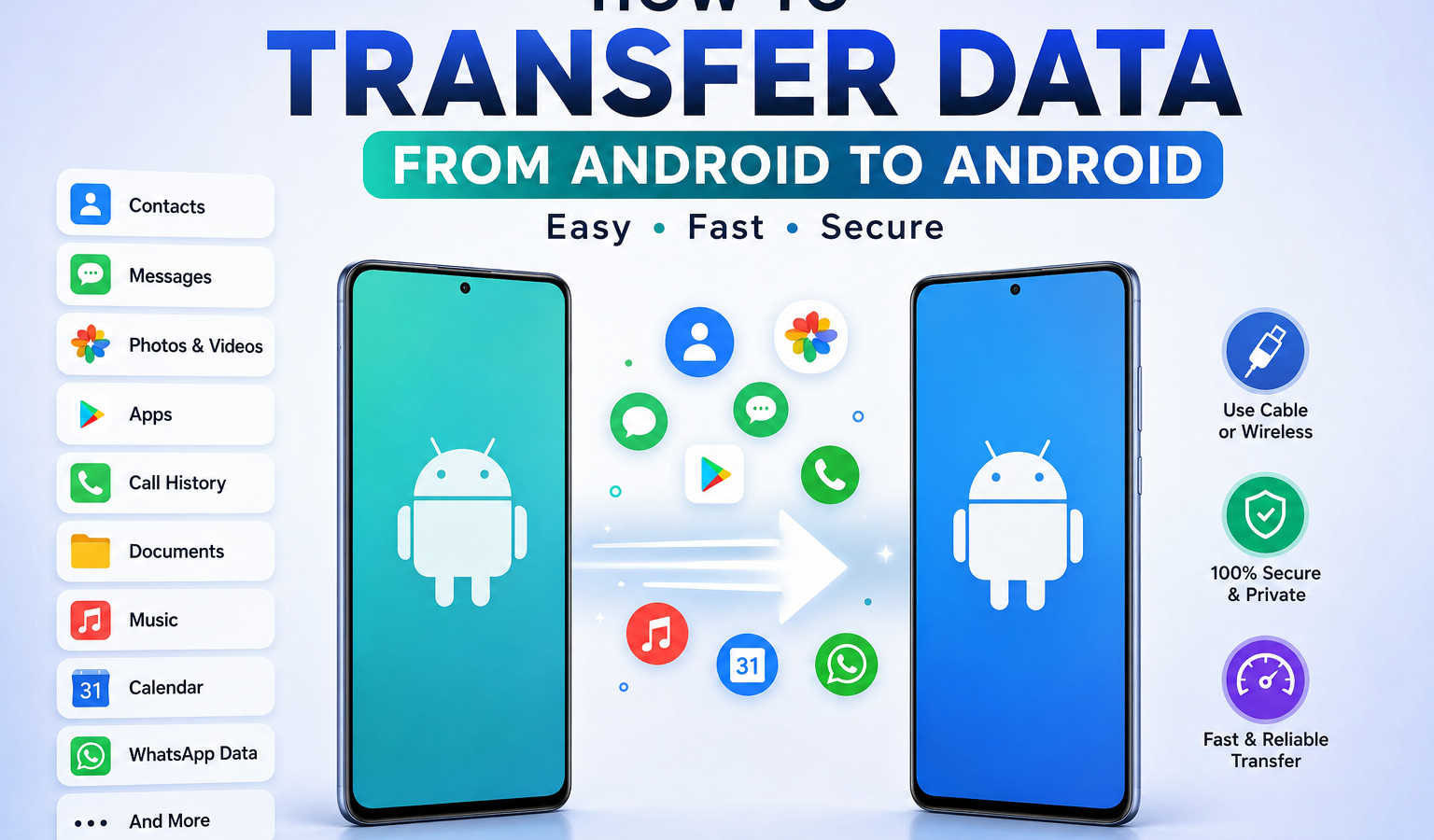
Moving to a new Android phone should not mean losing your contacts, photos, messages, apps, or other important files. Fortunately, modern Android phones offer several ways to make an Android to Android data transfer, including the built-in setup process, a USB cable, wireless transfer, Google backup, and manufacturer tools such as Samsung Smart Switch. The exact options can vary by Android version, phone manufacturer, and the type of data you are moving.
Quick Answer: How to Transfer Data From Android to Android
The easiest way to transfer data from Android to Android is to use the built-in data-copy option during setup of your new phone. Connect the old and new phones with a compatible USB cable when possible, or use the wireless option when available. You can then select the apps and data you want to copy and follow the on-screen instructions.
For Samsung Galaxy phones, Samsung Smart Switch provides another convenient option for moving contacts, photos, videos, messages, settings, and other supported content from an old Android phone.
What Data Can You Transfer From Android to Android?
When you move data to a new Android phone, you may be able to transfer much more than just photos and contacts.
Commonly supported data can include:
- Contacts
- Photos
- Videos
- Text messages
- Call history
- Apps
- Documents and files
- Music
- Calendar information
- Some device settings
- Wi-Fi information
- Supported WhatsApp data
However, there is no universal list that applies identically to every Android phone. Android version, manufacturer, transfer method, app support, and whether data is synced to an account can all affect what gets transferred. Google notes that the setup process can copy apps and data, while Samsung explains that Smart Switch support can differ depending on the connected devices.
Some account-based information does not need to be copied manually. For example, contacts already synchronized with your Google Account can appear automatically after you sign in on the new device.
How to Transfer Data From Android to Android During Phone Setup
For most people, the phone’s built-in setup process is the best starting point.
Step 1: Turn on your new Android phone
Start your new phone and follow the initial setup screens.
You will normally be asked to connect to Wi-Fi, add or verify your mobile service, and sign in with your Google Account.
Step 2: Choose the option to copy apps and data
During setup, look for an option such as Copy apps & data, Copy data, or a similar message.
Google’s Android setup process allows you to choose data from an existing device and follow the prompts to copy it.
Step 3: Connect the phones
Depending on the devices, you may be able to connect them with a USB cable or transfer data wirelessly.
A wired connection is particularly useful when you have a large amount of data to move.
Step 4: Confirm your old phone
You may need to unlock the old phone and enter its PIN, password, or pattern.
This helps confirm that you are authorized to transfer the information.
Step 5: Select what you want to transfer
Review the available data and select the items you want on the new phone.
Depending on your devices, this can include apps, contacts, messages, photos, videos, and other supported data.
Step 6: Let the transfer finish
Keep both phones powered on and close together when using a wireless method.
Do not erase or reset your old phone just because the initial transfer appears finished. First, verify that your important data is actually available on the new device.
Method 1: Transfer Android Data Using a USB Cable
A USB cable is often the best choice when you want a direct and dependable way to transfer files from one Android phone to another.
How to transfer Android data with a cable
- Turn on the new Android phone.
- Start the setup process.
- Choose to copy apps and data from your old device.
- Connect the phones with a compatible USB cable.
- Unlock the old phone if prompted.
- Follow the instructions shown on the new phone.
- Select the data you want to transfer.
- Start the transfer and wait for it to finish.
A wired connection can be especially helpful when moving a large photo library, videos, documents, and other large files.
When is a cable better?
Choose a cable when:
- You have a lot of data.
- Wireless transfer is failing.
- You want a direct connection between the phones.
- Your Wi-Fi connection is unreliable.
- You want to reduce transfer time for large files.
Samsung specifically recommends a wired connection for large transfers because it can be relatively faster.
Method 2: Transfer Data From Android to Android Wirelessly
You do not always need a cable to transfer data from Android to Android.
Many newer Android devices support wireless migration during setup. Your phones establish a connection and copy supported information without requiring a physical data cable. Google’s Android setup guidance includes wireless copying options on supported devices.
How wireless Android data transfer works
- Turn on the new phone.
- Begin the setup process.
- Select the option to copy apps and data.
- Keep the old phone nearby.
- Follow the wireless connection instructions.
- Approve the connection on the old phone.
- Choose the data you want to move.
- Leave the phones alone until the transfer completes.
Wireless transfer is convenient because you do not need a special cable, but it can be less practical for very large transfers or when the connection becomes unstable.
Samsung wireless transfer
Samsung Galaxy phones can use Smart Switch to move data wirelessly from another Android phone. Samsung’s current instructions use Send data on the old phone and Receive data on the new Galaxy device, with wireless selected as the connection method.
Method 3: Transfer Android Data Using Google Backup
Google backup is another useful way to move data to a new Android phone, especially when direct phone-to-phone transfer is unavailable or fails.
During setup, sign in with the same Google Account used on your old phone and follow the prompts to restore your available backup. Android setup lets you choose a backup and select apps and data to restore.
Google backup is useful when:
- Your old phone is unavailable.
- Direct transfer is not working.
- You want an additional backup before switching phones.
- Your important data is already synchronized with your Google Account.
Keep in mind that a backup restore and a direct phone-to-phone transfer are not necessarily identical. The amount and type of information restored can depend on your device, Android version, backup status, and individual apps.
Method 4: Transfer Photos and Videos From Android to Android
Photos and videos are often the largest part of a phone migration.
There are several ways to transfer photos and videos from Android to Android.
Option 1: Use the built-in phone transfer
During the new phone’s setup, select your photos and videos as part of the data migration.
This is usually the simplest option when setting up a new device.
Option 2: Use a manufacturer transfer tool
Samsung Smart Switch, for example, can transfer photos and videos from supported Android devices to a Galaxy phone.
Option 3: Use cloud storage or synced photos
If your pictures are already synchronized with a supported cloud service, install the same app on the new phone and sign in to the same account.
The advantage is that you may not need to manually copy every picture.
Option 4: Copy files manually
For a smaller group of pictures, you can use a computer, USB storage device, or another supported file-transfer method.
Manual copying takes more effort, but it gives you control over exactly which folders and files you move.
Method 5: Transfer Contacts From Android to Android
If you need to transfer contacts from Android to Android, your Google Account can make the process much easier.
Using Google synchronization
If your contacts are already stored in your Google Account, signing in to the same account on the new phone can make those contacts available automatically.
This is one reason it is worth checking your contact synchronization before switching phones.
What if contacts are stored on the phone or SIM?
Contacts saved locally or on a SIM card may require a separate import or transfer step.
Check your old phone’s Contacts app and determine where your contacts are stored before wiping the device.
Quick tip
After the transfer, open your new phone’s Contacts app and search for several important people. Do not assume every contact transferred until you verify them.
Method 6: Transfer WhatsApp Data From Android to Android
WhatsApp deserves special attention because your normal phone migration does not always mean your WhatsApp chats are ready immediately.
WhatsApp currently supports transferring an account and chat history when moving to a new phone. Its Android help instructions say that when you have both phones and an internet connection, you can install WhatsApp on the new phone, verify your number, and use the old phone to scan the QR code shown on the new device.
WhatsApp direct transfer
A typical process is:
- Install WhatsApp on the new Android phone.
- Enter and verify your phone number.
- Connect to Wi-Fi when prompted.
- Use the old phone to scan the QR code shown on the new phone.
- Start the transfer.
- Keep the app open and follow the prompts until the transfer is complete.
- Confirm that your chats are available on the new phone.
WhatsApp also supports restoring chat history from an existing Google Account backup. The phone number used for the backup and restoration needs to match, and the new device must have enough storage for the backup.
Important WhatsApp warning
Do not delete WhatsApp data, uninstall the app, or reset the old phone until you have confirmed that your conversations and important media are available on the new device.
If you are changing your phone number too, WhatsApp recommends changing the number on the old device before transferring the account. Simply registering the new number on the new phone can cause you to lose access to the old chat history.
Always check WhatsApp’s current instructions before starting the migration because its setup screens and supported transfer options can change.
Can You Transfer Apps From Android to Android?
Yes, supported Android setup tools can copy or reinstall many apps when moving to a new phone. However, transferring an app is not always the same as transferring all of that app’s data and settings.
Some apps store information locally, while others keep important information in your online account.
For example, an app may install successfully on your new phone but still require you to:
- Sign in again.
- Verify your phone number.
- Download offline files again.
- Restore an app-specific backup.
- Reconfigure certain settings.
That is why you should open your important apps after the migration instead of assuming everything is identical.
Android-to-Android Transfer Methods Compared
| Method | Cable Required? | Internet Required? | Best For | Ease of Use | Limitations |
|---|---|---|---|---|---|
| Built-in Android setup | No/Optional | Usually Wi-Fi is needed for setup and account services | Most new-phone migrations | Easy | Available options vary |
| USB cable | Yes | Not necessarily for direct copying | Large transfers | Easy | Requires compatible cable/adapter |
| Wireless transfer | No | Depends on method | Convenient phone-to-phone migration | Easy | Can be slower or fail with connection problems |
| Google backup | No | Yes | Restoring supported backup data | Easy | Does not always reproduce everything exactly |
| Samsung Smart Switch | No/Optional | Not always | Moving to Samsung Galaxy | Easy | Designed primarily for Galaxy as the receiving device |
Samsung states that Smart Switch can transfer data to Galaxy devices using wireless, USB cable, and supported external-storage methods, while transferable content can vary by connected device and software.
How Long Does It Take to Transfer Data From Android to Android?
There is no single transfer time that applies to every phone.
The time required depends on:
- Amount of data
- Number of files
- Size of videos and photos
- Wireless connection quality
- Cable and USB performance
- Phone processing speed
- Available storage
- Number of apps and other data
A phone with a few gigabytes of data may finish relatively quickly, while a device filled with videos and large app data can take much longer.
For a large migration, avoid starting the transfer when you need the new phone immediately.
What to Do If Android Data Transfer Is Not Working
If your Android-to-Android transfer gets stuck, disappears, or fails, try these practical fixes.
1. Charge both phones
A low battery can interrupt a long transfer.
2. Restart both devices
A simple restart can resolve temporary connection problems.
3. Check Wi-Fi and Bluetooth
Wireless migration depends on the connection method supported by the phones. Make sure wireless features are enabled when required.
4. Install available updates
Updating Android and relevant transfer apps may resolve compatibility problems.
5. Check storage on the new phone
Your new phone needs enough free storage for the data you are trying to copy.
6. Try a USB cable
When wireless transfer repeatedly fails, a cable can be a more reliable alternative.
7. Check compatibility
The transfer options available can vary between Android versions and manufacturers. Samsung, for example, notes that supported content and connection options vary according to device and software.
8. Use Google backup
When a direct phone-to-phone migration is unsuccessful, restoring supported information from your Google backup can be a useful fallback.
Important Things to Check Before Transferring Android Data
Before you start an Android data transfer, spend a few minutes preparing both phones.
Transfer checklist
- Charge both phones.
- Connect to a reliable Wi-Fi network.
- Back up important files.
- Check available storage on the new phone.
- Keep both phones nearby.
- Update important apps.
- Confirm your Google Account.
- Make sure important contacts are synchronized.
- Check your WhatsApp backup or transfer option.
- Have your passwords and account recovery information available.
- Do not erase the old phone until everything important has been verified.
That final point is especially important.
Your old phone is your safety net. If a photo, message, contact, document, or app setting is missing after the transfer, you can still retrieve it.
Frequently Asked Questions
How do I transfer everything from my old Android to my new Android?
The easiest approach is to use the new phone’s built-in setup process and choose the option to copy apps and data from your old device. A cable or wireless connection may be available depending on your phones.
What is the fastest way to transfer data from Android to Android?
For a large migration, a compatible USB cable is often a strong choice because it provides a direct connection. Wireless transfer is more convenient when you do not have the right cable.
Can I transfer Android data without Wi-Fi?
Some direct transfers can work without relying on your home Wi-Fi network, particularly when using a cable or a device-to-device wireless connection. However, internet access may still be required for account sign-in, backups, app downloads, or other parts of the setup process.
Can I transfer Android data using a USB cable?
Yes. Many Android phones support transferring apps and other data during setup with a compatible USB cable. The exact experience depends on the devices and Android software.
Can I transfer photos from Android to Android?
Yes. You can transfer photos using the built-in migration process, supported manufacturer tools, cloud synchronization, or manual file copying.
Can I transfer contacts from Android to Android?
Yes. Contacts synchronized with your Google Account can appear on the new phone after you sign in. Contacts stored locally or on a SIM card may require a separate import process.
Will my apps transfer to my new Android phone?
Many supported apps can be copied or reinstalled during the Android setup process, but app data and settings can vary by app. Some applications require you to sign in or restore their own data separately.
Will WhatsApp chats transfer to my new Android phone?
Yes, supported WhatsApp transfers and Google Account backups can be used to move or restore WhatsApp chat history on a new Android device. Follow the current WhatsApp instructions and verify the chats before wiping the old phone.
Does Android-to-Android transfer delete data from the old phone?
A normal copy or transfer process does not mean you should automatically erase the old phone. In fact, Samsung states that Smart Switch does not remove content from the previous device.
What should I do if my new Android does not detect my old phone?
Make sure both devices are unlocked, charged, updated, and compatible with the selected transfer method. Restarting both phones and switching from wireless transfer to a cable can also help. If direct transfer still fails, consider restoring supported data from a Google backup.
Final Checklist
After completing the migration, verify these items before resetting the old phone:
☑ Contacts are present
☑ Photos and videos are available
☑ Important messages are present
☑ WhatsApp chats have been restored or transferred
☑ Essential apps are installed
☑ Important accounts are signed in
☑ Documents and downloads are available
☑ Calendar information is present
☑ Two-factor authentication apps and codes are accessible
☑ Banking and other important apps work correctly
☑ Your new phone has enough storage
☑ The old phone has not been erased prematurely
Conclusion
Learning how to transfer data from Android to Android does not have to be complicated. For most people, the best option is to use the data-copy feature built into the new Android phone during setup. A USB cable is a great choice for large transfers, while wireless transfer is convenient when you want to avoid cables. Google backup provides another recovery option, and Samsung users can take advantage of Smart Switch.
The most important habit is simple: do not erase your old phone until you have checked your new one carefully. Contacts, photos, WhatsApp chats, app data, and account information may not all move in exactly the same way, so a final verification can save you from losing something important.