
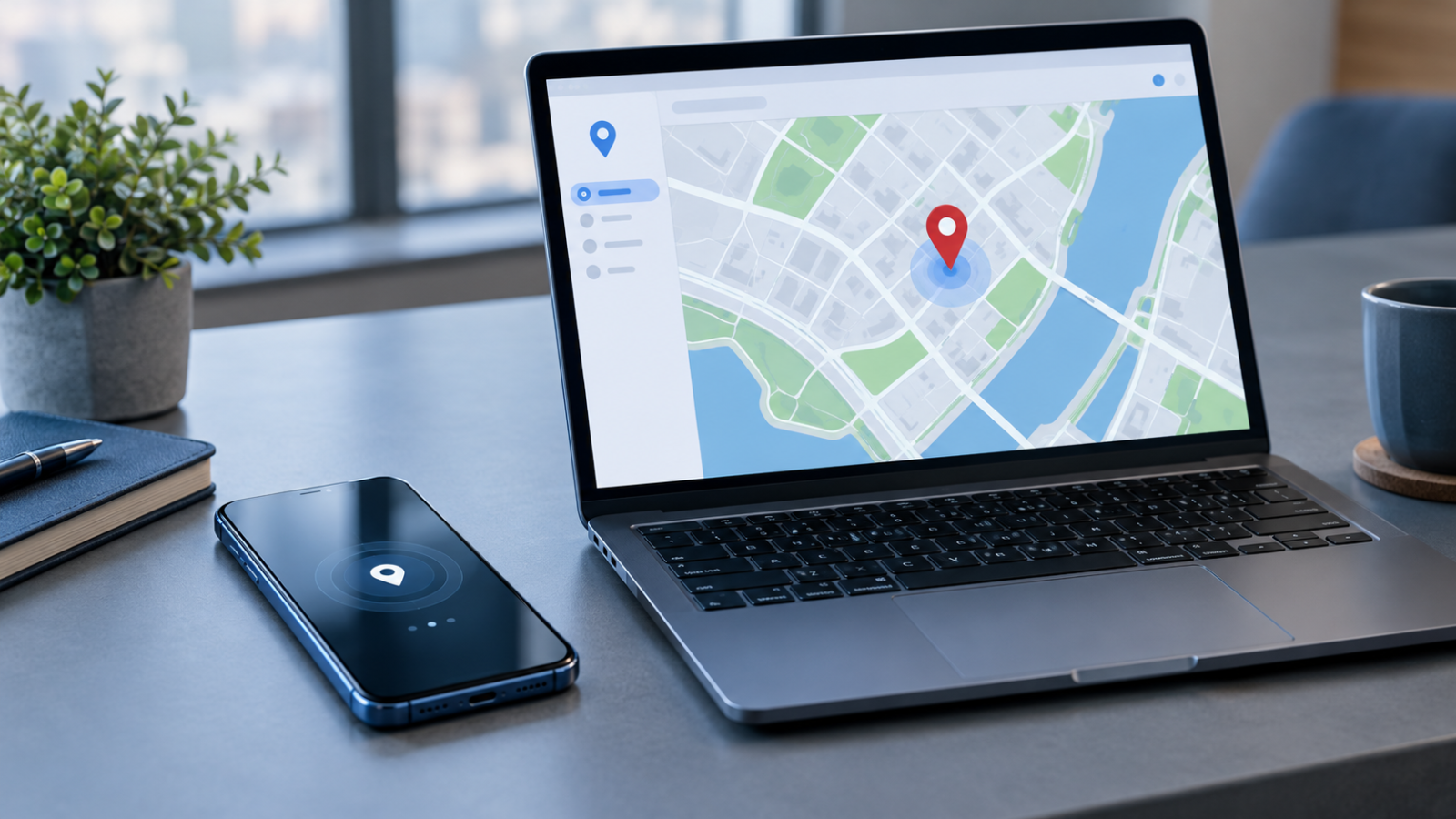
Losing your iPhone can be stressful, especially when it contains personal photos, important messages, banking apps, and private information. Fortunately, Find My iPhone can help you locate a missing device, play a sound, secure your information, and take steps to recover your phone.
Apple provides these features through its Find My service, which is available through the Find My app on supported Apple devices and through its official Find Devices website. However, the available options depend on your iPhone’s settings, model, connectivity, and whether Find My was enabled before the device went missing.
This guide explains how to use Find My iPhone, locate a missing phone from another device, check its last known location, and protect your data if your iPhone is lost or stolen.
Quick answer: To find a lost iPhone, visit iCloud.com/find or open the Find My app on another supported Apple device. Sign in using the appropriate Apple Account, select your missing iPhone, and use the available options to view its location, play a sound, activate Lost Mode, or erase it when necessary.
What Is Find My iPhone?
Find My iPhone is the familiar name for Apple’s device-location feature. Apple now provides device tracking and recovery features through the Find My app and the Find Devices service on iCloud.com.
The service helps you locate supported Apple devices on a map and take action when a device goes missing.
Depending on your device and its settings, Find My can help you:
- View your iPhone’s available location.
- Play a sound to help find a phone nearby.
- Get directions to its reported location.
- Mark the device as lost and protect your information.
- Remotely erase the device when necessary.
- Check a last known location when a current location is unavailable.
Find My can also help with other supported Apple devices and compatible accessories. Not every feature is available for every device.
For official instructions, see Apple’s guide to finding a lost iPhone or iPad.
How Does Find My iPhone Work?
Find My uses your device’s configuration and available location information to help you locate it. Depending on the circumstances, your iPhone may report its current location through an internet connection or be located through Apple’s Find My network when supported.
The Find My network uses nearby Apple devices to help report the approximate location of compatible devices. Apple describes this process as anonymous and encrypted.
There are several factors that affect whether you can find your phone:
Find My settings: The relevant features generally need to have been enabled before the phone was lost.
Internet connectivity: A connected iPhone may be able to report its current location.
Battery status: A depleted battery may prevent the phone from reporting a new location.
Device compatibility: Offline and powered-off locating capabilities vary by device model and configuration.
Location information: A map can show a current or previously reported location. An older location does not necessarily indicate where the phone is now.
These limitations are important because Find My is a recovery tool, not a guarantee that every missing iPhone can be located.
How to Set Up Find My iPhone Before Losing Your Phone
The best time to configure Find My is before you need it.
Follow these steps on your iPhone:
- Open Settings.
- Tap your name at the top of the screen.
- Select Find My.
- Tap Find My iPhone.
- Turn on Find My iPhone.
- Enable Find My network if available.
- Turn on Send Last Location if available.
The Find My network can help locate a compatible device when it is disconnected from Wi-Fi or cellular service. Send Last Location allows the iPhone to attempt to send its location to Apple when its battery charge becomes critically low.
Enabling these options in advance improves your recovery options if the device goes missing.
For the latest setup instructions, consult Apple’s official Find My setup guide.
How to Find My iPhone Using Another iPhone or iPad
If you have access to another trusted Apple device, the Find My app is a convenient way to locate your missing phone.
Follow these steps:
- Open the Find My app on the other Apple device.
- Select the Devices tab.
- Find and select your missing iPhone.
- Review the location information displayed on the map.
- Select Directions if you need help navigating to the reported location.
- Choose Play Sound when the phone is nearby and the option is available.
- Activate the available lost-device protection options if you cannot immediately recover it.
If you participate in Family Sharing, a family member may be able to help locate your device when the relevant sharing arrangements are configured.
If the phone does not appear, confirm that Find My was enabled before it went missing and check whether the device is associated with the correct Apple Account.
Do not sign out of another person’s Apple Account or change their settings. Use the appropriate official sign-in or family-sharing procedure.
How to Find My iPhone From a Computer or Browser
You do not necessarily need another iPhone to locate your missing device. You can use a computer, tablet, or supported phone browser.
Step-by-step instructions
- Open a browser and visit https://www.icloud.com/find.
- Sign in using the Apple Account associated with your missing iPhone.
- Open All Devices and select your iPhone.
- Review the available location information.
- Choose an available action, such as playing a sound, marking the device as lost, or erasing it.
Apple’s Find Devices service has a sign-in procedure intended to let you access the service even when the missing device is your usual trusted device. If prompted for a verification code, follow Apple’s instructions and select the Find Devices option where provided.
If you’re borrowing a phone or using a shared computer, do not save your password and sign out when finished.
Important: Use Apple’s official website rather than an unfamiliar website that asks for your Apple Account password, verification code, or device passcode to track a phone.
Can You Find an iPhone That Is Offline?
Yes, sometimes. However, an offline iPhone cannot always provide a new location.
If Find My network was enabled and the device is compatible, nearby Apple devices may help report its approximate location even when it is not directly connected to Wi-Fi or cellular service.
Apple also explains that the Find My app may show a device’s last known location for up to seven days when a current location is unavailable. On iCloud.com, device locations are shown for up to 24 hours under the documented conditions.
These are different viewing and availability limits, not a promise that every missing phone will remain locatable for that entire period.
If your iPhone shows Offline, check the location and its status. The phone might be switched off, out of network coverage, or unable to communicate with Apple’s services.
Keep checking the official Find My service for updated information, but do not assume that an offline device’s displayed location is current.
Can You Find a Dead or Switched-Off iPhone?
Possibly, depending on your iPhone model and settings.
Apple says that on supported iPhones, enabling Find My network can allow the device to be located for up to 24 hours after it has been turned off, or up to five hours when it is in power reserve mode.
These capabilities are limited to supported devices and circumstances. They should not be interpreted as a guarantee that every powered-off iPhone can be found.
If no location appears, check whether Find My network was enabled before the device went missing. If the device has stopped reporting its location, use the available last known location and take steps to secure it.
How to Play a Sound on a Lost iPhone
If you think your phone is in your home, office, vehicle, or another nearby location, playing a sound may help you find it.
- Open Find My on another Apple device or visit iCloud.com/find.
- Select the missing iPhone.
- Choose Play Sound if the option is available.
- Listen for the alert and check nearby places where the phone could be hidden.
This is particularly useful when the phone has slipped behind furniture or been left in a bag.
If the iPhone is offline, the sound will not be heard immediately. Check its status and try again when appropriate.
How to Use Lost Mode to Protect Your iPhone
If you cannot find your iPhone quickly, marking it as lost is an important security step.
Lost Mode locks the device and, on compatible devices, suspends payment cards and passes used with Apple Pay. You may also be able to display a message to help someone return a misplaced phone.
To activate it:
- Open Find My or visit iCloud.com/find.
- Select your missing iPhone.
- Choose the available Mark as Lost or Lost Mode option.
- Follow the on-screen instructions.
- Confirm the action.
If you simply misplaced your phone, a suitable contact message may help an honest finder return it. If you believe the iPhone was stolen, Apple advises against adding contact information that a thief could exploit for social engineering.
Lost Mode is not the same as remotely erasing your device. It is usually a sensible initial protective step while you attempt to recover the phone.
Learn more in Apple’s official lost-device guidance.
What to Do If Find My iPhone Is Not Working
The following table covers common problems and practical next steps.
| Problem | What to check or do |
|---|---|
| iPhone does not appear | Confirm the correct Apple Account and whether Find My was enabled before the loss. |
| No location appears | Check the device’s status and whether it has recently reported a location. |
| Location seems outdated | Treat it as a last known location, not a guaranteed live position. |
| iPhone is offline | Check the Find My network settings previously enabled and monitor for updates. |
| Phone battery has died | Use the last known location if available and activate lost-device protections. |
| Play Sound does not work | Check whether the device is online and retry when appropriate. |
| You cannot sign in | Use Apple’s official account-recovery process. Never share verification codes with strangers. |
| Location seems inaccurate | Consider whether the reported position is approximate or was recorded before the device moved. |
What if Find My was not enabled before the phone was lost?
Apple states that if Find My was not enabled before the device went missing, the iPhone will not appear in Find My and you cannot use the service to mark it as lost or remotely erase it.
In that situation, contact your mobile carrier, report the loss or theft to local authorities where appropriate, and secure your Apple Account and other important accounts.
Avoid websites that promise guaranteed tracking through your phone number or request your account credentials.
What to Do If Your iPhone Is Stolen
If you believe someone has stolen your iPhone, prioritize your personal safety and data security.
1. Mark the iPhone as lost
Use Find My or iCloud.com/find as soon as possible. This helps lock the device and activate available protections.
2. Contact your mobile carrier
Report the missing phone and ask the carrier about suspending the SIM or cellular service and protecting your mobile account.
3. Report the theft
Contact local law enforcement when appropriate. Keep the device’s serial number, purchase records, and other useful information if available.
4. Review your account security
Check your Apple Account information, trusted devices, recovery details, and other security settings. Change your password if you suspect that your account has been compromised.
Also consider contacting your bank if you have reason to believe your financial information or payment accounts are at risk.
5. Consider remote erasure carefully
If recovery seems unlikely and your personal information is at risk, remote erasure may be appropriate. However, erasing a device cannot be undone, so try available recovery options first.
If an offline device is erased remotely, the erasure begins when it reconnects.
Do not remove the stolen iPhone from Find My, even after remotely erasing it. Removing it can disable Activation Lock and make it easier for another person to activate the device. If you have an eligible theft-and-loss insurance claim, follow Apple’s guidance before making account or device changes.
6. Watch out for fake recovery messages
Apple warns that it will not contact you to announce that your missing iPhone has been found. Ignore suspicious messages and calls asking you to provide your passcode, password, or verification code.
Never confront a suspected thief or travel to a potentially dangerous location based on a map result. Contact law enforcement instead.
Is Find My iPhone Safe and Private?
Find My is designed to help users locate and protect their own devices and devices they are authorized to manage.
The Find My network uses nearby Apple devices to help locate supported offline devices and accessories. Apple describes the network’s location-reporting process as anonymous and encrypted.
You should still protect your Apple Account credentials, use a strong device passcode, and review your location-sharing settings.
Only track devices you own or have appropriate permission to manage. Do not use another person’s account or device to bypass their privacy choices.
For more information, read Apple’s documentation about Activation Lock.
Find My iPhone: Frequently Asked Questions
1. How do I use Find My iPhone?
Open Find My on another supported Apple device or visit iCloud.com/find. Sign in appropriately, select your missing iPhone, and use the available location and protection options.
2. Can I find my iPhone from another phone?
Yes, you can use the official Find Devices website in a compatible phone browser. The Find My app on another Apple device is another option.
3. Can I find my iPhone from a computer?
Yes. Visit iCloud.com/find, sign in to the relevant Apple Account, and select your missing device.
4. Does Find My iPhone work when the phone is offline?
It can in some circumstances when Find My network was enabled and the device is supported. Otherwise, you may only see a previously reported location or no location at all.
5. Can I locate an iPhone that is switched off?
Some supported models may remain locatable for a limited period after shutdown when the necessary Find My settings are enabled. This does not apply to every iPhone or situation.
6. What if I did not enable Find My before losing my iPhone?
You generally cannot use Find My to locate, remotely erase, or mark that device as lost. Contact your carrier, report the loss where appropriate, and secure your accounts.
Final Thoughts
Find My iPhone is a valuable tool for locating a missing Apple device and protecting your personal information. The most important preparation is to enable Find My, Find My network, and Send Last Location where supported before your iPhone goes missing.
If your phone is lost, check its available location through Apple’s official services, play a sound when appropriate, and activate Lost Mode if you cannot recover it quickly.
If you suspect theft, prioritize your safety, secure your accounts, and contact your carrier and local authorities where appropriate. Remember that a displayed location may be outdated and that not every iPhone can be located in every circumstance.
Taking these steps in advance can improve your options when a device goes missing and help you respond more confidently.