
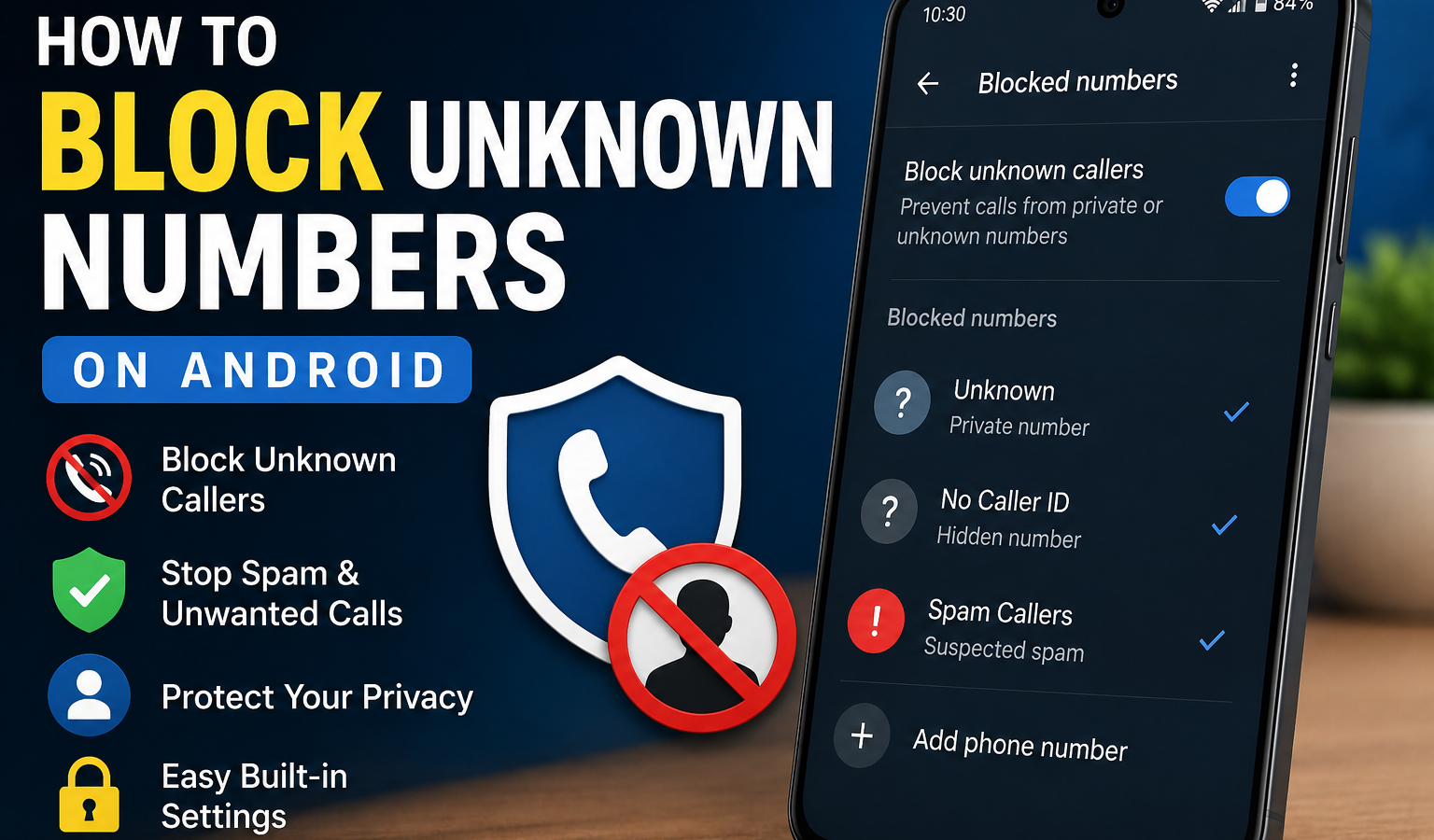
Getting repeated calls from numbers you don’t recognize can quickly become annoying. Some are ordinary businesses or people you simply haven’t saved, while others may be spam, telemarketing, robocalls, or suspicious calls. Fortunately, learning how to block unknown numbers on Android is usually straightforward.
The exact steps depend on your Android phone, Phone app, manufacturer, and software version. Google’s Phone app includes an option to block calls from private or unidentified numbers, while Samsung Galaxy phones provide a similar setting under Block numbers.
One important detail is that unknown does not always mean “a number that isn’t in my contacts.” On Google’s Phone app, turning on the Unknown option blocks private or unidentified callers but still allows calls from numbers that appear normally even if they are not saved in your contacts.
In this guide, you’ll learn how to block unknown callers, private numbers, spam calls, and specific unwanted numbers on Android, plus what to do if blocking isn’t working.
What Does “Unknown Number” Mean on Android?
An unknown number can mean different things depending on the phone and calling app.
In everyday conversation, people often call any number they don’t recognize an “unknown number.” Technically, however, there is an important difference between an unsaved number and a private or unidentified number.
Unsaved number
An unsaved number displays a normal phone number, but you haven’t saved it in your contacts.
For example:
+1 555 123 4567
Your phone can identify the number, but you don’t know who is calling.
Private or hidden number
A private caller may hide their caller ID. Instead of displaying a normal number, your phone may show something such as:
- Private number
- No Caller ID
- Unknown
- Hidden number
- Withheld number
Google’s Phone app describes its Unknown blocking option as blocking calls from private or unidentified numbers. It does not block every normal number that happens to be missing from your contacts.
This distinction is important before you enable blocking because you could otherwise expect Android to reject every unfamiliar number.
How to Block Unknown Numbers on Android
To block unknown or private callers on Android, open your Phone app, go to Settings, find Blocked numbers or a similar call-blocking option, and enable the setting for unknown or private callers if your device supports it.
The exact menu can differ between Android phones.
Method 1: Block Unknown Numbers in Google Phone
If your Android phone uses the Phone by Google app, try these steps:
- Open the Phone app.
- Tap the three-dot More menu.
- Select Settings.
- Tap Blocked numbers.
- Turn on Unknown.
Google says this setting blocks calls from private or unidentified numbers. Normal calls from numbers that aren’t saved in your contacts can still come through.
This is one of the simplest ways to block unknown callers on Android when the Google Phone app is installed.
Method 2: Block a Number From Your Call History
If you know the exact number you want to stop, you don’t need to block all unknown callers.
- Open the Phone app.
- Open Recent calls or Call history.
- Tap the unwanted number.
- Select Block or Block/report spam.
- Confirm the action.
Google’s official Phone app instructions support blocking a number directly from recent calls.
This method is useful when you want to stop one persistent caller without accidentally blocking legitimate callers whose numbers aren’t saved.
How to Block Unknown Numbers on Samsung
On supported Samsung Galaxy phones, open the Phone app, go to Settings > Block numbers, and enable the option to block calls from unknown numbers.
Samsung’s current support instructions use the following general process:
- Open the Phone app.
- Tap the three-dot menu.
- Select Settings.
- Tap Block numbers.
- Turn on Block calls from unknown numbers.
You can also add individual numbers to the blocked list.
Samsung notes that available options can vary by device model and software version.
How to Block a Specific Number on Samsung
To block a particular caller:
- Open Phone.
- Tap Recents.
- Select the number.
- Open its details.
- Choose Block.
You can also manually add a number through Phone > Settings > Block numbers. Samsung provides both options for managing unwanted callers.
How to Block Private or Hidden Numbers on Android
If calls are appearing as Private, No Caller ID, or Hidden, your phone may have a specific setting for these callers.
On supported devices, look under:
Phone app → Settings → Blocked numbers
Then look for an option such as:
- Block unknown numbers
- Block private numbers
- Block unknown/private numbers
- Block calls from unknown numbers
The wording varies by manufacturer.
Samsung, for example, provides a Block unknown/hidden numbers option on supported devices.
This is different from manually blocking a visible telephone number.
Can Android Block Numbers That Are Not in Your Contacts?
Not necessarily. This is one of the most misunderstood Android call-blocking features.
If a number appears normally on your screen but isn’t saved in your contacts, Android may still allow the call even when its Unknown blocking option is enabled.
Google specifically states that its Phone app’s Unknown setting blocks private or unidentified numbers but still allows calls from phone numbers that aren’t stored in your contacts.
If your goal is to allow calls only from contacts, your phone may need a different feature, such as a call-screening, spam-filtering, Do Not Disturb, or contact-based calling option.
The availability of those features depends on your device and software.
How to Block Spam Calls on Android
Blocking unknown callers is not the only way to reduce unwanted calls.
If you’re receiving spam from many different numbers, manually blocking each number can become frustrating. In that situation, look for your phone’s built-in spam protection or caller-identification features.
Some Android phones can identify suspected spam calls and provide options to filter or block them.
Google Phone Spam Protection
If your Phone app supports spam protection, check:
Phone → Settings → Caller ID & spam
The exact options can vary depending on your device and Phone app version.
You can also manually choose Block/report spam when dealing with an unwanted number. Google supports this option when blocking calls from recent call history.
Samsung Spam Call Protection
Supported Samsung Galaxy phones may provide spam and scam call protection in their call settings.
Samsung’s support documentation describes options for blocking suspected spam and scam calls on supported Galaxy devices.
Because these features can change between models and software versions, check the current settings on your specific Galaxy phone.
How to Block Unknown Calls Without an App
You can often block private or unidentified calls without installing a third-party app.
Your first step should always be checking the Phone app that came with your device.
Try:
- Open Phone.
- Open Settings.
- Look for Blocked numbers.
- Enable the available unknown/private caller option.
Google’s Phone app supports built-in blocking for private or unidentified numbers.
Samsung also provides built-in blocking options on supported Galaxy models.
Using the built-in feature can be simpler than installing another app, especially if your goal is only to stop private or hidden calls.
How to Block a Specific Number on Android
Sometimes you don’t want to block all unknown callers. You simply want to stop one annoying number.
In that case, use the number-blocking feature:
- Open the Phone app.
- Go to Recent calls.
- Find the unwanted number.
- Tap it or open its details.
- Select Block or Block/report spam.
- Confirm.
On Google Phone, blocked calls are automatically declined.
On Samsung Galaxy devices, you can also add a number manually through the Phone app’s Block numbers settings.
How to Stop Unknown Calls on Android
If you’re receiving too many unwanted calls, consider combining several methods instead of relying on one setting.
Use built-in number blocking
Block numbers that repeatedly contact you.
Enable spam protection
If your phone supports spam identification or filtering, turn it on.
Block private callers
If you never need calls from hidden numbers, use the private/unknown caller setting where available.
Avoid responding to suspicious calls
If a caller claims to represent a bank, government agency, delivery company, or another organization, don’t provide passwords, PINs, verification codes, or financial information during an unexpected call.
Instead, independently find the organization’s official contact information and call back through a trusted channel.
Keep your phone updated
Manufacturers regularly release software and security updates. Samsung, for example, recommends checking that device software and related apps are updated when troubleshooting call features.
How to Unblock Unknown Numbers on Android
If you accidentally blocked unknown callers and are missing legitimate calls, you can normally disable the setting.
Google Phone
- Open Phone.
- Tap the three-dot menu.
- Select Settings.
- Tap Blocked numbers.
- Turn off Unknown.
Google also provides an option to remove individual numbers from the blocked list.
Samsung Galaxy
- Open Phone.
- Tap the three-dot menu.
- Select Settings.
- Tap Block numbers.
- Turn off the unknown-number blocking option.
Samsung’s current instructions place the relevant controls under Phone → Settings → Block numbers on supported Galaxy devices.
What Happens When You Block an Unknown Number?
The behavior depends on the phone and calling app.
Generally, a blocked call will not ring normally on your phone. Google states that when you block a number, the phone automatically declines the call.
Some devices may handle blocked calls differently, including how voicemail or call history is treated.
For example, Google notes that when visual voicemail is enabled, blocked callers cannot leave voicemails through that feature.
If you need a specific behavior, check your phone manufacturer’s documentation.
What to Do If Android Is Not Blocking Unknown Numbers
If unwanted calls continue after enabling blocking, try these troubleshooting steps.
1. Check the Correct Setting
Make sure you enabled the setting for unknown/private callers, not just a manually blocked number.
2. Check the Phone App
Your device may use Google Phone, Samsung Phone, or another dialer. The available settings can be different.
3. Update Your Phone
Install available Android and manufacturer updates.
4. Update the Phone App
If you’re using Google Phone, check the Google Play Store for an available update.
5. Check Spam Protection
Unknown-number blocking and spam filtering are not always the same thing. Look for separate spam or caller-ID settings.
6. Check Your Carrier
Some mobile carriers provide their own spam-blocking services. If your phone’s built-in tools aren’t enough, check what call-protection features your carrier offers.
7. Restart the Phone
A simple restart can sometimes resolve temporary problems with calling features.
Should You Block All Unknown Numbers on Android?
It depends on how you use your phone.
Blocking private and unidentified calls can be useful if you receive frequent nuisance calls. However, it can also prevent legitimate callers who intentionally hide their caller ID from reaching you.
For example, you might miss a call from:
- A business using a private number
- An organization with restricted caller ID
- Someone whose carrier doesn’t transmit caller information correctly
- A person intentionally hiding their number
Samsung also warns that blocking unknown or withheld numbers can prevent legitimate callers who hide their numbers for valid reasons from reaching you.
If you regularly receive important calls from new people, consider blocking only known spam numbers instead of blocking every private caller.
Unknown Numbers vs Spam Numbers: What’s the Difference?
These terms are often used interchangeably, but they aren’t identical.
Unknown/private number: The caller’s identity or number isn’t displayed normally.
Unsaved number: A normal phone number appears, but you haven’t saved it.
Spam number: A caller or number suspected of making unwanted, deceptive, or nuisance calls.
A spam call can come from a normal-looking phone number. Likewise, a private caller isn’t automatically a spammer.
Understanding the difference helps you choose the right Android call-blocking feature.
Is Blocking Unknown Numbers on Android Safe?
Yes. Android’s built-in call-blocking features are generally a safe way to manage unwanted calls.
The main concern isn’t usually the blocking feature itself; it’s choosing the correct level of blocking.
If you use a third-party call-blocking application, review its permissions, privacy policy, developer reputation, and data practices before installing it.
For basic call blocking, start with the Phone app’s built-in settings whenever they provide what you need.
Also remember that blocking calls does not automatically make you immune to scams. A scammer may use different numbers, spoof caller ID, or contact you through messages and other communication channels.
Never share:
- One-time verification codes
- Banking passwords
- Card PINs
- Account passwords
- Recovery codes
- Sensitive personal information
with an unexpected caller.
Frequently Asked Questions
How do I block unknown numbers on Android?
Open the Phone app and go to Settings → Blocked numbers. On supported devices, enable the option for unknown or private callers. Menu names can vary by Android phone.
How do I block unknown callers on Android without an app?
Use your phone’s built-in Phone app. Google Phone provides an Unknown blocking option for private or unidentified callers, while Samsung Galaxy phones offer a similar option under Block numbers.
Can I block numbers that are not in my contacts?
Not necessarily with the standard Unknown setting. Google states that its Unknown option blocks private or unidentified numbers but still allows normal numbers that aren’t saved in your contacts.
How do I block private numbers on Android?
Open the Phone app, go to Settings → Blocked numbers, and look for an option to block unknown, private, hidden, or unidentified callers. The wording depends on your phone.
How do I block unknown numbers on Samsung?
Open Phone → three-dot menu → Settings → Block numbers, then enable Block calls from unknown numbers if the option is available on your Galaxy device.
Suggested Featured Snippet Answer
How do I block unknown numbers on Android?
To block unknown or private callers on Android, open the Phone app, go to Settings → Blocked numbers, and turn on the option for Unknown or unknown/private numbers. The exact wording varies by phone. On Google Phone, this blocks private or unidentified calls but does not block every normal number that isn’t saved in your contacts.
Internal Linking Suggestions
For stronger topical authority, add relevant internal links to related smartphone and Android articles.
1. Android Privacy Settings
Suggested anchor:
Android privacy settings you should know
Place it in the section about protecting your phone from unwanted callers.
2. Android Security Tips
Suggested anchor:
Android security tips
Place it in the safety section.
3. How to Lock Apps on Android
Suggested anchor:
how to lock apps on Android
This is highly relevant to the user’s broader smartphone privacy needs.
Place it in the security section.
4. How to Hide Apps on Android
Suggested anchor:
how to hide apps on Android
Place it near the discussion of privacy and unwanted access.
5. Smartphone Privacy Tips
Suggested anchor:
smartphone privacy tips
Place it near the conclusion.
Conclusion
Learning how to block unknown numbers on Android can make your phone quieter and easier to manage, especially when you’re dealing with repeated private, hidden, or unwanted calls.
The simplest approach is to start with your phone’s built-in Phone app. On Google Phone, you can go to Settings → Blocked numbers → Unknown to block private or unidentified callers. Remember that this does not automatically block every normal phone number that isn’t saved in your contacts.
Samsung Galaxy users can check Phone → Settings → Block numbers and enable the available option for unknown callers. Samsung also provides tools for blocking individual numbers and, on supported devices, filtering suspected spam and scam calls.
Before blocking every unknown caller, consider whether you might miss legitimate calls. For many people, combining built-in spam protection with manually blocking persistent unwanted numbers provides a better balance between privacy and accessibility.