
Have you ever played a video and heard almost nothing, even though your phone volume was turned all the way up? Or maybe your phone speaker sounds muffled, crackles during calls, or suddenly produces no sound at all.
The good news is that many speaker problems don’t require an expensive repair. Dust, lint, moisture, Bluetooth settings, software bugs, or a blocked speaker grille can all affect sound quality. Knowing how to fix phone speaker issues can save you time and help you avoid replacing parts that aren’t actually damaged.
In this guide, you’ll learn how to identify the cause, safely clean your speaker, fix common iPhone and Android audio problems, and know when it’s time to visit a repair shop.
Common Causes of Phone Speaker Problems
Before trying random fixes, it helps to understand what may be causing the problem. A phone speaker can stop working for several reasons, and the symptoms often provide useful clues.
Here are some common causes:
- Dust or lint buildup: Dirt can block the speaker grille and make sound quiet or muffled.
- Water or moisture: Even a small amount of moisture can affect speaker vibration and audio quality.
- Bluetooth connection: Your phone may be sending audio to wireless earbuds, a car system, or another device.
- Incorrect volume settings: Media, ringtone, call, and alarm volumes may be controlled separately.
- Software bugs: A recent app, update, or system error may interfere with audio.
- Case or screen protector interference: A poorly fitted accessory may cover a speaker opening.
- Physical damage: Drops can loosen internal speaker connections or damage the speaker itself.
- Hardware failure: Older speakers may wear out or fail after repeated exposure to dust, heat, or moisture.
A phone speaker not working issue doesn’t always mean the speaker is broken. Sometimes the fix takes less than five minutes.
How to Diagnose the Issue First
Before cleaning or resetting anything, test the speaker in a few different situations.
Try the following:
- Play a song or video.
- Make a phone call and switch to speakerphone.
- Play a ringtone or alarm.
- Test with wired or wireless headphones.
- Turn Bluetooth off and test again.
- Open another app to see whether the issue happens everywhere.
These tests can help you narrow down the cause.
For example:
- If videos are silent but calls work, the problem may be related to media settings or an app.
- If the phone rings but speakerphone produces no audio, the bottom speaker or audio system may be affected.
- If sound works through headphones but not through the phone, the issue may involve the speaker, audio routing, or Bluetooth.
- If audio is quiet and unclear, the speaker grille may be clogged.
I’ve seen phones that appeared to have a dead speaker, only for the sound to return after Bluetooth was turned off. The phone was still connected to a car system used the day before. Technology can be surprisingly good at hiding simple problems.
How to Fix Phone Speaker Problems: Step-by-Step
1. Clean the Speaker Grille Carefully
Dust, pocket lint, makeup, and tiny particles can build up inside the speaker openings. This is one of the most common causes of a phone speaker low volume problem.
To clean phone speaker openings safely:
- Turn off your phone.
- Remove the case.
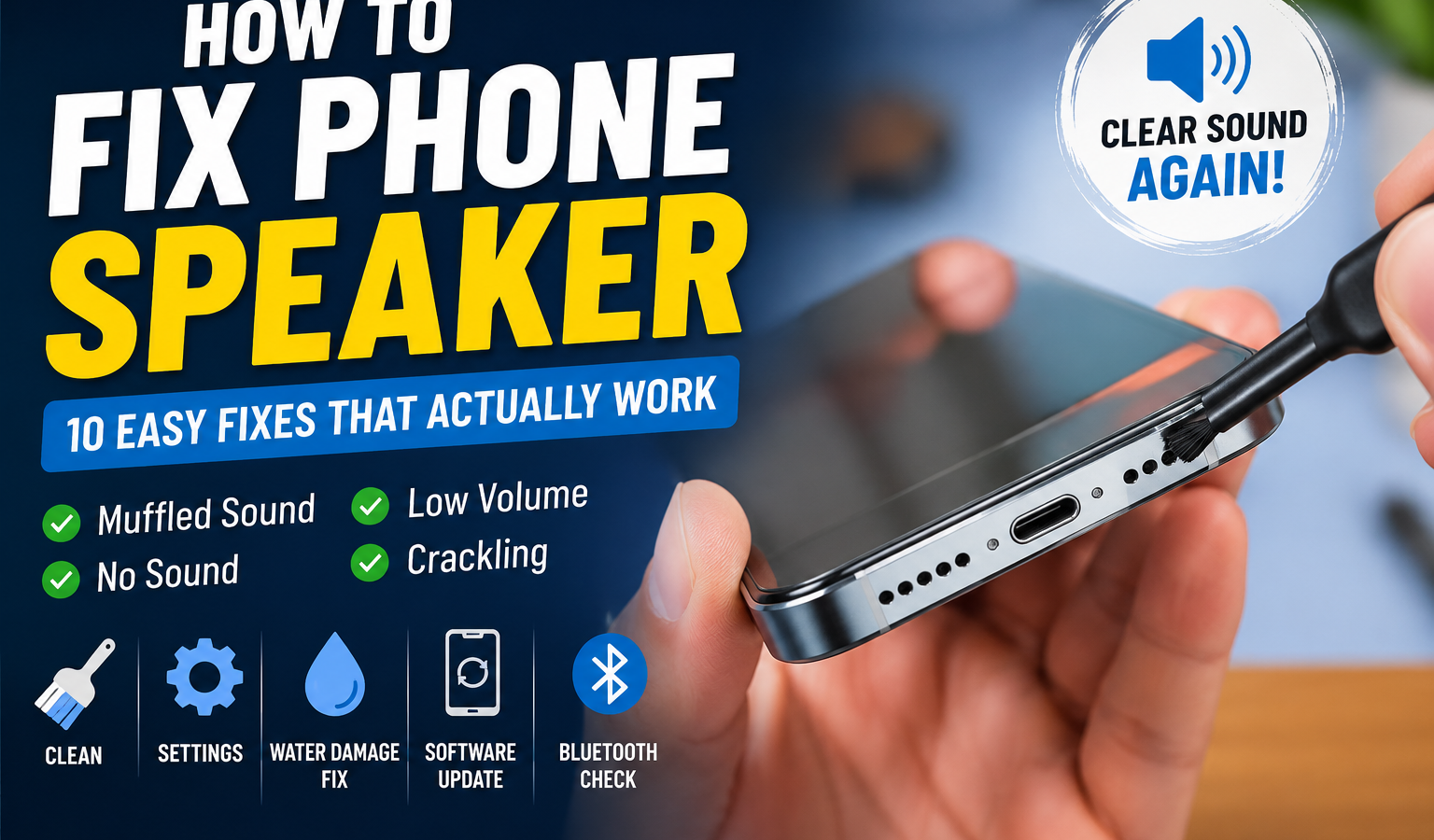
- Use a clean, dry, soft-bristled brush.
- Brush gently across the speaker grille.
- Hold the phone with the speaker facing downward so loose debris can fall out.
- Test the sound after cleaning.
A clean, dry toothbrush with very soft bristles may work, but avoid pressing hard. The speaker mesh is delicate.
Do not use:
- Pins, needles, or paper clips
- Sharp metal tools
- Excess water
- Compressed air at close range
- Glue, tape, or sticky liquids
Sharp tools can damage the protective mesh or push dirt deeper inside. For speaker port cleaning, gentle brushing is usually safer than aggressive scraping.
If you’re trying to fix a muffled phone speaker, cleaning the grille should be one of your first steps.
2. Restart Your Phone and Check Volume Settings
A restart can clear temporary software errors and restore normal audio behavior.
Turn your phone off, wait about 30 seconds, and turn it back on. Then test the speaker again.
Next, check all volume controls. Many phones have separate settings for:
- Media volume
- Ringtone volume
- Call volume
- Alarm volume
- Notification volume
Increase the media volume while a video or song is playing. This matters because pressing the volume button on the home screen may adjust the ringtone instead of media sound.
Also, check whether your phone is in:
- Silent mode
- Do Not Disturb mode
- Focus mode
- Bedtime mode
These settings usually don’t disable all speaker audio, but they can affect calls, notifications, and alerts.
3. Remove the Phone Case or Screen Protector
Some cases are poorly designed or slightly misaligned. They can partially cover the speaker grille and reduce sound.
Remove the case and test the audio again.
If your phone has a screen protector near the top earpiece, check whether it covers the small speaker opening. This is especially important when the sound is unclear during calls.
If sound improves after removing the case, clean the case and inspect its speaker cutouts. You may need a better-fitting replacement.
Internal linking suggestion: [link to: how to clean your phone safely]
4. Fix Water Damage Speaker Issues
If your speaker started sounding distorted after rain, a spill, or dropping the phone near water, moisture may be trapped around the speaker.
Common signs include:
- Crackling or buzzing
- Low volume
- Muffled sound
- Audio that changes as the phone moves
- Sound that improves slowly over time
For a basic phone water damage speaker fix, do this:
- Turn off the phone.
- Remove the case and disconnect all cables.
- Gently wipe the outside with a soft, dry cloth.
- Place the phone in a dry, well-ventilated area.
- Keep the speaker facing downward if possible.
- Allow it to dry naturally before charging.
Do not use a hair dryer or place the phone in an oven. High heat can damage the battery, display, seals, and internal components.
Avoid putting the phone in rice. Rice may not remove moisture effectively and can leave dust or particles inside ports.
If the phone was fully submerged, won’t turn on, becomes hot, or still has distorted audio after drying, contact a professional repair service. Water damage can affect internal components even when the phone appears normal.
Warranty disclaimer: Opening the phone or using unapproved repair methods may affect its warranty. Water damage may also be excluded from standard warranty coverage, so check your manufacturer’s terms before attempting internal repairs.
5. Update Your Phone and Check for Software Bugs
A software bug can sometimes cause a phone speaker no sound issue, especially after installing a new app or system update.
Check for updates:
On iPhone:
Go to:
Settings → General → Software Update
On Android:
The path may vary, but it’s usually similar to:
Settings → System → Software Update
Install any available update, restart the phone, and test the speaker.
If the issue started after installing a specific app:
- Close the app.
- Clear its cache on Android, if available.
- Update the app.
- Uninstall and reinstall it if necessary.
If only one app has no sound, the phone speaker itself may be working correctly.
For official troubleshooting, you can link to the relevant manufacturer support pages:
6. Reset Audio Settings and Disable Bluetooth
Bluetooth is a frequent cause of missing audio.
Your phone may still be connected to:
- Wireless earbuds
- A smartwatch
- A Bluetooth speaker
- A car audio system
- Another nearby device
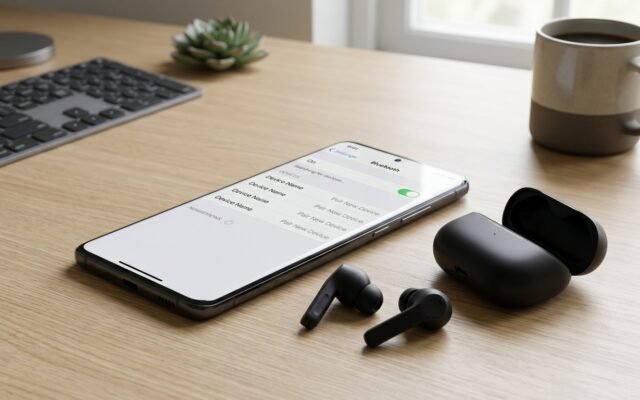
Turn Bluetooth off temporarily and play a video.
On iPhone:
Go to:
Settings → Bluetooth → Turn Bluetooth Off
On Android:
Go to:
Settings → Connected Devices → Bluetooth → Turn Bluetooth Off
You can also check the audio output controls while media is playing. Make sure the phone itself is selected as the output device.
If Bluetooth was the cause, disconnect or forget unused devices to prevent the problem from happening again.
For an Android speaker fix, you can also reset app preferences if audio problems continue. This may restore disabled system apps and default settings without deleting personal files.
The exact menu varies by phone brand, so check your device’s support documentation.
7. Check for Headphone Mode Problems
Sometimes a phone incorrectly thinks headphones are connected. This may happen after using wired headphones or after moisture enters the charging port.
Signs include:
- A headphone icon stays visible
- The phone speaker has no sound
- Audio only works through headphones
Try these steps:
- Disconnect any wired headphones.
- Restart the phone.
- Turn Bluetooth off.
- Check the charging or headphone port for visible lint.
- Clean the opening gently with a dry, non-metal tool designed for electronics.
Avoid inserting sharp objects into the port. If the headphone icon remains after restarting, a technician may need to inspect the port or audio circuitry.
8. Test the Speaker With Safe Audio
Play a familiar song, ringtone, or video at a moderate volume.
Listen for:
- Crackling
- Buzzing
- Distortion
- Uneven sound
- Very low volume
- Complete silence
If your phone speaker is crackling, reduce the volume and test again. Distortion that only happens at maximum volume may be caused by damaged audio files, app settings, or speaker wear.
If the crackling continues with different apps and audio files, the speaker may have physical damage or moisture inside it.
9. Reset All Settings
If the speaker problem continues after basic troubleshooting, resetting system settings may help.
This can restore default settings without necessarily deleting your photos or files, depending on the phone and reset option.
On many phones, you can find this under:
Settings → System → Reset Options
or:
Settings → General → Transfer or Reset Phone → Reset
Look for options such as:
- Reset all settings
- Reset network settings
- Reset app preferences
Read the description carefully before confirming. Some settings, saved Wi-Fi networks, Bluetooth connections, or preferences may be removed.
10. Factory Reset as a Last Resort
A factory reset erases your personal data and returns the phone to its original software state.
Only consider this if:
- The speaker problem started after a software issue
- Updates and settings resets didn’t help
- You’ve backed up important files
- You want to rule out a software cause before paying for repair
Before resetting:
- Back up photos, contacts, documents, and messages.
- Make sure you know your account passwords.
- Charge the phone.
- Follow the manufacturer’s official reset instructions.
After the reset, test the speaker before reinstalling all apps. If the speaker still produces no sound, the problem is more likely to be hardware-related.
When to See a Professional or Repair Shop
DIY fixes are useful, but they can’t repair every problem.
Visit a qualified repair technician if:
- The speaker stopped working after a hard drop
- The phone has serious water exposure
- Sound is completely absent after troubleshooting
- The speaker crackles in every app
- The phone becomes unusually hot
- You see corrosion in a port
- The speaker works only when the phone is pressed or moved
- The issue returns repeatedly
A technician can test the speaker module, internal connectors, charging assembly, and audio circuitry.
Ask for a diagnosis and repair estimate before approving the work. If the phone is old and the repair cost is high, compare the price with a replacement device.
Internal linking suggestion: [link to: signs it’s time to replace your smartphone]
How to Prevent Future Speaker Problems
A few simple habits can keep your phone speaker sounding clear.
- Clean the speaker grille gently every few weeks.
- Use a case with properly aligned speaker cutouts.
- Keep the phone away from water and steam.
- Avoid using maximum volume for long periods.
- Don’t place the phone speaker-down on dusty surfaces.
- Keep charging and speaker ports free from lint.
- Install software updates regularly.
- Avoid inserting sharp objects into speaker openings.
If you work in a dusty environment, consider using a protective case designed for your phone model.
FAQs
Why is my phone speaker not working?
Your phone speaker may be blocked by dust, connected to a Bluetooth device, affected by a software bug, exposed to moisture, or physically damaged. Start by checking volume, Bluetooth, and the speaker grille.
How do I fix a muffled phone speaker?
Turn off the phone and gently clean the speaker grille with a soft, dry brush. Remove the case, check for moisture, and test the sound again.
Why is my phone speaker volume so low?
Low volume is often caused by dirt blocking the speaker mesh, incorrect media volume, a case covering the grille, or moisture. Check each cause before assuming the speaker is damaged.
Can water damage a phone speaker permanently?
Yes. Water can damage the speaker, connectors, or internal audio components. Some speakers recover after drying, but severe exposure may require professional repair.
Why is my phone speaker crackling?
Crackling may be caused by moisture, debris, damaged speaker components, or software problems. Test several apps and audio files to determine whether the issue is system-wide.
How do I fix an iPhone speaker that isn’t working?
Check the volume, disable Bluetooth, remove the case, clean the speaker grille gently, restart the iPhone, and install any available iOS updates. If the issue continues, contact Apple Support or an authorized repair provider.
Conclusion
Most phone speaker problems are caused by simple issues such as dust, moisture, incorrect settings, Bluetooth connections, or temporary software bugs. Start with the safest fixes: clean the speaker grille gently, restart your phone, check the volume, remove the case, and turn off Bluetooth.
If you’re still wondering how to fix phone speaker problems after trying these steps, avoid opening the phone yourself unless you have proper repair experience. Internal components are small, delicate, and easy to damage.
When the speaker remains silent, crackles in every app, or fails after a drop or water exposure, a professional diagnosis is usually the safest next step. A quick inspection may be enough to restore clear sound without replacing the entire phone .
also learn: How to Check SSD Health