
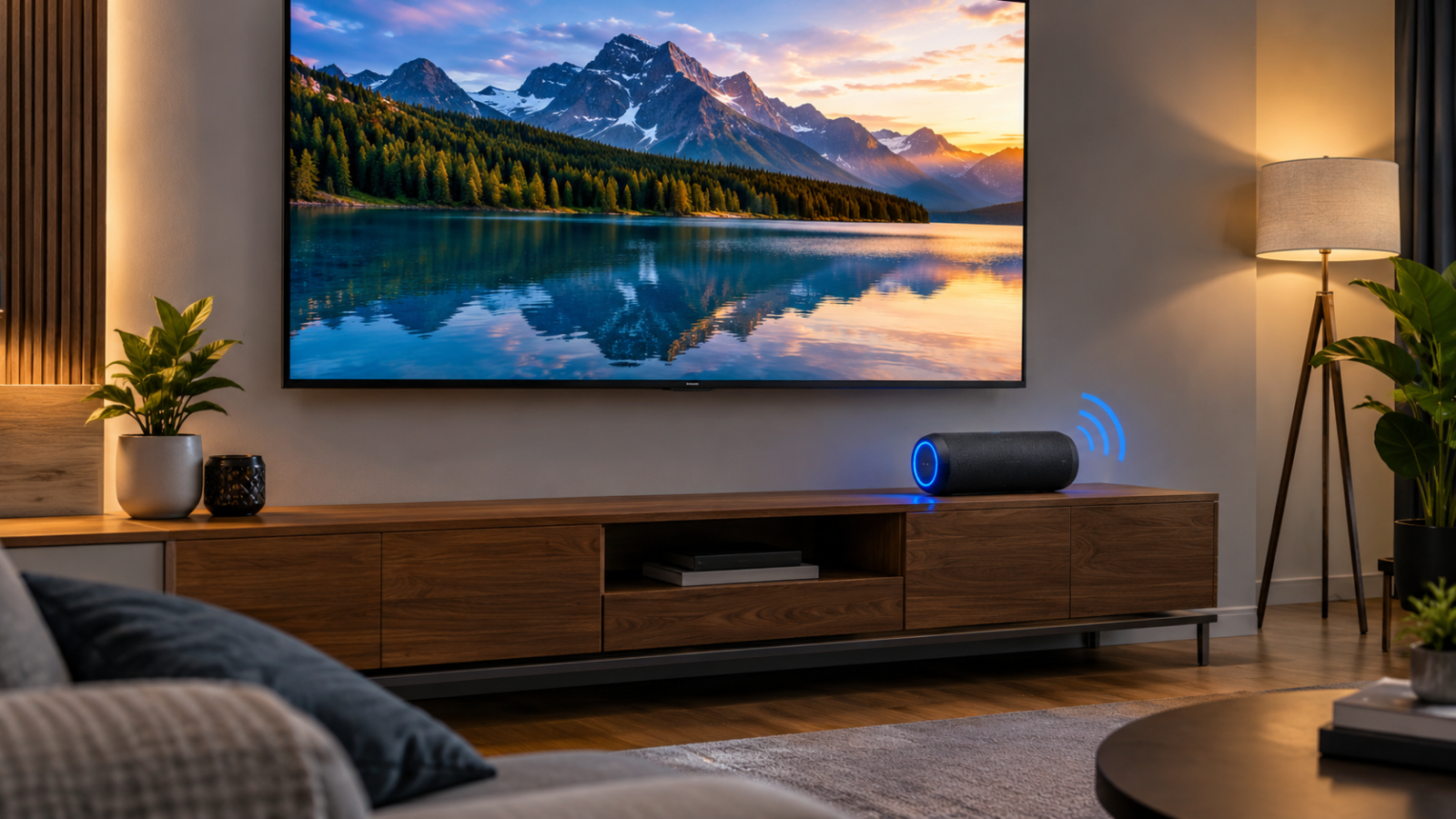
Are you tired of the flat, quiet audio coming from your television’s built-in speakers? Upgrading your sound is one of the easiest ways to improve your home theater experience.
You do not need an expensive soundbar or a complicated wired surround sound system to get great audio. If you have a portable wireless speaker lying around, you can use it right now. For anyone wondering exactly how to connect bluetooth speaker to tv, you are in the right place.
In this comprehensive guide for InfoVerseDaily.com, we will walk you through the entire setup process. We will also cover brand-specific instructions and troubleshoot common audio problems.
Can You Connect a Bluetooth Speaker to a TV?
Yes, you can easily connect a Bluetooth speaker to almost any modern smart TV. Most televisions manufactured in the last five to seven years include built-in Bluetooth transmitters specifically for wireless audio.
To check if your TV supports this feature, grab your remote and open the settings menu. Look for an “Audio,” “Sound,” or “Accessories” tab. If you see a “Bluetooth” or “Wireless Sound” option, your TV is ready to pair.
If you own an older model that lacks built-in wireless capabilities, do not worry. You can still create a Bluetooth speaker TV connection using a simple and inexpensive adapter, which we will explain later in this guide.
How to Connect Bluetooth Speaker to TV
Learning how to connect bluetooth speaker to tv is a straightforward process. While menus look slightly different depending on your television brand, the core steps remain exactly the same.
Here is the foolproof, step-by-step method to get your audio working.
Step 1: Turn On Your Bluetooth Speaker
First, power on your wireless speaker. You need to put it into “Pairing Mode” so your TV can discover it.
Most speakers have a dedicated Bluetooth button. Press and hold this button until the LED light starts flashing rapidly. A flashing light usually means the speaker is broadcasting its signal and looking for a device to connect with.
Step 2: Open Bluetooth Settings on Your TV
Grab your TV remote and press the “Settings” or “Home” button. Navigate to the TV’s main settings menu.
Look for a menu labeled Sound, Audio Output, or Remotes & Accessories. Inside this menu, find the Bluetooth settings.
Step 3: Search for Your Bluetooth Speaker
Select the option to “Add Device,” “Search for Devices,” or “Pair Accessory.” Your TV will now scan the room for available Bluetooth signals.
Keep your speaker close to the TV during this step to ensure a strong, uninterrupted connection.
Step 4: Select and Pair the Speaker
After a few seconds, the name of your Bluetooth speaker should appear on your TV screen. Use your remote to highlight your speaker’s name and press “Enter” or “OK.”
The TV will attempt to pair Bluetooth speaker with TV. Once successful, the flashing light on your speaker will turn solid, and your TV screen will say “Connected.”
Step 5: Test the Sound
Finally, play a video, movie, or music channel on your TV. The audio should now route directly through your wireless speaker.
If the sound is still coming from the TV, go back into your TV’s Sound Output menu and manually change the output from “TV Speakers” to “Bluetooth Audio.”
How to Connect Bluetooth Speaker to Different TV Brands
TV menus and Bluetooth support can vary widely by model and manufacturer. If you are struggling to find the right settings menu, here is a quick breakdown of how to connect bluetooth speaker to tv across the most popular brands.
Samsung TV
-
Go to Settings.
-
Select Sound.
-
Choose Sound Output.
-
Click on Bluetooth Speaker List and select your device.
LG TV
-
Open Settings (gear icon on the remote).
-
Select Sound.
-
Choose Sound Out.
-
Select Use Wireless Speaker, then click Bluetooth Device to search.
Sony TV
-
Press the Quick Settings or Home button.
-
Go to Settings > Remotes & Accessories.
-
Select Pair accessory to search for your speaker.
TCL TV
-
Open the home screen and go to Settings.
-
Select Remotes & Accessories.
-
Click Add accessory to scan for your Bluetooth speaker.
Hisense TV
-
Navigate to Settings.
-
Select Remotes & Accessories (or Network & Connectivity on older models).
-
Click Bluetooth and select your speaker from the available devices list.
Roku TV
-
Press Home on the Roku remote.
-
Go to Settings > Remotes & devices.
-
Select Pair wireless device or Bluetooth device.
Fire TV
-
Go to Settings on the Fire TV home screen.
-
Select Controllers & Bluetooth Devices.
-
Choose Other Bluetooth Devices, then click Add Bluetooth Devices.
Google TV / Android TV
-
Navigate to the gear icon for Settings.
-
Scroll down to Remotes & Accessories.
-
Select Pair remote or accessory and wait for your speaker to appear.
(Note: Exact menu paths may vary slightly depending on your TV’s specific year and software version.)
What to Do If Your TV Does Not Have Bluetooth
If you checked your settings and realized your television does not support wireless audio, you are not out of luck. Here are the best alternative ways to connect wireless speaker to TV.
Bluetooth Transmitter
A TV Bluetooth transmitter is the easiest fix. This is a small, inexpensive dongle that plugs into the back of your TV. It takes the audio signal and broadcasts it via Bluetooth to your wireless speaker. Simply plug it into the TV’s headphone jack or USB port, turn it on, and pair it with your speaker.
Optical Audio Connection
If your speaker has an optical input (common on soundbars and larger speakers), you can run a digital optical cable directly from the TV to the speaker. This provides high-quality, lag-free sound.
3.5mm Audio Connection
Also known as an AUX cable, the 3.5mm connection is the standard headphone jack. Just run a male-to-male AUX cable from the TV’s headphone port directly into the back of your portable speaker.
RCA Audio Connection
Older TVs use red and white RCA ports for audio. You can buy a cheap RCA-to-3.5mm adapter cable. Plug the red and white ends into the TV, and the 3.5mm end into your speaker.
HDMI ARC/eARC
If you are using a more advanced speaker or soundbar, look for an HDMI ARC (Audio Return Channel) port on your TV. Connecting an HDMI cable here provides the absolute best audio quality and allows you to control the speaker volume with your TV remote.
Bluetooth Speaker Connected but No Sound?
It is frustrating when your TV says “connected,” but the room is totally silent. If your Bluetooth speaker is not connecting to TV audio properly, try these quick troubleshooting steps.
-
TV still uses built-in speakers: Sometimes TVs do not switch audio sources automatically. Go to your TV’s Sound Settings and manually change the Audio Output to Bluetooth.
-
Speaker not appearing in Bluetooth search: Turn the speaker off and back on. Ensure it is actively in pairing mode (flashing light).
-
Bluetooth pairing failure: Restart both your TV and your speaker to clear their temporary memory caches, then try the pairing process again.
-
Speaker connected to another device: Your speaker might automatically connect to your smartphone or laptop if they are nearby. Turn off Bluetooth on your phone temporarily to force the speaker to connect to the TV.
-
Low volume: The volume on the TV and the volume on the speaker often operate independently over Bluetooth. Turn up the volume buttons physically on the speaker itself, and then turn up the TV remote volume.
How to Fix Bluetooth Audio Delay on TV
Bluetooth audio delay (latency) happens when the audio you hear does not match the lips of the people speaking on screen. This is a common issue with wireless audio on TV.
To fix this, check your TV’s audio settings for a feature called A/V Sync, Lip Sync, or Audio Delay. This slider allows you to manually delay the video slightly so it matches the audio.
Alternatively, putting your TV into Game Mode can reduce image processing and fix sync issues. Finally, moving the speaker closer to the TV and removing physical obstructions can strengthen the signal and eliminate lag.
How to Disconnect a Bluetooth Speaker From Your TV
Disconnecting is incredibly simple. The fastest way is to just turn off the Bluetooth speaker. Your TV will automatically default back to its built-in speakers.
If you want to unpair the speaker permanently, open your TV’s Bluetooth Settings, highlight your speaker’s name, and select Unpair, Forget Device, or Disconnect.
Can You Connect Multiple Bluetooth Speakers to a TV?
Generally, no. Standard Bluetooth technology is designed to send an audio signal to only one device at a time.
However, there are exceptions. If you have a newer Samsung TV, it may feature “Dual Audio,” allowing you to connect two Bluetooth speakers simultaneously. Apple TV users can also connect multiple HomePods at once. If your TV does not have these specific features, you will need to use a multi-stream Bluetooth transmitter to connect two speakers.
Frequently Asked Questions
How do I connect a Bluetooth speaker to my TV?
To connect a Bluetooth speaker to your TV, turn on the speaker and activate pairing mode. Then, open your TV’s settings, navigate to the Sound or Bluetooth menu, select “Add Device,” and choose your speaker from the list.
Why won’t my Bluetooth speaker connect to my TV?
Your speaker likely will not connect because it is paired to another device, like your phone. Turn off your phone’s Bluetooth, reset the speaker to pairing mode, and try searching for the device on your TV again.
Can I connect a Bluetooth speaker to any TV?
You can connect a Bluetooth speaker to almost any modern smart TV. If your older TV does not have built-in Bluetooth, you can easily add this feature by plugging a cheap Bluetooth audio transmitter into the TV’s headphone jack.
How do I know if my TV has Bluetooth?
To check if your TV has Bluetooth, open your television’s main settings menu using the remote. Look under the “Sound,” “Audio Output,” or “Accessories” tabs for a Bluetooth connection option.
Can I connect a Bluetooth speaker to a smart TV?
Yes, connecting a wireless speaker to a smart TV is highly supported. Brands like Samsung, LG, Sony, and TCL all include built-in Bluetooth menus specifically designed for pairing wireless headphones and speakers.
Why is there a delay between the TV and Bluetooth speaker?
Bluetooth audio delay occurs because it takes milliseconds for the digital signal to travel wirelessly from the TV to the speaker. You can fix this by adjusting the “A/V Sync” or “Audio Delay” slider in your TV’s sound settings.
Can I connect a Bluetooth speaker to a Samsung TV?
Yes. On your Samsung TV remote, go to Settings > Sound > Sound Output, and select “Bluetooth Speaker List.” Put your speaker in pairing mode and select it when it appears on the screen.
Can I connect a Bluetooth speaker to a Roku TV?
Yes, Roku TVs support Bluetooth audio. Press the Home button, go to Settings, select “Remotes & devices,” and choose “Pair wireless device” to connect your speaker.
Conclusion
Upgrading your home entertainment system does not have to be expensive or complicated. By following this guide on how to connect bluetooth speaker to tv, you can instantly boost your audio quality in just a few clicks.
Whether you are watching an action movie on a Samsung smart TV or catching up on shows using a basic Bluetooth transmitter, wireless audio gives you incredible flexibility. Remember to keep your speaker charged, check your TV’s sound output settings, and enjoy your new home theater experience!