
A hard drive can appear to work normally right up until the moment it starts failing. Files may suddenly become inaccessible, Windows may freeze, or the computer may refuse to boot. That is why learning how to check hard drive health is an important part of basic PC maintenance.
Whether you use a traditional HDD for storing documents, photos, videos, games, or backups—or an SSD as your main system drive, regular health checks can help you spot warning signs early. A hard drive health check can reveal SMART warnings, bad sectors, read/write problems, and other issues that deserve attention.
The good news is that you do not always need expensive equipment. Windows includes several useful diagnostic tools, and reputable drive-monitoring software can provide additional information.
In this guide, you will learn how to check hard drive health on Windows, how SMART works, how to find bad sectors, what warning signs to watch for, and what to do when a drive starts showing problems.
How Do I Check My Hard Drive Health?
The easiest way to check hard drive health is to review its SMART status with a reliable monitoring tool and then use Windows diagnostic utilities such as CHKDSK when appropriate. You can also use manufacturer-specific diagnostic software for deeper testing. If a drive shows warnings, unusual noises, disappearing files, or repeated errors, back up important data immediately before performing intensive tests.
What Is Hard Drive Health?
Hard drive health is a general indication of how reliably a storage device is operating and whether it is showing signs of physical or logical problems.
For traditional hard disk drives, common problems include:
- Bad or unreadable sectors
- Mechanical wear
- Read/write errors
- Damaged drive components
- Increasing SMART error counts
- Overheating
- Firmware or communication problems
An HDD contains moving parts, including spinning platters and a mechanical read/write head. Over time, these components can wear out.
SSDs work differently. They have no spinning platters or mechanical heads, but their NAND flash cells have a finite amount of write endurance. SSD health monitoring therefore focuses more on factors such as remaining life, percentage used, total writes, temperature, and other manufacturer-specific indicators.
What Is SMART?
SMART stands for Self-Monitoring, Analysis and Reporting Technology.
It is built into many modern storage devices and records various attributes that can indicate potential problems. Monitoring software can read this information and present it in a more understandable format.
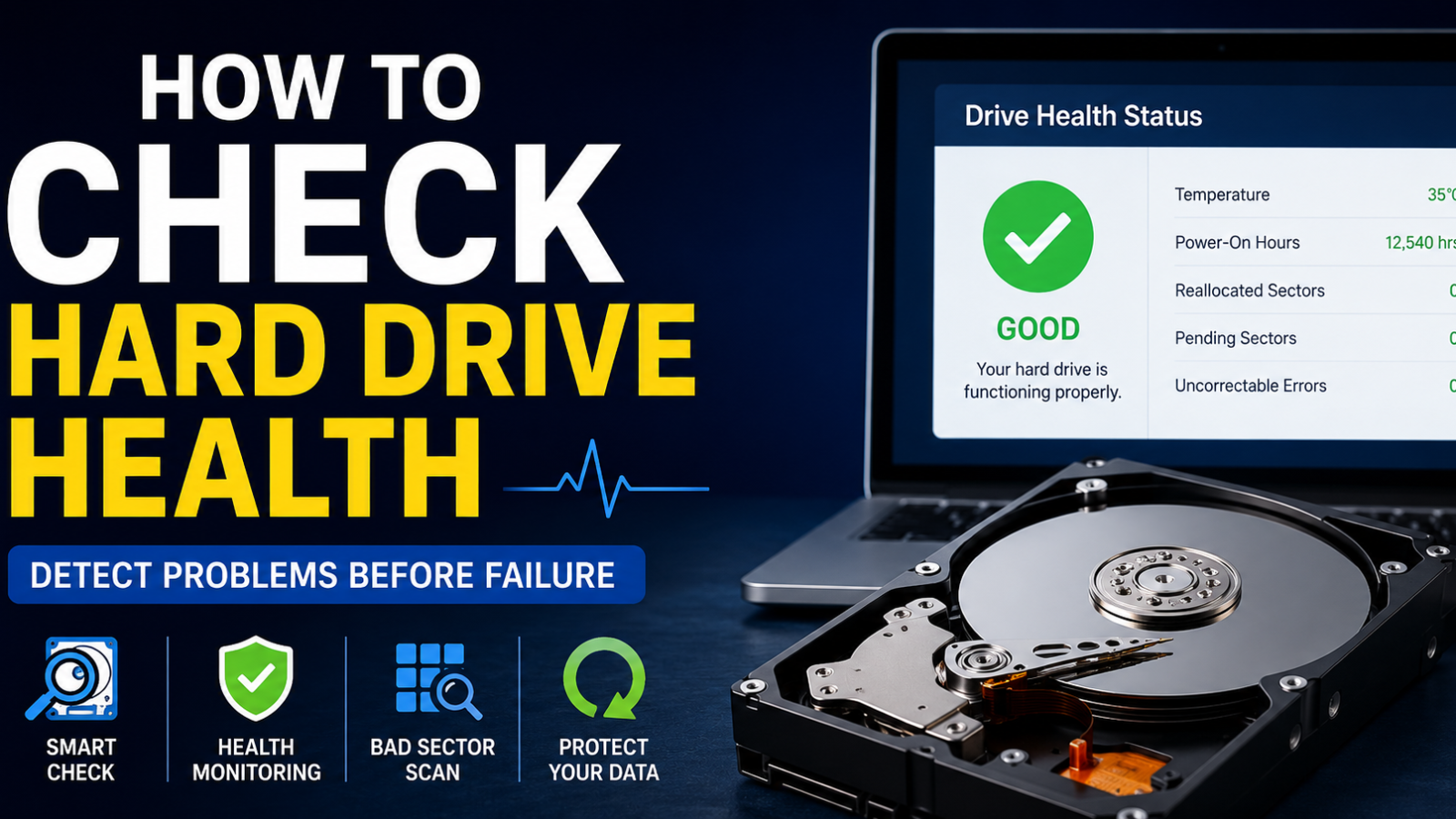
Depending on the drive, SMART information may include:
- Reallocated sectors
- Pending sectors
- Uncorrectable errors
- Power-on hours
- Drive temperature
- Read error information
- Total data written
- SSD wear indicators
A SMART status of “Good” or “OK” is reassuring, but it does not guarantee that a drive will never fail. Some failures happen suddenly without enough SMART warning.
Why Should You Check Hard Drive Health?
A hard drive health check is useful because storage devices contain some of your most important data.
Checking your drive regularly can help you:
1. Detect Problems Before Failure
Early warnings give you an opportunity to copy important files before the drive becomes inaccessible.
2. Protect Important Data
Photos, documents, business files, videos, and other irreplaceable information should never exist on only one potentially failing drive.
3. Identify Bad Sectors
A diagnostic scan can help determine whether a disk has damaged or unreadable areas.
4. Troubleshoot PC Problems
Unexpected freezes, corrupted files, boot errors, and slow disk access can sometimes be related to storage problems.
5. Decide When Replacement Makes Sense
If a drive is showing worsening SMART indicators or repeated errors, replacing it before complete failure can save you from a much bigger problem.
How to Check Hard Drive Health on Windows
Windows provides several ways to check HDD health. You can start with simple checks and move toward more detailed diagnostics if necessary.
Method 1: Check Drive Status in Windows Settings
Some versions of Windows expose basic storage health information through the Windows Settings interface, particularly for supported NVMe SSDs.
You can try:
- Open Settings.
- Go to System.
- Select Storage.
- Look for Advanced storage settings.
- Open Disks & volumes if available.
- Select the relevant drive and view its available information.
The exact information displayed depends on your Windows version and storage hardware.
Do not be concerned if Windows does not show a detailed health percentage for your HDD. A traditional SATA hard drive may require another method to access its SMART information.
Method 2: Use CHKDSK to Check the File System
CHKDSK is one of the most useful built-in Windows utilities for checking a disk.
It is important to understand what CHKDSK does. It primarily checks the file system and disk structure. It is not a complete replacement for SMART monitoring or a manufacturer’s hardware diagnostic tool.
How to Run CHKDSK
- Press Windows + S.
- Search for Command Prompt.
- Choose Run as administrator.
- Enter:
chkdsk C:
- Press Enter.
Replace C: with the drive letter you want to examine.
For a more extensive check that looks for bad sectors, you can use:
chkdsk C: /r
The /r option checks for bad sectors and attempts to recover readable information. Because this can take a long time, especially on large HDDs, do not interrupt the process unnecessarily.
If Windows tells you that the drive is in use, it may offer to schedule the check for the next restart.
Important CHKDSK Warning
If you already suspect that an HDD is physically failing and your data is important, back up or clone the drive before performing intensive scans whenever possible.
A failing mechanical drive can become less reliable during extended activity.
Method 3: Use PowerShell or Windows Terminal
Windows Terminal and PowerShell can provide useful storage information.
Open Windows Terminal as administrator and you can query physical disks with commands such as:
Get-PhysicalDisk
Depending on your Windows configuration and storage hardware, the output may include information such as:
- Device name
- Media type
- Operational status
- Health status
- Size
For supported drives, you may also be able to use:
Get-PhysicalDisk | Get-StorageReliabilityCounter
This can expose reliability-related information when the hardware and Windows storage stack support it.
Keep in mind that not every drive exposes the same counters. A missing value does not automatically mean that the drive is defective.
Method 4: Check SMART Information
SMART is one of the most useful technologies when you want to understand the actual condition of a storage device.
A SMART-monitoring application can read information that Windows may not display in a simple interface.
Look for indicators such as:
- Overall health status
- Reallocated sector count
- Current pending sector count
- Uncorrectable sector count
- Temperature
- Power-on hours
- SSD percentage used or remaining life
The names and interpretations can vary between HDD and SSD manufacturers.
How to Check Hard Drive Health Using SMART
SMART information is often the best starting point for a detailed HDD health check.
What Does a Healthy SMART Status Look Like?
A healthy drive will generally have no critical SMART warnings and should not show concerning trends in error-related attributes.
However, do not focus only on a single number.
For example, a drive with a non-zero historical value for an attribute is not automatically about to fail. The important questions are:
- Is the value increasing?
- Is the drive reporting current errors?
- Are sectors being reallocated?
- Are sectors waiting to be remapped?
- Are uncorrectable errors appearing?
- Is the drive producing other symptoms?
Important SMART Attributes
Reallocated Sector Count:
This can indicate that the drive has moved data away from sectors it considers unreliable.
Current Pending Sector Count:
These are sectors the drive may be having trouble reading and may need to remap.
Uncorrectable Sector Count:
This can indicate data that could not be recovered through the drive’s error-correction mechanisms.
Power-On Hours:
Shows how long the drive has been powered on. It is useful for context, but age alone does not determine whether a drive is healthy.
Temperature:
Excessive heat can negatively affect storage reliability and overall system stability.
Can SMART Guarantee That a Drive Is Safe?
No.
SMART can identify many warning signs, but it cannot predict every possible failure. A drive can pass a SMART check and still fail because of an electronic, mechanical, firmware, controller, or other problem.
Think of SMART as an early-warning system—not a guarantee.
How to Check Hard Drive Health for Bad Sectors
A bad sector is a storage area that cannot reliably store or return data.
On an HDD, bad sectors can develop because of physical deterioration or other problems. Some sectors may become unreadable while others can be remapped by the drive.
How Can You Detect Bad Sectors?
Windows CHKDSK can scan for bad sectors, while manufacturer diagnostic utilities can perform more hardware-focused tests.
You may also see bad-sector-related SMART attributes in health-monitoring software.
If a scan reports bad sectors, do not immediately assume that the entire drive has failed. The severity depends on the type of error, whether the number is increasing, and what other symptoms are present.
What Should You Do If Bad Sectors Are Found?
If the drive contains important data, prioritize the data first.
A sensible approach is:
- Back up critical files.
- Avoid unnecessary writes to the drive.
- Monitor whether errors increase.
- Run an appropriate diagnostic test if necessary.
- Replace the drive if diagnostics indicate deterioration.
If the disk contains irreplaceable data and is behaving badly, professional data recovery may be safer than repeatedly scanning or repairing it yourself.
Signs Your Hard Drive May Be Failing
Sometimes your computer gives you clues before a complete failure.
1. Extremely Slow File Access
If folders suddenly take much longer to open or files repeatedly hang during copying, investigate the drive.
2. Frequent Freezes
Repeated system freezes, especially when Windows is accessing files, can sometimes point to storage problems.
3. Clicking or Grinding Noises
A traditional HDD that suddenly produces unusual clicking, grinding, or repeated mechanical noises deserves immediate attention.
Do not confuse normal HDD activity with abnormal sounds. A new or worsening mechanical noise is more concerning.
SSDs do not have spinning platters or mechanical heads, so they do not produce mechanical clicking sounds.
4. Corrupted Files
Files that suddenly become corrupted or cannot be opened may indicate storage or file-system problems.
5. Boot Problems
Repeated boot failures, missing operating-system files, or messages indicating that no boot device was found can have several causes, including a failing storage drive.
6. Frequent Disk Errors
Repeated Windows disk errors or application errors while reading and writing files should not be ignored.
7. Drive Disappearing
If a drive randomly disappears from Windows and then returns after a restart, investigate the drive, SATA/USB connection, power supply, enclosure, and other possible causes.
8. SMART Warnings
A critical SMART warning is one of the strongest reasons to take immediate action and back up your data.
How Often Should You Check Hard Drive Health?
There is no universal schedule that fits every computer, but regular monitoring is a sensible habit.
Normal Home Users
Checking every few months is generally reasonable, especially if the computer contains important files.
Gamers
If you use an HDD for a large game library, checking a few times per year is sensible. Modern games can also put substantial storage activity on drives during installation and updates.
Professionals and Content Creators
People working with large video projects, photography, databases, or business files should monitor storage more regularly and maintain reliable backups.
Users With Important Data
If losing the data would cause serious problems, do not rely on health monitoring alone. Use a backup strategy with multiple copies.
The most important rule is simple:
A health check is not a backup.
What to Do If Your Hard Drive Health Is Bad
If your HDD health check reports serious problems, your first priority should be your data.
1. Back Up Important Files Immediately
Copy critical documents, photos, projects, and other irreplaceable files to another healthy storage device or a trusted backup destination.
If the drive is unstable, start with the most important files rather than trying to copy everything at once.
2. Avoid Unnecessary Drive Activity
Do not spend hours running repeated benchmarks or unnecessary scans on a drive that is making unusual noises or repeatedly disconnecting.
3. Replace a Failing Drive
If diagnostics indicate that the drive is deteriorating, replacement is generally safer than continuing to rely on it.
A drive that has already demonstrated serious physical problems should not be treated as dependable long-term storage.
4. Install a New Drive
After replacement, install Windows and applications on the new drive and restore your files from a known-good backup.
5. Consider Professional Data Recovery
If the drive contains irreplaceable files and is no longer readable, professional data recovery may be appropriate.
Avoid experimenting with questionable repair methods when the data is extremely valuable.
SSD Health vs HDD Health
Although people commonly use the phrase “hard drive health” for all storage devices, HDDs and SSDs have very different technologies.
| Feature | HDD | SSD |
|---|---|---|
| Moving parts | Yes | No |
| Mechanical failure possible | Yes | No mechanical components |
| Bad sectors | Can occur | Handled differently through flash management |
| SMART monitoring | Yes | Yes |
| Wear indicators | Limited compared with SSDs | Often important |
| Mechanical clicking | Possible | No |
| Main wear mechanism | Mechanical components and media | NAND flash endurance |
For an SSD, look at indicators such as percentage used, remaining life, total host writes, temperature, and manufacturer-specific health information.
For an HDD, pay particular attention to reallocated sectors, pending sectors, uncorrectable errors, temperature, and unusual mechanical behavior.
Best Hard Drive Health Tools
You do not need to install every diagnostic program available. Choose a tool based on what you are trying to find out.
Windows CHKDSK
Best for: File-system errors and bad-sector scanning.
CHKDSK is already included with Windows and is useful when you suspect file-system corruption or disk-structure problems.
PowerShell / Windows Terminal
Best for: Built-in storage information and troubleshooting.
These tools can provide health and reliability information without installing additional software, although the amount of information available depends on the hardware.
CrystalDiskInfo
Best for: Easy-to-read SMART monitoring.
CrystalDiskInfo is widely used for viewing SMART attributes and general drive condition. It is particularly useful for users who want more detail than the basic Windows interface provides.
Manufacturer Diagnostic Software
Best for: Drive-specific testing.
Many storage manufacturers provide their own diagnostic utilities. These tools can be particularly useful because they are designed around the manufacturer’s hardware and can provide drive-specific tests.
Professional Diagnostic Tools
Best for: Advanced troubleshooting and data recovery situations.
Technicians may use specialized hardware and software when a drive is unstable or contains valuable data. These tools are usually unnecessary for routine home maintenance.
FAQs
How to Check Hard Drive Health on Windows?
You can check hard drive health on Windows using SMART information, Windows storage tools, PowerShell, CHKDSK, and manufacturer diagnostic utilities. For a detailed health check, SMART monitoring is particularly useful because it can expose drive-specific reliability attributes.
How Can I Tell If My HDD Is Healthy?
A healthy HDD generally has no critical SMART warnings, no increasing error-related attributes, no unusual mechanical sounds, and no recurring file corruption or disk errors. However, even a drive that appears healthy can fail unexpectedly, so important data should always be backed up.
How Do I Check My Hard Drive for Problems?
Start by checking SMART health information, then use Windows tools such as CHKDSK when appropriate. If problems continue, run the storage manufacturer’s diagnostic utility. If the drive is physically failing, back up your data before performing intensive testing whenever possible.
What Is a Good Hard Drive Health Percentage?
There is no universal health percentage that applies to every hard drive. Different monitoring programs calculate or display health differently. For HDDs, SMART attributes and error trends are often more meaningful than a single percentage.
Can a Failing Hard Drive Be Repaired?
Some logical problems can be repaired, but physical drive deterioration cannot reliably be fixed through software. If an HDD is showing serious physical failure symptoms, replacement is usually safer. If the data is important, prioritize backup or professional recovery before attempting repairs.
How Long Does a Hard Drive Usually Last?
There is no guaranteed lifespan for an HDD or SSD. Drive workload, temperature, manufacturing quality, usage patterns, environment, and other factors can affect longevity. Some drives operate reliably for many years, while others fail much sooner.
How Often Should I Check Hard Drive Health?
For ordinary home computers, checking every few months is a reasonable habit. Users with important professional data should monitor their storage more closely and, more importantly, maintain a reliable backup system.
Does SMART Detect All Hard Drive Failures?
No. SMART can detect many developing problems and provide useful warning indicators, but it cannot predict every failure. A drive can pass SMART tests and still experience sudden mechanical, electrical, firmware, controller, or other failures.
Is CHKDSK the Same as a Hard Drive Health Check?
No. CHKDSK primarily examines the Windows file system and disk structure. A complete hard drive health assessment can also involve SMART information and manufacturer-specific hardware diagnostics.
Conclusion
Knowing how to check hard drive health can help you identify storage problems before they turn into a major data-loss event. Windows tools such as CHKDSK and PowerShell are useful starting points, while SMART monitoring provides valuable information about the drive’s condition and reliability indicators.
For a more complete HDD health check, combine several types of information instead of relying on one test. Look at SMART attributes, watch for bad sectors and errors, pay attention to unusual sounds or behavior, and use manufacturer diagnostics when necessary.
Most importantly, remember that hard drive health monitoring is not a substitute for backups. Even a drive reporting a healthy status can fail unexpectedly.
If your drive is already showing SMART warnings, disappearing from Windows, producing unusual noises, or corrupting files, treat those symptoms seriously. Back up your important data first and consider replacing the drive rather than waiting for complete failure.
Regular monitoring plus a dependable backup strategy is the safest way to protect your data.