

Quick answer: To take a screenshot on Mac, press Shift + Command (⌘) + 3 for the whole screen. Press Shift + Command + 4 to select an area, or Shift + Command + 5 to open the Screenshot toolbar. Screenshots normally save to your Desktop.
Mac Screenshot Shortcuts: Quick Reference
Choose what you want to capture from this table. These shortcuts work on MacBook Air, MacBook Pro, iMac and other Macs using macOS.
| What you want to do | Keyboard shortcut |
|---|---|
| Capture the whole screen | Shift + Command + 3 |
| Capture part of the screen | Shift + Command + 4 |
| Capture one window | Shift + Command + 4, then Space |
| Open the Screenshot toolbar | Shift + Command + 5 |
| Copy the whole screen to Clipboard | Control + Shift + Command + 3 |
| Copy a selected area to Clipboard | Control + Shift + Command + 4 |
New to Mac? Command (⌘) is the key beside the space bar on most Mac keyboards. Shift is the key with an upward-arrow symbol. Press the shortcut keys together, rather than typing them one after another, except where the instructions say to press Space afterward.
1. How to Screenshot the Entire Screen on Mac

This is the easiest method when you want to capture everything visible on your display.
- Open the screen you want to capture.
- Press Shift + Command (⌘) + 3 together.
- Your Mac takes the screenshot immediately.
- Look for the small screenshot thumbnail near the bottom-right corner. Click it if you want to edit the image, or allow the screenshot to save automatically.
Tip: If you use multiple monitors, a full-screen capture can create a separate screenshot for each display. If you only need one app window, use the window-capture method below instead.
2. How to Screenshot Part of the Screen on Mac
Suppose you only need a message, an image, a chart or one section of a webpage. Instead of capturing your whole desktop and cropping it later, select the area first.
- Press Shift + Command + 4.
- Your pointer changes into a crosshair.
- Move the crosshair to one corner of the area you want to capture.
- Click and hold your mouse or trackpad, then drag to select the area.
- Release the mouse or trackpad to take the screenshot.

This method is especially helpful when you want to share only the relevant information, rather than showing your entire desktop.
3. How to Screenshot a Single Window on Mac
If you want a clean screenshot of a browser, Finder window or another application, you can capture that window without manually drawing a selection rectangle.
- Open the window you want to capture.
- Press Shift + Command + 4.
- Press the Space bar once.
- Your pointer changes to a small camera icon.
- Move it over the window you want to capture.
- Click the window to take the screenshot.

Useful trick: Hold the Option key while clicking the window if you want to exclude its shadow from the screenshot.
4. How to Screenshot on Mac Without Memorizing Shortcuts

Don’t want to remember different key combinations? Your Mac includes a Screenshot app with an on-screen toolbar that lets you choose what to capture.
- Press Shift + Command + 5.
- The Screenshot toolbar appears near the bottom of your screen.
- Select the tool for the entire screen, a window or a selected portion.
- For a selected portion, adjust the capture frame.
- Click Capture to take your screenshot.
You can also open the Screenshot app through Spotlight or find it in the Utilities folder within Applications.
Can you take a screenshot with a timer?
Yes. Open the Screenshot toolbar with Shift + Command + 5, select Options, and choose an available timer delay. This gives you time to prepare the screen before the capture.
The same toolbar also contains screen-recording controls. Choose a screenshot capture button when you need a still image rather than a video.
5. Where Do Screenshots Go on Mac?
By default, Mac screenshots are saved to the Desktop. Their filenames usually include the word Screenshot (or Screen Shot, depending on macOS) and the date and time.
If you don’t see your screenshot on the Desktop, its save destination may have been changed.
How to find the screenshot save location

- Press Shift + Command + 5.
- Click Options.
- Look under Save to to see the currently selected destination.
If the destination is Desktop, check there. If another folder is selected, open that location in Finder.
How to change where screenshots are saved on Mac
- Open the Screenshot toolbar using Shift + Command + 5.
- Select Options.
- Under Save to, choose the location you prefer.
- Use Other Location if you want a different folder.
- Take a new screenshot to check that it saves where expected.
Helpful habit: If you take screenshots frequently for assignments, tutorials or work, creating a dedicated Screenshots folder can keep your Desktop organized.
6. How to Copy and Paste a Screenshot on Mac
Sometimes you don’t want a screenshot file. You just want to paste the image directly into an email, document or chat.
The trick is to add the Control key to the screenshot shortcut.
Copy your entire screen
- Press Control + Shift + Command + 3.
- Open the app where you want to use the image.
- Press Command + V to paste it.
Copy only a selected area
- Press Control + Shift + Command + 4.
- Drag over the area you want to capture.
- Release the mouse or trackpad.
- Open your destination app and press Command + V.
Important: Copying a screenshot to the Clipboard is different from saving an image file. If you use the Control shortcut, you may not see a new screenshot file on your Desktop.
You can also use the Screenshot toolbar’s Clipboard destination where available, or copy a screenshot from its floating thumbnail menu.
7. How to Edit, Crop or Annotate a Mac Screenshot
You don’t have to install another program just to add an arrow, circle, label or crop to a screenshot.
- Take a screenshot using one of the methods above.
- Click the thumbnail before it disappears to open the editing tools.
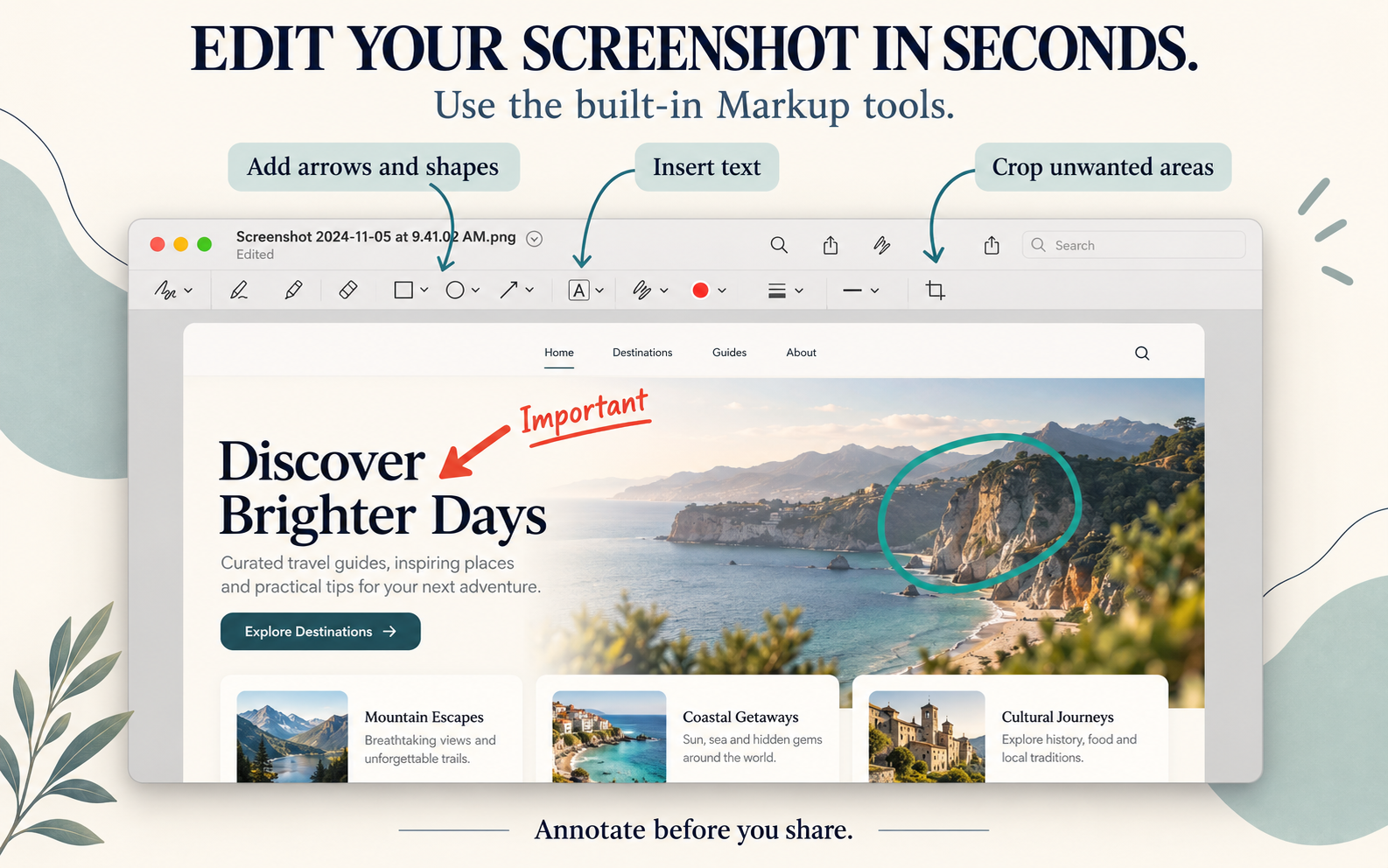
- Use the available Markup tools to draw, add text, insert shapes or crop the screenshot.
- When finished, click Done to save your changes, or use the available sharing options.
If the thumbnail disappears before you click it, find the saved image in Finder and open it in Preview. Preview also has tools for cropping and annotation.
Example: If you’re reporting a software problem, capture only the relevant window and use an arrow to point to the problem. Make sure no private information is visible before sharing the image.
8. Mac Screenshot Not Working? Try These Fixes
Pressing the correct keys should normally produce a screenshot. If nothing seems to happen, start with the following checks before trying more advanced solutions.
Fix 1: Check whether the screenshot saved somewhere else
Press Shift + Command + 5, click Options, and check Save to. The screenshot may have been saved to another folder or directed to the Clipboard.
Fix 2: Check that screenshot keyboard shortcuts are enabled
- Open System Settings.
- Go to Keyboard.
- Choose Keyboard Shortcuts.
- Select Screenshots.
- Check that the screenshot shortcuts are enabled and use the keys you expect.
If another app uses the same keyboard combination, that app may interfere with the shortcut. Try opening the built-in Screenshot app directly.
Fix 3: Try the Screenshot app instead
Open Applications → Utilities → Screenshot, or find Screenshot with Spotlight. If the toolbar opens and works, the problem may be related to the keyboard shortcut rather than screen capture itself.
Fix 4: Check the app you’re trying to capture
Some apps may restrict screenshots of protected content. If screenshots work on your Desktop but not inside one particular app, the restriction may come from that app.
Fix 5: Check storage and restart if needed
If your Mac cannot save new files, check that the selected destination is available and your Mac has free storage space. If screenshot controls have stopped responding unexpectedly, restarting your Mac is a reasonable next troubleshooting step.
Still having trouble? Test Shift + Command + 3 on the Desktop, then check the Screenshot toolbar. This helps identify whether the issue affects every screenshot or only a specific application.
9. How to Screenshot on MacBook Air or MacBook Pro
MacBook Air and MacBook Pro use the same main macOS screenshot shortcuts:
- Shift + Command + 3: Whole screen.
- Shift + Command + 4: Selected area.
- Shift + Command + 4, then Space: Single window.
- Shift + Command + 5: Screenshot toolbar.
There’s no special screenshot shortcut that you need to learn just because you’re using a MacBook Air rather than a MacBook Pro.
If you’re switching from Windows, remember that Macs use Command-based screenshot shortcuts instead of relying on a dedicated Print Screen key.
10. Frequently Asked Questions About Mac Screenshots
What is the easiest way to screenshot on a Mac?
Press Shift + Command + 3 to capture the entire screen. This is the quickest method when you don’t need to select a smaller area.
How do I screenshot on Mac with no Print Screen button?
Use Shift + Command + 3 for the full screen, Shift + Command + 4 for a selected area, or Shift + Command + 5 to open the Screenshot toolbar.
How do I crop a screenshot on Mac?
For a new screenshot, press Shift + Command + 4 and select only the area you need. To crop an existing screenshot, open it in Preview and use its selection and crop tools.
Why is my Mac screenshot not showing on the Desktop?
Your screenshot may be saving in another location or going to the Clipboard. Press Shift + Command + 5, select Options, and check the Save to setting.
How do I take a screenshot on Mac and paste it directly?
Press Control + Shift + Command + 3 to copy the whole screen, then press Command + V in the destination app. For a selected area, use Control + Shift + Command + 4.
Can I take a screenshot without using keyboard shortcuts?
Yes. Open the Screenshot app from Applications → Utilities or find it using Spotlight. Choose your capture mode and click Capture.
Does taking a screenshot record my screen as a video?
No. A screenshot is a still image. The Screenshot toolbar also offers video recording, but you must select a recording control to use that feature.
Can I screenshot a menu on Mac?
Yes. Open the menu, press Shift + Command + 4, and select the area containing the menu. You can also use window capture for supported menu or window layouts.
Final Tips: Remember Just Three Shortcuts
If you remember nothing else from this guide, remember these:
- 3 = Everything: Shift + Command + 3 captures the full screen.
- 4 = Part of the screen: Shift + Command + 4 lets you select an area.
- 5 = More choices: Shift + Command + 5 opens the Screenshot toolbar.
For most everyday tasks, these three shortcuts are all you need. Use Control when you want to copy a screenshot for pasting instead of creating a file.
Was this guide helpful? Save the shortcut table for later, or share this page with someone who’s learning to use a Mac.
Official Source and Further Reading
For Apple’s latest screenshot instructions and supported macOS options, see Apple Support: Take a screenshot on Mac and Apple’s Screenshot app guide.
Also Read: how to take a screenshot on Windows 11