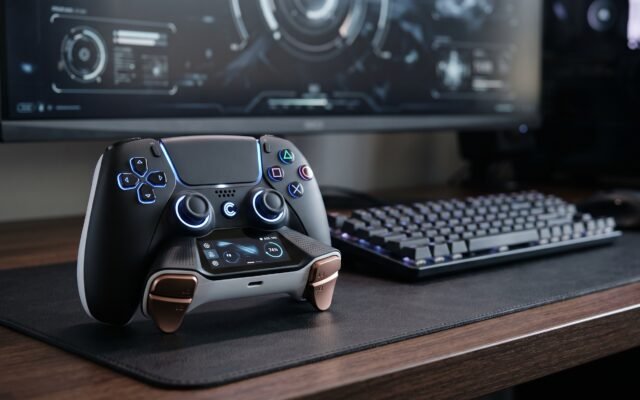

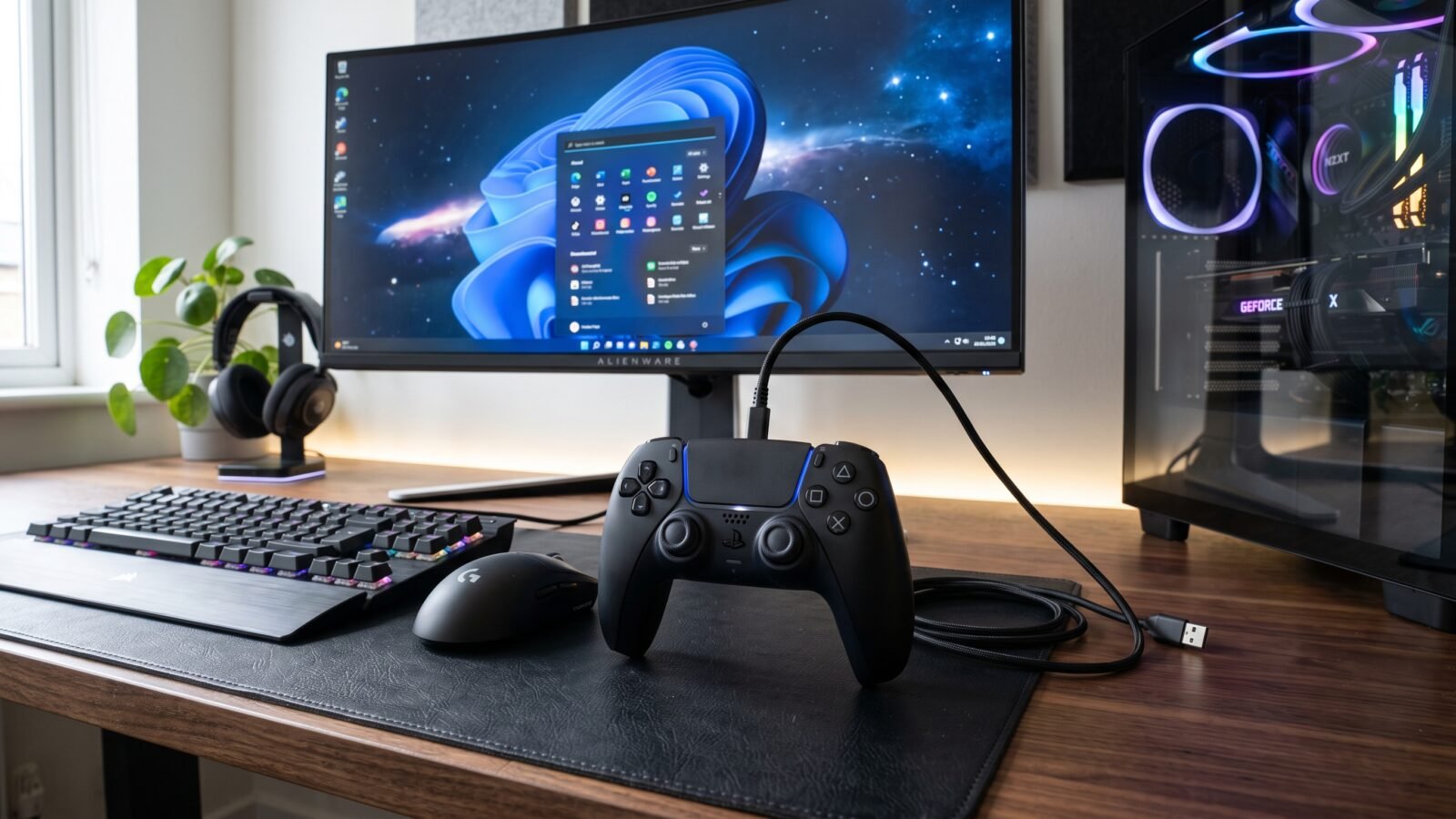
Playing PC games with a keyboard and mouse is not always the most comfortable option. For racing games, sports titles, platformers, and many action games , a controller can feel much more natural. Fortunately, the PS5 DualSense controller can also be used with a Windows PC through a USB-C cable or Bluetooth.
In this guide, you will learn how to connect PS5 controller to PC using both methods. We will also cover Windows 11 setup, Steam configuration, laptop connections, controller compatibility, and what to do when your PS5 controller is connected but not working.
Quick Answer: How Do I Connect a PS5 Controller to My PC?
To connect a PS5 DualSense controller to a PC, you can use a USB-C cable or Bluetooth. For Bluetooth, turn off the controller, hold the Create button + PS button until the light bar begins flashing, then open Windows Bluetooth settings and select the controller from the available devices.
Can You Connect a PS5 Controller to a PC?
Yes. Sony officially supports using the DualSense wireless controller with compatible Windows PCs through USB Type-C or Bluetooth. Sony currently lists Windows 10 64-bit and Windows 11 among supported operating systems, although individual games can differ in how much DualSense functionality they support.
Before starting, make sure you have:
- A PS5 DualSense controller
- A Windows PC or laptop
- A compatible USB-C cable for a wired connection
- Bluetooth on your PC for a wireless connection
- A supported game or platform
If your desktop PC does not have Bluetooth built in, Microsoft says a USB Bluetooth adapter can be used to add Bluetooth capability.
How to Connect PS5 Controller to PC With USB
A wired connection is one of the simplest ways to use a DualSense controller on a PC. It avoids Bluetooth pairing and can also be important for certain advanced DualSense features in compatible PC games.
Step 1: Turn On Your PC
Start your Windows computer and wait until the desktop is fully loaded.
Step 2: Get a USB-C Cable
Use a compatible USB-C cable that can connect the controller to your computer. Plug the USB-C end into the DualSense controller.
Step 3: Connect the Controller to the PC
Connect the other end of the cable to a USB port on your computer.
Windows normally detects newly connected hardware automatically. If the controller does not appear, Windows also provides an option to manually add a device through Settings.
Step 4: Check the Controller
Once connected, Windows should recognize the controller. You can then open your gaming platform or a compatible game and test the buttons and analog sticks.
Step 5: Start Your Game
Launch the game and check whether it responds to the DualSense controller.
Some games have native DualSense support, while others may require controller configuration through a platform such as Steam.
Tip: A wired connection can be particularly useful when you want supported DualSense features such as haptic feedback. Sony states that haptic feedback in PC games requires a USB connection, while advanced features can vary by title.
How to Connect PS5 Controller to PC With Bluetooth
Bluetooth gives you a wireless PS5 controller connection, which can make your gaming setup cleaner and more comfortable.
Step 1: Turn On Bluetooth
In Windows 11, go to:
Start → Settings → Bluetooth & devices
Make sure Bluetooth is switched on. Microsoft also allows Bluetooth to be enabled from Windows Quick Settings.
Step 2: Put the PS5 Controller in Pairing Mode
First, make sure the controller is turned off. If necessary, hold the PS button until it turns off.
Then press and hold the Create button and PS button at the same time.
Keep holding them until the controller’s light bar starts flashing. This means the DualSense is ready to pair with a Bluetooth device.
Step 3: Add the Controller in Windows
On your PC:
Start → Settings → Bluetooth & devices → Add device → Bluetooth
Windows will search for available Bluetooth devices. Find the DualSense controller and select it.
Step 4: Complete Pairing
After Windows pairs with the controller, the connection should be ready.
Open a compatible game and test the controller.
How to Put a PS5 Controller in Bluetooth Pairing Mode
To put your DualSense controller into pairing mode:
- Turn off the controller.
- Disconnect the USB cable if one is attached.
- Press and hold the Create button.
- While holding Create, press and hold the PS button.
- Continue holding until the light bar flashes.
Sony specifies this button combination for first-time Bluetooth pairing with a supported device.
Remember that the controller must be discoverable before Windows can see it.
How to Use a PS5 Controller on Steam
Steam has built-in support for PlayStation controllers and provides controller configuration options through Steam Input.
Steam has also added clearer controller compatibility information for DualSense and other PlayStation controllers. Its system can use a game’s own controller support when available and Steam Input when the game does not provide suitable native support.
Steam PS5 Controller Setup
Try these general steps:
- Connect your DualSense through USB or Bluetooth.
- Open Steam.
- Open your Steam settings and controller section.
- Check whether Steam detects the DualSense.
- Open the game you want to play.
- Check the game’s controller support information.
- Adjust Steam Input or controller bindings when necessary.
Steam’s store pages can show whether a game has full or partial controller support, including support related to PlayStation controllers.
If a game supports DualSense directly, its own native support may be preferable. For games without suitable support, Steam Input can translate controller inputs so the game can work with the controller.
How to Connect a PS5 Controller to a Windows 11 PC
Windows 11 makes Bluetooth pairing fairly straightforward.
For a wireless connection, open:
Start → Settings → Bluetooth & devices → Bluetooth → Add device
Then put the DualSense into pairing mode and select it from the list. Microsoft confirms that Windows 11 can pair Bluetooth devices this way.
For a wired connection, simply connect the controller to the PC using a compatible USB-C cable. Windows generally detects newly connected hardware automatically.
For the smoothest experience, keep Windows, Bluetooth drivers, your games, and the controller firmware reasonably up to date. Sony provides the PlayStation Accessories app for updating DualSense firmware on a Windows PC.
How to Connect PS5 Controller to a Laptop
The process is almost identical on a laptop.
USB Method
Connect the DualSense to a USB port using a compatible USB-C cable. Windows should detect it automatically in normal circumstances.
Bluetooth Method
Make sure your laptop has Bluetooth enabled, put the DualSense into pairing mode, and add it through:
Settings → Bluetooth & devices → Add device → Bluetooth
Microsoft notes that Windows devices without built-in Bluetooth can use a USB Bluetooth adapter, although most modern laptops include Bluetooth.
PS5 Controller Connected to PC but Not Working
Sometimes the controller connects successfully but does not respond inside a particular game. The problem may be related to Bluetooth, the game itself, Steam configuration, drivers, or controller support.
Controller Is Not Detected
Try another USB port and reconnect the controller.
If Windows does not recognize a newly connected device, open Settings → Bluetooth & devices → Devices → Add device and follow the on-screen instructions.
PS5 Controller Bluetooth Is Not Working
Make sure Bluetooth is enabled and the controller is actually in pairing mode.
Sony says the light bar should blink when the controller enters Bluetooth pairing mode.
Controller Keeps Disconnecting
Move the controller closer to the PC and make sure the battery has sufficient charge.
Microsoft recommends keeping Bluetooth devices within range and checking battery level when connections are unstable.
Bluetooth Pairing Fails
Remove the controller from Windows Bluetooth settings and pair it again.
Microsoft specifically recommends removing and re-adding a Bluetooth device when it appears in the list but will not connect properly.
Controller Works in Windows but Not in a Game
This is often a game-support issue rather than a connection problem.
Check the game’s controller support information. Steam provides controller-support details and supports Steam Input for compatible games.
Buttons Are Mapped Incorrectly
Open the game’s controller configuration or Steam’s controller settings. Steam Input can provide alternative mappings for games that do not handle PlayStation controllers natively.
No Input Is Detected
Disconnect the controller, restart Steam or the game, and reconnect it.
It can also help to avoid having multiple controllers connected at the same time while troubleshooting.
PS5 Controller vs Xbox Controller on PC
Both PlayStation and Xbox controllers can be used for PC gaming, but the experience depends on the game and platform.
| Feature | PS5 DualSense | Xbox Controller |
|---|---|---|
| USB connection | Yes | Yes |
| Bluetooth connection | Yes | Yes, depending on model |
| Steam support | Yes | Yes |
| Native game support | Varies by game | Varies by game |
| PlayStation-style buttons | Yes | No |
| Haptic feedback | Supported in selected PC games | Depends on controller/game |
| Adaptive triggers | Supported in selected PC games | N/A |
| Steam Input | Supported | Supported |
The important point is that controller compatibility is game-specific. Steam and game developers determine how particular controllers and features work.
Does the PS5 Controller Work With Every PC Game?
No. Connecting a DualSense successfully does not guarantee that every PC game will use every controller feature.
A game may offer:
- Native DualSense support
- Partial controller support
- Steam Input support
- Xbox-style button prompts
- Support for only basic controller functions
Sony explains that DualSense features such as haptic feedback and adaptive triggers are available only in selected PC games, and feature support can vary by title.
This means your PS5 controller may work perfectly for basic movement and buttons while some advanced features remain unavailable in a particular game.
Common Mistakes When Connecting a PS5 Controller to PC
One of the most common mistakes is pressing the wrong buttons when attempting Bluetooth pairing. Remember: Create + PS is the pairing shortcut for the DualSense.
Another common issue is assuming that every USB-C cable will behave identically. Use a compatible cable designed to establish a proper controller connection.
You should also avoid assuming that a controller appearing in Windows automatically means every game will recognize it. Game-level support can be different, particularly outside Steam.
Finally, do not forget to check Bluetooth settings, controller battery level, game settings, and Steam Input when troubleshooting.
How do I connect my PS5 controller to my PC?
You can connect it with a USB-C cable or Bluetooth. For Bluetooth, hold Create + PS until the light bar flashes, then select the controller from Windows Bluetooth settings.
Can I connect a PS5 controller to a PC without Bluetooth?
Yes. A USB-C cable lets you connect the DualSense directly to your PC, so Bluetooth is not required.
Can I connect a PS5 controller to PC wirelessly?
Yes. The DualSense supports Bluetooth wireless connectivity with compatible Windows PCs.
Why is my PS5 controller not connecting to my PC?
Check that Bluetooth is enabled, put the controller into pairing mode, charge the controller, and try removing and re-adding it in Windows. Microsoft recommends these troubleshooting steps for Bluetooth devices that fail to connect.
Can I use a PS5 controller on Windows 11?
Yes. Sony lists Windows 11 as a supported operating system for DualSense Bluetooth and USB connections.
Does a PS5 controller work with Steam?
Yes. Steam supports DualSense and provides controller configuration and Steam Input functionality. However, individual games can provide different levels of support.
Can I connect a PS5 controller to a laptop?
Yes. A compatible laptop can use the DualSense through USB or Bluetooth, just like a desktop PC.
Why does my PC recognize my controller but my game does not?
The game may not have native support for the DualSense. Check the game’s controller support information or configure Steam Input when appropriate.
Does the PS5 controller work with every PC game?
Not every game supports the controller in the same way. Basic input may work while features such as haptic feedback or adaptive triggers may require specific game support.
How do I put a PS5 controller into pairing mode?
Turn it off, then hold the Create button + PS button until the light bar starts flashing. The controller can then be selected from the computer’s Bluetooth device list.
Conclusion
Learning how to connect PS5 controller to PC is straightforward once you choose between a wired USB connection and wireless Bluetooth.
USB is a simple plug-and-play option and can be useful for compatible games that support advanced DualSense features. Bluetooth provides a convenient wireless setup when your PC supports Bluetooth.
For Steam users, built-in PlayStation controller support and Steam Input can make compatibility easier, but individual games can still behave differently. When problems occur, check pairing mode, Bluetooth settings, battery level, Windows detection, game support, and Steam configuration before assuming the controller is defective.
With the right setup, your DualSense can be a practical controller for a wide range of PC games without requiring a PS5 console to be connected.