
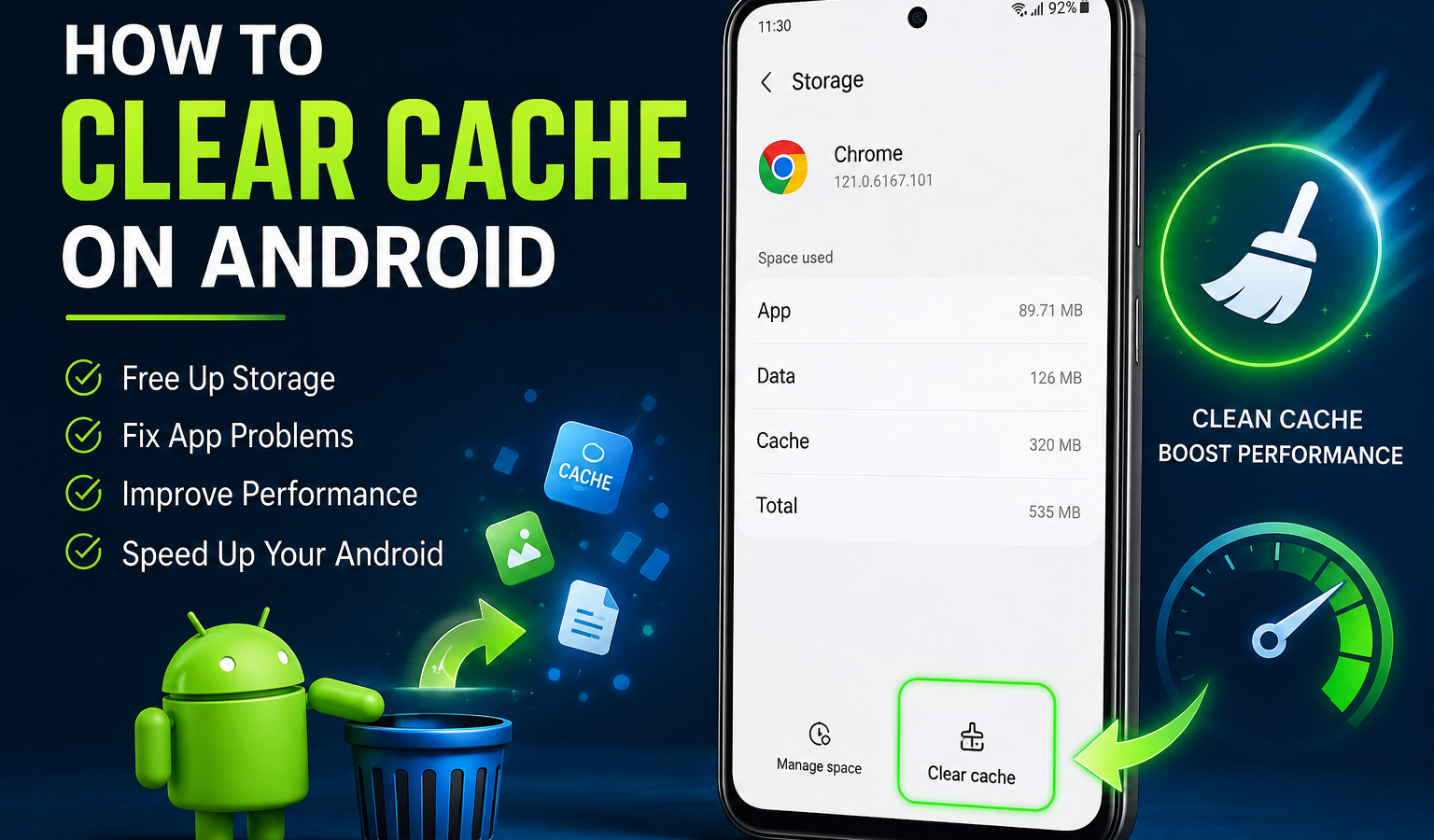
If an Android app is slow, freezing, crashing, or displaying outdated content, clearing its cache can often help. This guide explains how to clear cache on Android, including Samsung Galaxy, Google Pixel, Chrome, and other Android phones—without deleting your photos, contacts, or apps.
Quick Answer: How to Clear Cache on Android
To clear an app cache on Android, open Settings, tap Apps, select the app, choose Storage or Storage & cache, and tap Clear cache. Then reopen the app. Menu names vary by Android version and phone manufacturer, but the process is similar on most devices. Android’s official guidance also recommends using Settings to clear an individual app’s cache or data.support.google
What Is Cache on Android?
An Android cache is temporary storage used by apps and websites. It may contain thumbnails, recently viewed images, login-related shortcuts, loading files, or other information that helps an app open and respond more quickly.
For example, YouTube may temporarily store image previews, while Chrome may save website images and page elements. These files are normally safe to remove because the app can recreate them when needed.
Cache can become large when:
-
You use an app frequently.
-
You browse image-heavy websites.
-
An app stores temporary files but does not remove them efficiently.
-
The phone has been used for a long time without maintenance.
-
An app experiences an error and leaves behind damaged temporary files.
Clearing cache removes temporary files—not the app itself or your personal files.
Why Should You Clear Cache on Android?
Clearing an Android app cache is most useful when a specific app is behaving unusually. It is not a universal solution for every performance problem, but it is a safe first troubleshooting step.
You might clear cache when:
-
An app opens slowly or freezes.
-
An app repeatedly crashes.
-
Images or websites load incorrectly.
-
An app shows outdated information.
-
A temporary software error persists.
-
One app is using an unusually large amount of storage.
-
You need to recover a small amount of Android storage cache space.
For example, if Instagram displays blank images or Chrome loads a broken version of a website, clearing the relevant cache may force the app to download fresh files.
How to Clear Cache on Android
The following method works on many Android phones, including devices from Motorola, Nokia, OnePlus, Xiaomi, Sony, and other manufacturers.
How do I clear an app cache on Android?
-
Open the Settings app.
-
Tap Apps, Applications, or Apps & notifications.
-
Choose See all apps if necessary.
-
Select the app causing problems.
-
Tap Storage, Storage & cache, or Storage usage.
-
Tap Clear cache.
-
Reopen the app and check whether the problem is fixed.
The exact wording and menu location can vary. If you cannot find the app, use the search icon in Settings and search for its name.
Be careful to tap Clear cache, not Clear storage or Clear data. Those options have different effects.
How to Clear Cache on Samsung Android Phones
On a Samsung Galaxy phone or tablet, use these steps:
-
Open Settings.
-
Tap Apps.
-
Select the app you want to troubleshoot.
-
Tap Storage.
-
Tap Clear cache.
Samsung’s support instructions use this same path and indicate that the cache value may show 0 B after the process is complete.samsung+1
You can also review storage through Samsung’s device-maintenance tools:
-
Open Settings.
-
Tap Battery and device care.
-
Tap Storage.
-
Review large files and unused apps.
-
Remove items only after checking what they are.
Device care can help identify storage-consuming content, but clearing the cache of a particular app through Settings > Apps > Storage gives you more control.
How to Clear Cache on Google Pixel Phones
On a Google Pixel, the usual process is:
-
Open Settings.
-
Tap Apps.
-
Tap See all apps.
-
Select the app.
-
Tap Storage & cache.
-
Tap Clear cache.
-
Open the app again.
Pixel phones commonly use the label Storage & cache, while other Android devices may simply say Storage. If an app is still unresponsive, you can return to the same screen and consider Force stop before reopening it.
How to Clear Chrome Cache on Android
Chrome has its own browsing cache. Clearing it can help with websites that load incorrectly, display old content, or have formatting problems.
Clear Chrome cache without deleting everything
-
Open Chrome on your Android phone.
-
Tap the three-dot More button near the address bar.
-
Tap Delete browsing data.
-
Choose a time range, such as Last hour, Last 24 hours, or All time.
-
Select Cached images and files.
-
Leave other categories unchecked if you do not want to remove them.
-
Tap Delete data.
Google’s Chrome instructions allow you to choose a time range and select specific types of browsing data.support.google
What about cookies and browsing history?
Cookies and browsing history are separate from cached images and files. Deleting cookies can sign you out of websites, while deleting browsing history removes your recorded page visits. If your goal is simply to clear Chrome cache on Android, select Cached images and files and review the other options before confirming.
How to Clear Cache for Multiple Apps
Android generally does not provide one universal button that safely clears every app cache on every phone. The most reliable approach is to check apps individually.
-
Open Settings.
-
Tap Storage.
-
Select Apps, Other apps, or App storage if available.
-
Sort apps by size, when that option is offered.
-
Select an app using unusually large storage.
-
Tap Storage & cache or Storage.
-
Tap Clear cache.
Prioritize apps that use large amounts of temporary data, such as browsers, streaming services, social-media apps, and map applications.
Avoid installing unknown “phone cleaner” apps that request extensive permissions. Android and many phone manufacturers already provide storage-management tools, and manually clearing the cache of a problem app is usually safer and more precise.
Clear Cache vs. Clear Data: What’s the Difference?
The two buttons may appear next to each other, but they do very different things.
Clear cache is the safer first step. It removes temporary Android cache files while normally preserving settings and account information.
Clear data, sometimes called Clear storage, resets the app to a near-new state. It may remove downloaded files, saved preferences, local messages, and account sessions. Before using it, confirm that important information is synchronized or backed up.
What Happens After You Clear Cache on Android?
After clearing an app cache:
-
The app may open slightly more slowly the first time.
-
Images, thumbnails, and other temporary files may be downloaded again.
-
The app’s cache can gradually grow back.
-
Your personal files are generally not removed.
-
You may recover some storage space, though the amount varies.
This behavior is normal. Cache exists to improve loading efficiency, so Android and apps will recreate some cached content during regular use.
How to Transfer Data From Android to Android
Does Clearing Cache Delete Photos, Contacts, or Apps?
No. Clearing an app’s cache does not normally delete your photos, contacts, installed apps, or personal documents.
However, Clear data or Clear storage can remove information saved locally inside the selected app. For example, it may reset app preferences, remove offline downloads, or sign you out. Always check which button you are selecting before confirming.
When Should You Clear Cache on Android?
Clear cache when there is a specific reason, such as an app crash, display problem, loading error, or unusually high temporary storage use.
You do not usually need to clear Android cache on a fixed daily or weekly schedule. Repeatedly clearing it can make some apps rebuild files they could have reused, and it does not necessarily improve battery life or overall speed.
Good occasions include:
-
After an app update causes problems.
-
When a website displays an outdated layout.
-
When a streaming app repeatedly buffers or fails to load menus.
-
When one app’s temporary storage becomes unusually large.
-
Before trying more disruptive troubleshooting steps.
Does Clearing Cache Make Android Faster?
It can make a problematic app work better, but it does not guarantee that the entire phone will become faster.
Clearing cache may help if damaged or outdated temporary files are causing an app to freeze, load incorrectly, or crash. It is less likely to solve slow performance caused by low storage, an aging battery, too many background processes, outdated software, or hardware limitations.
Think of clearing cache as repairing one app’s temporary workspace—not as a complete phone upgrade.
What to Do If Clearing Cache Does Not Fix the Problem
Try these steps in order:
-
Restart the phone. This can resolve temporary system or background-process problems.
-
Force stop the app. Open its App info screen, tap Force stop, and launch it again.
-
Update the app. Install updates from Google Play.
-
Update Android. Check Settings > System > Software update, although the wording varies by manufacturer.
-
Check available storage. A nearly full phone may perform poorly and prevent apps from working correctly.
-
Check app permissions. The app may need access to storage, camera, location, or another function.
-
Clear data only when appropriate. Back up or synchronize important information first.
-
Reinstall the app. Uninstalling and reinstalling can replace damaged files, but it may remove locally stored content.
-
Look for recently installed problem apps. A third-party app may be causing battery drain, pop-ups, crashes, or background activity.
If many apps are malfunctioning, the issue may be system-wide rather than an individual cache problem.
Common Mistakes to Avoid
-
Choosing Clear data accidentally: Read the button label carefully before confirming.
-
Clearing cache constantly: Do it when troubleshooting or reclaiming storage, not automatically every day.
-
Deleting browser data without checking options: Cookies and history may be removed along with the cache.
-
Assuming all cache is harmful: Temporary files are a normal part of how apps work.
-
Installing suspicious cleaner apps: Avoid tools that demand unnecessary permissions or make exaggerated performance promises.
-
Ignoring low storage: Removing unused downloads, videos, and apps may help more than clearing cache.
-
Clearing the wrong app: Confirm the app name before deleting temporary files.
Frequently Asked Questions
How do I clear cache on Android?
Go to Settings > Apps, choose the app, tap Storage or Storage & cache, and select Clear cache. The names may differ slightly on Samsung, Pixel, and other Android phones.
Is it safe to clear cache on Android?
Yes, clearing an individual app’s cache is generally safe. It removes temporary files that the app can recreate. The main risk is confusing Clear cache with Clear data, which can reset the app.
Does clearing cache delete everything?
No. Clearing cache does not normally delete your photos, contacts, apps, or personal documents. Clearing data is different and may remove local app information and settings.
Does clearing cache delete photos?
No. Clearing an app cache does not delete photos stored in your phone’s gallery or cloud account. Be more careful with Clear data, especially in photo, file-management, or editing apps.
What happens when you clear cache?
The app’s temporary files are removed. Its first launch afterward may be slower while it recreates or downloads necessary files, and the cache will naturally build again over time.
How often should I clear cache?
There is no universal schedule. Clear it when an app is malfunctioning, showing outdated content, or using unusually large temporary storage. Routine daily clearing is usually unnecessary.
Does clearing cache make Android faster?
It may improve a particular app if corrupted or excessive temporary files are causing trouble. It will not necessarily fix phone-wide slowness caused by low storage, old hardware, software issues, or background activity.
What is the difference between clear cache and clear data?
Clear cache removes temporary files while usually preserving settings and sign-in details. Clear data resets the app and may remove local settings, downloads, and account sessions.
How do I clear Chrome cache on Android?
In Chrome, tap More > Delete browsing data, select a time range, choose Cached images and files, and tap Delete data. Review other selected categories before confirming.support.google
Why does Android cache keep coming back?
Apps recreate cache because they use temporary files to load content efficiently. Cache returning is normal and does not mean the clearing process failed.
Can I clear the cache of every app at once?
Some manufacturers offer storage or device-care tools, but Android menus vary. Clearing individual app caches is the most controlled approach. Review any automatic cleanup list before deleting files.
Final Verdict
The safest way to clear cache on Android is to open Settings, select Apps, choose the app with problems, open Storage or Storage & cache, and tap Clear cache. This usually removes temporary files without deleting personal content.
Use it for app crashes, loading errors, outdated pages, or unusually high temporary storage—not as a routine cure for every slow phone. If the issue continues, restart the device, update software, check storage, and only consider Clear data or reinstalling after protecting important information.