
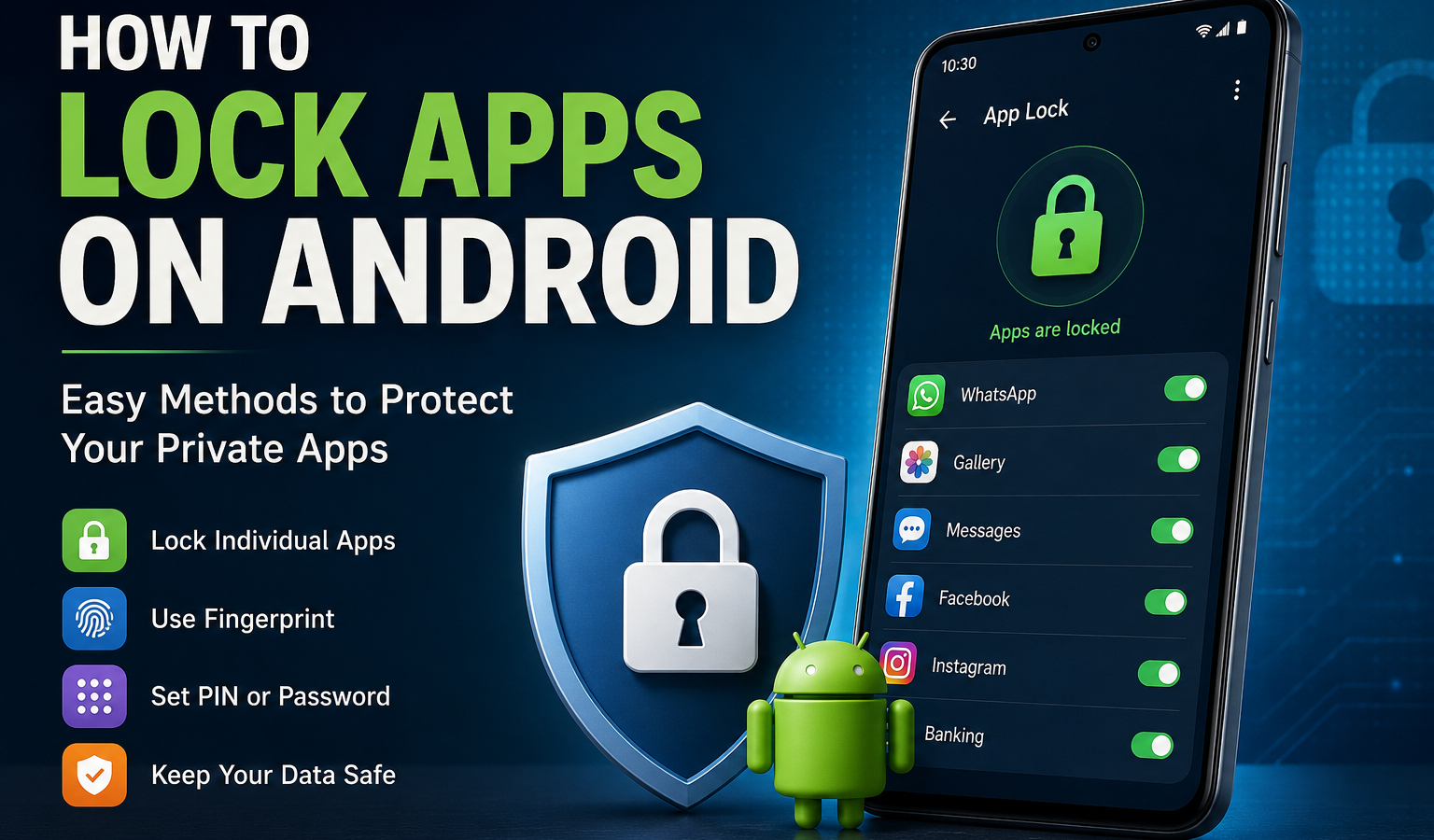
If you share your phone with family members, friends, or children, you may not want everyone opening your messages, photos, banking apps, or social media accounts. Learning how to lock apps on Android can add an extra layer of privacy without requiring you to lock the entire phone every time.
The exact method depends on your phone brand, Android version, and available security features. Some Android phones include a built-in Android app lock, while others offer features such as Samsung Secure Folder. If your phone does not provide an app-lock feature, a reputable third-party app may be another option.
In this guide, you’ll learn how to lock individual apps with a PIN, password, pattern, or fingerprint, how to hide and protect apps, and what to do when app lock isn’t working.
What Does App Lock Mean on Android?
App lock is a security feature thahttps://infoversedaily.com/category/technology/t requires additional authentication before someone can open a selected app.
For example, you can use your normal screen lock to unlock your phone, but require another PIN or fingerprint before opening WhatsApp, Gallery, Messages, or a banking app.
Depending on the phone, app locking may use:
- PIN
- Password
- Pattern
- Fingerprint
- Device authentication
- A protected folder or private space
App locking is different from locking your entire phone. Your phone can remain unlocked while individual apps receive additional protection.
Keep in mind that Android’s app-lock features are not identical across all devices. Samsung, Xiaomi, OnePlus, OPPO, Vivo, Motorola, Google Pixel, and other manufacturers may use different names and settings.
How to Lock Apps on Android
The easiest way to lock apps on Android is to use a built-in app-lock or privacy feature if your phone provides one.
Method 1: Look for a Built-In App Lock
Start by checking your phone’s Settings app.
- Open Settings.
- Use the search box at the top.
- Search for App Lock, Lock apps, App protection, Privacy, or Security.
- If your phone provides an app-lock feature, open it.
- Set a PIN, password, pattern, or other authentication method if required.
- Select the apps you want to protect.
- Enable the lock.
The exact menu can vary considerably between manufacturers and Android versions. If you cannot find App Lock, check your phone manufacturer’s privacy or security settings.
Method 2: Use a Private or Protected Space
Some newer Android devices provide privacy-focused spaces rather than a traditional App Lock menu.
A private space can separate sensitive apps from your normal app area and require authentication before those apps can be accessed.
This approach can be particularly useful for apps containing personal information because it combines separation and authentication instead of simply placing a lock screen in front of an app.
Method 3: Use a Third-Party App Locker
If your Android phone does not have a built-in app-lock feature, you can consider a reputable third-party app locker from the official Google Play Store.
Before installing one, check:
- Developer reputation
- Recent reviews
- Number and quality of permissions requested
- Privacy policy
- Update history
- Whether the app comes from a trustworthy source
Avoid installing APK files from unknown websites just to get an app-lock feature. An app that controls access to other apps may require powerful permissions, so choosing carefully matters.
How to Lock Apps on Android Without an App
You can lock apps on Android without downloading a separate app if your phone includes a built-in app-lock, private-space, secure-folder, or similar security feature.
To check:
- Open Settings.
- Search for App Lock.
- If nothing appears, search for Privacy or Security.
- Look for features related to protected apps, private space, secure folders, or app protection.
- Follow your phone’s instructions to select the apps you want to protect.
If your phone has no suitable built-in feature, you may need to use another security method or a reputable third-party app.
This is generally preferable to installing an unknown app locker because built-in security features are designed specifically for the device’s operating system and security framework.
How to Lock Apps on Android With a Fingerprint
Many Android phones can use fingerprint authentication for app protection when the manufacturer supports it.
Fingerprint locking is convenient because you do not need to type a PIN every time you open a protected app.
A typical setup looks like this:
- Open Settings.
- Go to Security, Privacy, or App Lock.
- Set up App Lock if it is available.
- Create a PIN, password, or pattern.
- Enable Fingerprint or biometric unlocking.
- Select the apps you want to protect.
Your phone may still require the backup PIN or password occasionally. This is normal because biometric authentication usually works alongside a backup authentication method.
Fingerprint support also depends on the phone’s hardware and software.
How to Lock Apps With a Password or PIN
If you prefer traditional authentication, you can lock apps with a password on Android or use a PIN where supported.
The general process is:
- Open Settings.
- Find App Lock or the equivalent privacy feature.
- Create an app-lock PIN, password, or pattern.
- Choose the apps you want to lock.
- Save your settings.
- Test one of the protected apps.
Choose a PIN or password that is different from information that is easy for other people to guess.
If your phone uses the same device authentication for app protection, you may not be able to create a completely separate password. The available options depend on the manufacturer.
How to Lock Specific Apps on Android
Yes, you can lock individual apps on Android when your phone provides an App Lock or equivalent feature.
You do not necessarily need to lock every app. Protecting only sensitive applications can be more convenient.
For example, you might want to lock:
WhatsApp contains private conversations, photos, videos, and documents. Some versions of WhatsApp also provide their own app-lock or chat-lock security features, depending on the feature you need.
Gallery and Photos
Your photo library can contain personal images and videos. A device-level app lock or private space can help prevent casual access.
Messages
If you regularly exchange private messages, protecting your messaging app can prevent someone who has access to your unlocked phone from immediately reading conversations.
Banking Apps
Banking applications already use security controls, but adding device-level protection where supported can provide another barrier against casual access.
Always follow your bank’s own security recommendations rather than relying solely on an Android app lock.
Social Media Apps
Instagram, Facebook, TikTok, Snapchat, and similar apps may contain private messages and account information. An Android app lock can help prevent someone with temporary access to your unlocked phone from opening them.
How to Lock Apps on Samsung
Samsung devices do not necessarily use a universal feature simply called App Lock. Depending on your Galaxy model and One UI version, Samsung’s Secure Folder can be a useful way to protect selected apps and private data.
Using Samsung Secure Folder
A typical setup is:
- Open Settings.
- Go to Security and privacy or search Settings for Secure Folder.
- Open Secure Folder.
- Follow the setup instructions.
- Choose an authentication method.
- Add supported apps to Secure Folder.
- Open sensitive apps through the protected folder.
The exact menu names can change with One UI updates and different Galaxy models.
Secure Folder is more than a simple app lock. It creates a protected area where apps and data can be kept separately from the regular phone environment.
If you are specifically searching for how to lock apps on Samsung, check whether Secure Folder is available on your particular Galaxy device.
How to Lock Apps on Android Using Third-Party Apps
If your Android phone does not offer a suitable built-in app-lock feature, a third-party application may provide an alternative.
A third-party app locker can typically place an authentication screen in front of selected apps. Some may support PINs, patterns, or biometric authentication.
Benefits
Third-party app lockers may offer:
- App-specific PIN protection
- Pattern or fingerprint unlocking
- Additional privacy options
- Support for devices without built-in App Lock
- Extra customization
Limitations and Security Risks
The biggest issue is that an app locker may require powerful permissions to monitor or control access to other applications.
Before installing one, ask:
- Does it request more permissions than necessary?
- Is the developer reputable?
- Is the privacy policy clear?
- Is the app regularly updated?
- Does it have a large number of credible reviews?
- Is it available through the official Google Play Store?
Do not assume that every app claiming to provide an Android app lock is safe.
Because app lockers can have significant access to your device, a built-in security feature from your phone manufacturer is usually the first option worth checking.
How to Hide Apps and Lock Them on Android
Hiding an app and locking an app are two different things.
Hiding usually removes an app icon from the normal app drawer or home screen. Locking requires authentication before the protected app or its contents can be accessed.
For example:
- Hide only: The app may be harder to find, but it may not be protected.
- Lock only: The app remains visible but requires authentication.
- Hide + protect: The app may be placed inside a private or protected area.
If your goal is privacy, don’t assume that hiding an app protects its data. Someone who knows where to find the application may still be able to open it.
For stronger protection, use your phone’s supported security feature rather than relying on hiding alone.
How to Unlock a Locked App on Android
To unlock a protected app, normally enter the PIN, password, pattern, or use the registered fingerprint or other supported authentication method.
If fingerprint unlocking fails:
- Try your backup PIN or password.
- Make sure the fingerprint sensor is clean.
- Confirm that the correct fingerprint is registered.
- Check the App Lock settings.
- Restart the phone if necessary.
Do not repeatedly guess passwords or use unofficial “unlock” tools. If you have forgotten your credentials, use the recovery method provided by your phone manufacturer or the app-lock feature.
What to Do If App Lock Is Not Working
If your Android app lock suddenly stops working, try these troubleshooting steps.
1. Restart Your Phone
A simple restart can resolve temporary software problems.
2. Check App-Lock Settings
Open Settings and make sure the apps you want to protect are still selected.
3. Update Android
Check for available system updates. Manufacturers sometimes change or improve privacy and security features through software updates.
4. Update Security Software
If your phone provides security updates or a device-security component, make sure it is current.
5. Check Required Permissions
Third-party app lockers may stop functioning if their required permissions have been removed.
Only restore permissions that you understand and trust.
6. Re-enable App Lock
Turn the feature off and configure it again if appropriate.
7. Check Manufacturer Support
If you cannot find App Lock, your phone may simply not support a traditional built-in app-lock feature. Search your manufacturer’s official support documentation for your exact model and software version.
Is App Lock on Android Safe?
Built-in Android or manufacturer-provided app-lock and privacy features are generally the safest place to start because they are integrated with the device’s security system.
However, an app lock should be viewed as an additional privacy barrier, not a replacement for good security practices.
For better protection:
- Use a strong device screen lock.
- Keep Android updated.
- Install apps from trusted sources.
- Avoid unknown APK files.
- Use fingerprint authentication when appropriate.
- Keep banking and financial apps updated.
- Review sensitive app permissions.
- Don’t share your device PIN unnecessarily.
- Use strong, unique passwords for important accounts.
Third-party app lockers require extra caution because they may request permissions that allow them to monitor or control app access.
The safest method available to you depends on your phone model, Android version, and the specific security features provided by the manufacturer.
Suggested Featured Snippet Answer
How do I lock apps on Android?
To lock apps on Android, open Settings and search for App Lock, Privacy, or Security. If your phone supports built-in app locking, select the apps you want to protect and set a PIN, password, pattern, or fingerprint. Samsung users can also check Secure Folder. If your phone has no built-in option, a reputable third-party app locker may be an alternative.
Quick Answers to Common Questions
How do I lock apps on Android?
Open Settings and search for App Lock, Privacy, or Security. If supported, choose the apps you want to lock and set a PIN, password, pattern, or fingerprint.
Can I lock individual apps on Android?
Yes. Phones that support App Lock or similar privacy features can usually protect individual apps rather than the entire device.
How do I lock apps without downloading an app?
Check Settings for built-in App Lock, Secure Folder, private space, or another privacy feature. Availability depends on your phone manufacturer and Android version.
Can I lock apps with a fingerprint?
Yes, if your phone’s app-lock feature supports biometric authentication. You will normally need a backup PIN, password, or pattern as well.
Does Samsung have an app lock?
Samsung’s available privacy features vary by Galaxy model and One UI version. Secure Folder is one of Samsung’s key built-in options for keeping selected apps and data in a protected space.
How do I put a password on an Android app?
Use your phone’s built-in App Lock feature if available. Open Settings, find the relevant privacy or security option, create the required authentication method, and select the apps to protect.
What is the safest way to lock apps on Android?
The safest starting point is normally a built-in Android or manufacturer security feature. If you use a third-party app locker, choose one from a reputable developer and carefully review its permissions and privacy practices.
Frequently Asked Questions
Is there an App Lock on every Android phone?
No. App-lock availability varies by manufacturer, Android version, and device model. Some phones provide App Lock directly, while others use features such as Secure Folder or private spaces.
Can I lock WhatsApp on Android?
Yes, you may be able to protect WhatsApp using your phone’s app-lock feature. WhatsApp may also offer its own privacy and locking features, depending on the feature and app version.
Can I lock my Gallery with a fingerprint?
If your phone’s built-in app-lock feature supports biometric authentication, you can generally use your fingerprint to protect supported apps such as Gallery or Photos.
Can I lock apps on Android without an app?
Yes, when your phone provides a built-in App Lock, Secure Folder, private space, or similar feature. Not every Android device includes these options.
How do I lock apps with a PIN?
Find App Lock or the equivalent privacy feature in Settings, create a PIN, select the apps you want to protect, and enable the lock.
Conclusion
Knowing how to lock apps on Android gives you a simple way to add privacy to sensitive applications without necessarily locking down your entire phone every time.
The best approach is to start with your phone’s built-in security options. Search Settings for App Lock, Privacy, Security, Secure Folder, or private-space features. Samsung users can check Secure Folder, while other manufacturers may provide their own app-lock systems.
If your device does not include a suitable built-in option, a carefully selected third-party app locker can be considered. However, pay close attention to permissions, privacy policies, developer reputation, and update history.
Whether you want to lock WhatsApp, photos, messages, social media, or another private application, the key is to use a security method that your device officially supports and that you can manage safely.