
Bluetooth headphones that refuse to connect, keep dropping the signal, or pair with the wrong device can be incredibly frustrating. One of the most effective first steps is learning how to reset Bluetooth headphones. A proper reset clears temporary glitches, removes old pairing data, and often restores a stable connection without needing new hardware.
Whether your headphones won’t appear in Bluetooth settings, only one earbud works, or the audio cuts out randomly, a reset frequently solves the issue. This guide walks you through general reset methods, platform-specific steps for Android, iPhone, and Windows, popular brand notes, troubleshooting when a reset fails, and what to do afterward so you can get back to listening quickly.
How Do You Reset Bluetooth Headphones?
To reset Bluetooth headphones, turn them off, forget or remove them from your device’s Bluetooth list, then press and hold the power or multi-function button (or the combination specified for your model) until the LED indicator flashes or the headphones restart. After the reset, put them into pairing mode and reconnect. Exact button presses vary by brand and model, so check your manual if the standard hold doesn’t work.
Why Should You Reset Bluetooth Headphones?
Resetting is useful when:
- Headphones won’t connect or pair at all
- They keep disconnecting mid-use
- They connect to the wrong device automatically
- Only one side works or sound is distorted
- Bluetooth glitches appear after software updates or switching devices
- You want a clean start before pairing with a new phone or laptop
A reset clears corrupted pairing information and temporary software hiccups that a simple power cycle often cannot fix. It is one of the most reliable Bluetooth headphones troubleshooting steps.
How to Reset Bluetooth Headphones (General Method)
Most wireless headphones follow a similar process. The precise button combination differs, but the overall flow stays consistent.
- Charge the headphones fully or ensure they have enough battery. Low power can prevent a successful reset.
- Turn the headphones off completely.
- On your phone, tablet, or computer, open Bluetooth settings and “forget,” “unpair,” or “remove” the headphones. This clears the old connection on the device side.
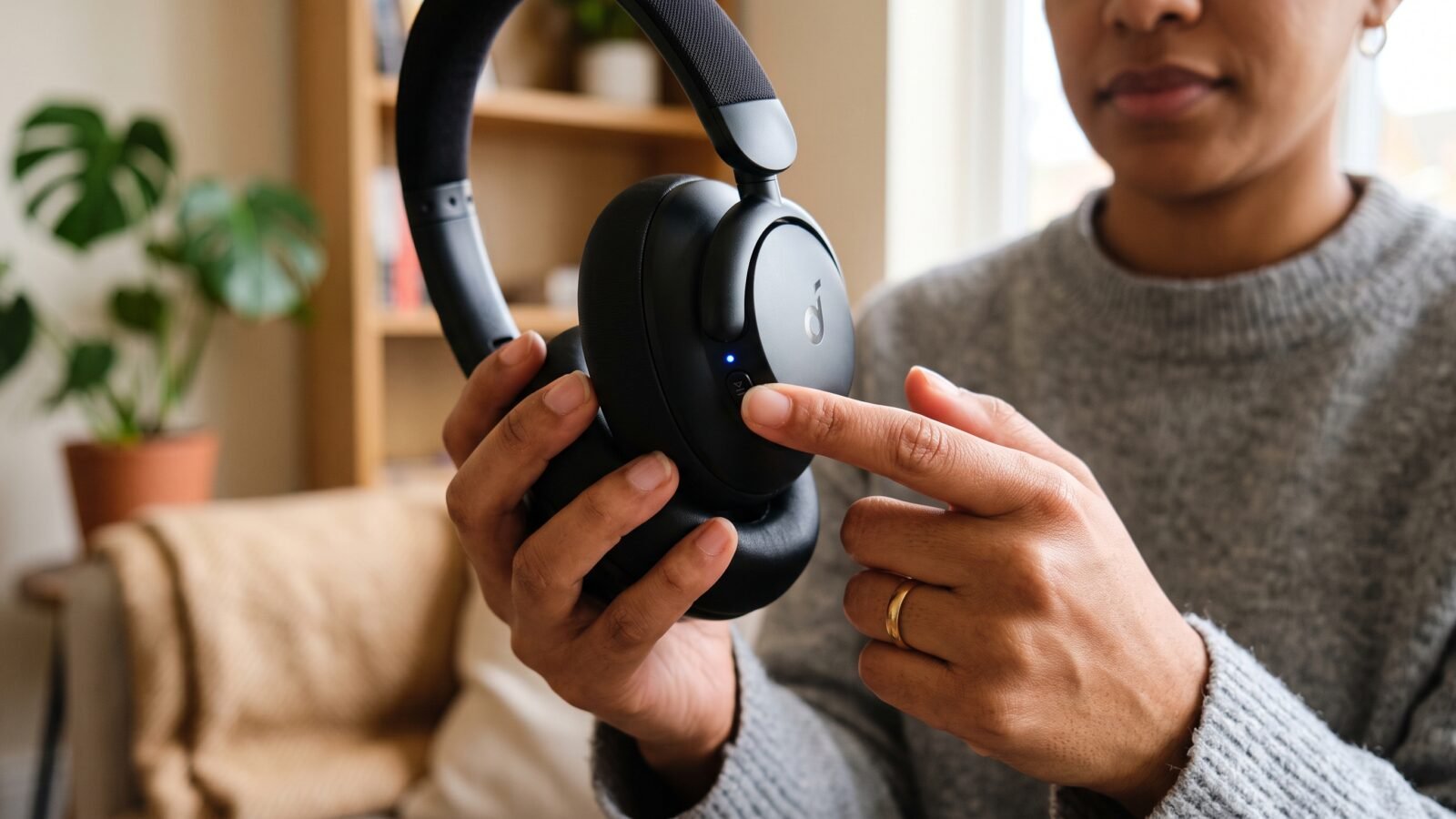
- On the headphones, press and hold the power button, multi-function button, or the specific reset combination (often power + volume or a dedicated reset pinhole) for 10–40 seconds. Watch for the LED to flash in a new pattern, change color, or for the headphones to power cycle.
- Release the buttons and turn the headphones back on if needed.
- Put them into pairing mode (usually by holding the power or Bluetooth button until the light flashes rapidly).
- On your device, search for available Bluetooth devices and select the headphones to pair again.
If your model has a physical reset button or requires a paperclip in a pinhole, follow the manufacturer’s instructions rather than forcing a long power-button hold.
How to Reset Bluetooth Headphones on Android
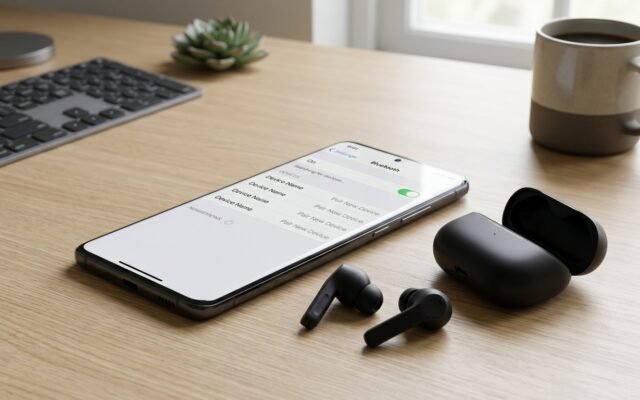
- Swipe down and open Settings → Connected devices (or Bluetooth & device connection).
- Find your headphones in the list and tap the gear icon or the three dots next to the name.
- Choose “Forget” or “Unpair.”
- Reset the headphones using the general method above (or your model’s specific steps).
- Turn Bluetooth off and on again on the phone.
- Put the headphones in pairing mode and select them from the available devices list.
After pairing, test audio playback and check that both sides work if you have earbuds.
How to Reset Bluetooth Headphones on iPhone
- Open Settings → Bluetooth.
- Tap the “i” next to your headphones.
- Choose “Forget This Device” and confirm.
- Reset the headphones following the general or brand-specific process.
- Make sure the headphones are in pairing mode.
- Return to Settings → Bluetooth and select the headphones when they appear.
iOS sometimes caches old connections, so forgetting the device before resetting is important.
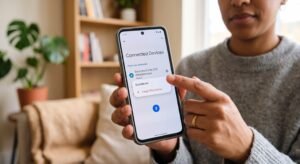
How to Reset Bluetooth Headphones on Windows
- Go to Settings → Bluetooth & devices.
- Find the headphones and select “Remove device.”
- Reset the headphones.
- Click “Add device” → Bluetooth and choose the headphones once they are in pairing mode.
On older Windows versions, use the classic Control Panel Bluetooth settings to remove the device if it does not appear in the modern Settings app.
How to Factory Reset Bluetooth Headphones
A factory reset returns the headphones to their original out-of-box state. It erases all saved pairings and any custom settings (EQ profiles, touch controls, etc., depending on the model). Use a factory reset when a regular reset does not solve persistent connection or audio problems.
The process is usually the same long button hold described earlier, but some models require a specific sequence or a dedicated reset button. Always consult the official user manual or support page for your exact model, because holding the wrong buttons too long can sometimes trigger other functions.
How to Reset Popular Bluetooth Headphone Brands
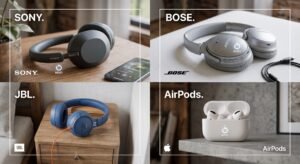
Exact steps vary by model year and firmware. The notes below are general guidance only—verify with the manufacturer’s instructions for your specific headphones.
Sony Bluetooth Headphones
Many Sony models use a long press of the power button or a combination with the volume buttons until the indicator light changes. Check the Sony support site or the manual that came with your WH, WF, or LinkBuds model.
JBL Bluetooth Headphones
JBL often uses a power-button hold or a multi-button sequence. Some earbud models require placing both buds in the case and holding a button on the case. Refer to the JBL app or product support page.
Bose Bluetooth Headphones
Bose QuietComfort and other lines typically involve holding the Bluetooth or multi-function button. Bose support provides model-specific reset guides.
Beats Bluetooth Headphones
Beats (including Studio, Solo, and Fit Pro) frequently use a long press on the power or multi-function button, sometimes while the case is involved for true wireless models. Apple’s Beats support pages list the current procedures.
Skullcandy Bluetooth Headphones
Skullcandy models commonly rely on a power-button hold until lights flash. Confirm with the Skullcandy support documentation for your exact product.
Anker Soundcore Headphones
Soundcore models often reset via a long power-button press or a combination listed in the Soundcore app or manual.
Apple AirPods
AirPods and AirPods Pro have a well-documented reset process involving the charging case button. Place the AirPods in the case, open the lid, and hold the setup button on the back of the case until the status light flashes amber then white. Then re-pair through the iPhone Bluetooth settings or the setup animation.
For any brand, if the standard method fails, search the official support site using your exact model number.
What to Do If Bluetooth Headphones Won’t Reset
If the headphones do not respond to the reset procedure:
- Charge them fully with a known-good cable and charger.
- Try a different power source or cable.
- Restart your phone or computer.
- Toggle Bluetooth off and on.
- Move away from other active Bluetooth devices and Wi-Fi routers that may cause interference.
- Forget the device again and attempt the reset once more.
- Test pairing with a different phone or tablet to isolate whether the problem is the headphones or the original device.
- Check for firmware updates through the manufacturer’s app if available.
- Consult the official user manual or support page for model-specific instructions.
Persistent hardware failure (water damage, battery issues, or broken buttons) may require professional repair or replacement.
What to Do After Resetting Bluetooth Headphones
- Put the headphones into pairing mode (LED usually flashes rapidly).
- Confirm the old connection has been forgotten on every device you previously used.
- Pair with your primary phone or laptop.
- Play audio and verify both channels work and volume controls respond.
- Test range and stability by walking a short distance.
- If you use multiple devices, pair them one at a time and manage which device is active.
A successful reset followed by clean pairing usually resolves most common connection problems.
Common Bluetooth Headphone Problems and Solutions
| Problem | Possible Cause | Solution |
|---|---|---|
| Headphones won’t connect | Old pairing data or glitch | Forget device + reset + re-pair |
| Headphones keep disconnecting | Interference or low battery | Charge fully, move away from other devices, reset |
| Only one earbud works | Pairing imbalance or bud not charged | Reset both buds, ensure both are charged |
| Headphones don’t appear in Bluetooth | Not in pairing mode or device cache | Force pairing mode, restart device Bluetooth |
| Sound is cutting out | Interference or weak signal | Reset, reduce distance, clear other Bluetooth |
| Headphones connect but no sound | Wrong output device selected | Check audio output settings, re-pair |
| Headphones connect to the wrong device | Automatic reconnection | Forget on the unwanted device, reset |
Do You Lose Anything When You Reset Bluetooth Headphones?
A standard reset or factory reset clears saved Bluetooth pairings. Custom settings stored on the headphones (EQ, gesture controls, multipoint preferences) may also be erased depending on the model. Music, playlists, and files on your phone or computer remain untouched. You will simply need to re-pair and reconfigure any headphone-specific preferences afterward.
Reset vs Restart: What’s the Difference?
- Restart — Power the headphones off and on. Clears temporary software glitches but keeps pairings.
- Disconnect / Forget — Removes the connection only on the phone or computer side.
- Reset / Factory reset — Clears pairings and often returns the headphones to original settings. Use this when restart and forget are not enough.
Frequently Asked Questions
How do I reset Bluetooth headphones?
Turn them off, forget them in your device’s Bluetooth settings, then hold the power or multi-function button until the LED indicates a reset. Re-enter pairing mode and connect again. Exact timing and buttons depend on the model.
How do I factory reset Bluetooth headphones?
Follow the same long-press sequence or the specific factory-reset method listed in your manual. A factory reset erases all pairings and custom settings.
Why won’t my Bluetooth headphones connect?
Common causes include remaining old pairings, low battery, interference, or the headphones not being in pairing mode. Forget the device, reset the headphones, and try again.
How do I put Bluetooth headphones into pairing mode?
Usually hold the power or Bluetooth button for several seconds until the LED flashes rapidly. Some true-wireless models require opening the case lid or pressing a button on the case.
Will resetting Bluetooth headphones delete everything?
It removes saved Bluetooth connections and may clear headphone-specific settings. It does not delete anything on your phone or computer.
Why are my headphones still not connecting after a reset?
Ensure the headphones are fully charged, Bluetooth is toggled on the device, and no other nearby devices are interfering. Try pairing with a second device to test the headphones themselves.
How do I reset Bluetooth headphones without a reset button?
Most models use a long hold of the existing power or multi-function button. Check the official manual for the exact sequence.
Can I reset Bluetooth headphones from my phone?
You can forget or unpair them from phone settings, but the actual reset usually requires physical button presses on the headphones themselves. Some companion apps offer limited reset options.
Conclusion
Knowing how to reset Bluetooth headphones is one of the fastest ways to fix connection failures, dropouts, and pairing headaches. Start with the general method—forget the device, perform the button hold until the lights change, then re-pair—and adjust for your specific model when needed. Platform steps for Android, iPhone, and Windows keep the process smooth, while brand notes point you toward official guidance when details differ.
If a simple reset does not restore reliable performance, work through the troubleshooting checklist and verify firmware updates. Most everyday Bluetooth problems resolve with a clean reset and fresh pairing. Grab your headphones, follow the steps that match your situation, and you should be listening again in just a few minutes.