
Having trouble connecting your iPhone to Wi-Fi, Bluetooth, cellular data, or a personal hotspot can be frustrating, especially when everything worked normally before. One of the most useful troubleshooting options built into iOS is a network settings reset.
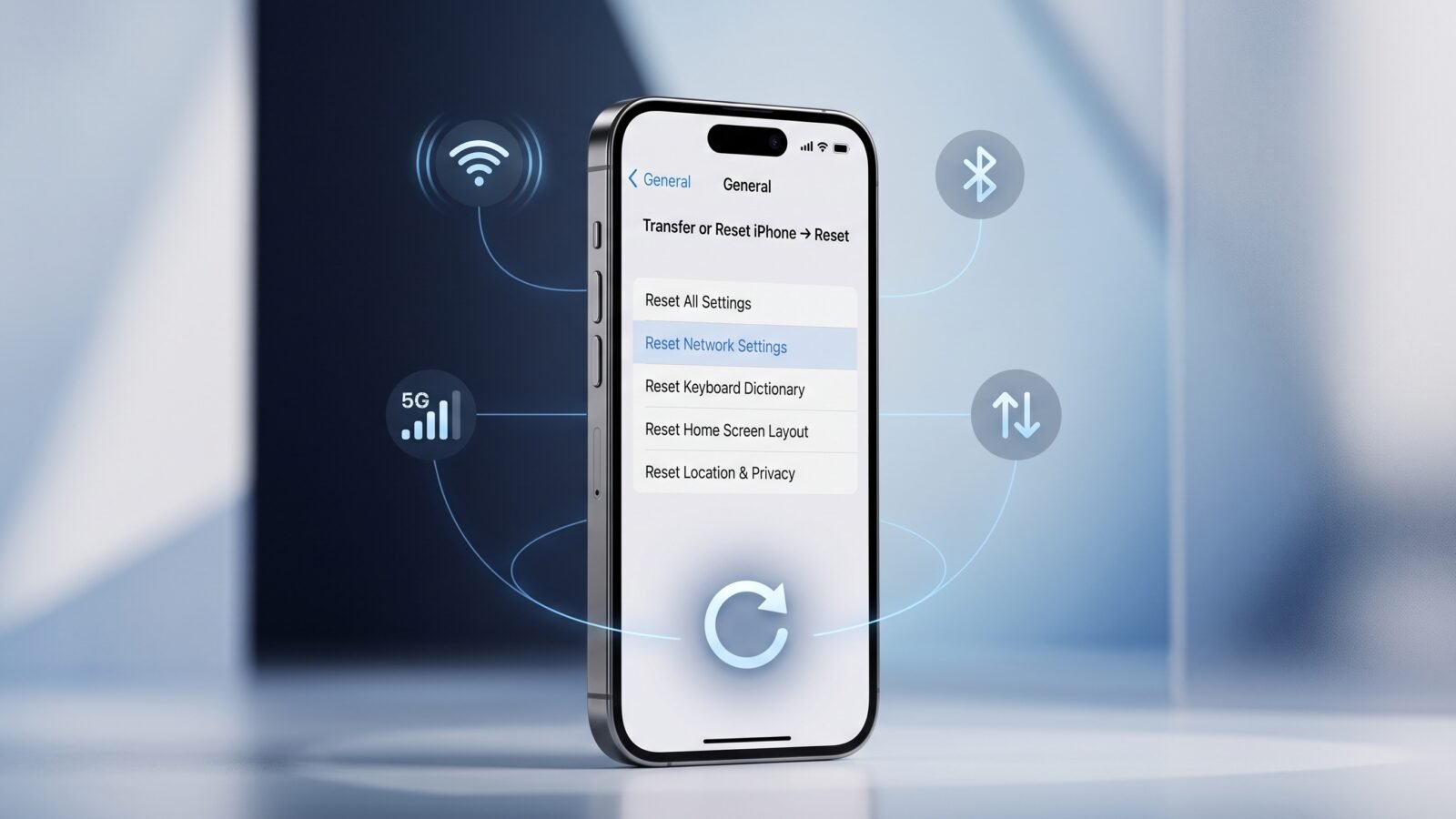
If you’re searching for how to reset network settings on iPhone, the process is straightforward. Go to Settings > General > Transfer or Reset iPhone > Reset > Reset Network Settings, then confirm the reset when prompted. This removes saved network configurations but does not erase your personal content.
Before you do it, there is one important thing to know: your saved Wi-Fi networks and passwords will be removed, along with certain cellular, VPN, and APN settings. So, you’ll need to reconnect to Wi-Fi afterward.
iPhone 18 Pro Max vs 17 Pro Max
What Does Reset Network Settings Mean on iPhone?
Resetting network settings returns your iPhone’s network-related configuration to its default state.
This can clear settings that may be causing connection problems, including saved Wi-Fi networks and passwords, cellular-related settings, VPN configurations, and APN settings. Apple recommends using this option when other basic troubleshooting steps have not solved the problem.
Think of it as giving your iPhone’s networking configuration a fresh start without performing a factory reset.
What gets reset?
A network reset can remove:
- Saved Wi-Fi networks
- Saved Wi-Fi passwords
- Cellular/network settings
- VPN configurations
- APN settings
- Other network-related configurations
Apple also notes that a network reset can remove all currently saved network configurations, including networks used at home, work, or school.
What does not get deleted?
A network reset does not erase your personal files and content.
Your:
- Photos and videos
- Apps and app data
- Contacts
- Messages
- Documents
- Music
- Other personal content
remain on the iPhone. This is very different from choosing Erase All Content and Settings.
How to Reset Network Settings on iPhone
If you want to know how to reset network settings on iPhone, follow these steps carefully.
1. Open Settings
Open the Settings app on your iPhone.
2. Tap General
Scroll down and select General.
3. Open Transfer or Reset iPhone
Scroll to the bottom of the General page and tap Transfer or Reset iPhone.
The exact wording can vary slightly on some iOS versions or devices.
4. Tap Reset
At the bottom of the screen, tap Reset.
You will see several reset options.
5. Select Reset Network Settings
Tap Reset Network Settings.
Make sure you choose the network option rather than Reset All Settings or Erase All Content and Settings.
6. Confirm the reset
Follow the onscreen instructions to confirm. Your iPhone may restart as the reset is completed.
Apple’s current instructions use the path Settings > General > Transfer or Reset iPhone > Reset > Reset Network Settings.
Quick answer: To reset network settings on an iPhone, open Settings > General > Transfer or Reset iPhone > Reset > Reset Network Settings and confirm. Your personal data stays on the device, but saved network configurations are removed.
What Happens After You Reset Network Settings?
Knowing what happens when you reset network settings on iPhone is important before you tap the confirmation button.
Saved Wi-Fi networks and passwords are removed
Your iPhone will forget previously saved Wi-Fi networks and their passwords.
For example, if your iPhone automatically connects to your home Wi-Fi, you will need to select that network and enter its password again after the reset. Apple specifically identifies Wi-Fi networks and passwords among the information removed by a network reset.
Bluetooth connections may need to be set up again
Network troubleshooting can also affect previously configured connection settings, so you may need to reconnect Bluetooth accessories afterward.
If your AirPods, car system, speakers, or another Bluetooth accessory does not reconnect automatically, open Bluetooth settings and pair it again.
VPN and APN settings are reset
A network reset removes VPN and APN settings that you’ve previously configured. Apple specifically includes VPN and APN settings among the network settings affected by this reset.
This matters if you use:
- A work VPN
- A school network configuration
- A custom APN
- A business-managed network
If your iPhone is managed by an organization, Apple recommends checking with the network administrator before resetting network settings.
Your personal data remains
A network reset is not a factory reset.
It does not remove your photos, videos, applications, contacts, messages, or documents. Apple separates Reset Network Settings from Erase All Content and Settings, which is the option used to completely erase an iPhone.
When Should You Reset Network Settings on iPhone?
A network reset is useful when ordinary troubleshooting hasn’t fixed a persistent connection problem.
You may consider an iPhone network settings reset when:
Wi-Fi keeps disconnecting
Your iPhone repeatedly drops Wi-Fi, refuses to connect to a network, or shows a connection problem even though other devices work normally.
Bluetooth won’t connect properly
You may have iPhone Bluetooth connection problems, such as an accessory refusing to connect or repeatedly losing its connection.
Cellular data is not working normally
A network reset can be worth trying when you experience persistent iPhone cellular network problems, especially after basic checks have failed.
Personal Hotspot is not working
Apple includes resetting network settings among the troubleshooting steps for Personal Hotspot problems.
Network settings seem misconfigured
If you have changed several Wi-Fi, VPN, cellular, or APN settings and no longer know what configuration is causing the problem, starting over with default network settings can simplify troubleshooting.
How to Fix iPhone Network Problems Without Resetting Everything
A network reset can be effective, but it should not always be your first step. Try these simpler solutions first.
Restart your iPhone
A normal restart can resolve temporary software or connectivity glitches.
Restart the iPhone and test the connection again before performing a network reset.
Check Airplane Mode
Make sure Airplane Mode is turned off.
For cellular-related problems, Apple also recommends turning Airplane Mode on, waiting about five seconds, and turning it off again.
Forget and reconnect to Wi-Fi
For a problem affecting only one Wi-Fi network, forgetting that network and reconnecting may be enough.
This is useful when the stored Wi-Fi configuration appears to be the problem but you don’t want to reset every network setting on the phone.
Restart your router
If other devices also cannot connect to the same Wi-Fi network, the issue may be with your router or internet service rather than your iPhone.
Apple recommends restarting the router and modem as part of Wi-Fi troubleshooting.
Update iOS
Make sure your iPhone is running an available current version of iOS. Software updates can contain bug fixes and network-related improvements.
Check carrier settings
Carrier settings updates can improve cellular connectivity and add support for features such as 5G or Wi-Fi Calling. To check manually, Apple currently directs users to Settings > General > About and then to follow any prompt for a carrier update.
Check VPN and security software
A VPN or third-party security product can sometimes interfere with network connectivity.
Apple recommends checking for VPN, profile, firewall, and filter settings when investigating network connectivity issues.
What to Do After Resetting Network Settings
Once the reset network settings on iPhone process is complete, give your connection a fresh setup.
Reconnect to Wi-Fi
Go to Settings > Wi-Fi, choose your network, and enter the Wi-Fi password.
If you use several networks, remember that you’ll need to reconnect to each one manually.
Pair Bluetooth devices again
Open Settings > Bluetooth and reconnect accessories that no longer appear as connected.
You may need to put your accessory into pairing mode again.
Check cellular service
Test a phone call and mobile data.
If you’re still seeing No Service, Searching, or other cellular issues, the problem may involve your carrier, SIM/eSIM, account, coverage, or another issue that a network reset cannot solve.
Reconfigure your VPN if necessary
If you use a VPN or organization-managed network configuration, check whether it needs to be configured again.
Test the problem that caused the reset
Don’t just assume everything is fixed. Try the Wi-Fi network, Bluetooth accessory, cellular data, or hotspot that originally had the problem.
This makes it much easier to determine whether the reset actually solved the issue.
Reset Network Settings vs. Other iPhone Reset Options
Apple provides several reset choices, and they are not interchangeable.
| Reset option | What it does | Personal data deleted? |
|---|---|---|
| Reset Network Settings | Removes network-related settings such as Wi-Fi networks/passwords, cellular settings, VPN and APN settings | No |
| Reset All Settings | Returns many system settings to their defaults, including network-related settings and various personal preferences | No |
| Erase All Content and Settings | Completely erases the iPhone and returns it to a setup/factory state | Yes |
Apple states that Reset All Settings does not delete data or media, while Erase All Content and Settings removes the device’s content.
Reset Network Settings
Choose this when the main problem is connectivity.
It is the least disruptive of these three options when you specifically need to troubleshoot network problems.
Reset All Settings
This is broader. It resets many device preferences and configurations, not just networking. Apple notes that this option can reset items such as Wi-Fi passwords, Bluetooth pairings, location and privacy settings, Apple Pay cards, display settings, and more, while leaving personal data and media intact.
Erase All Content and Settings
This is a completely different action.
It is intended for situations such as selling, giving away, or completely resetting the iPhone. Apple warns that it erases the device’s content and settings.
Common Problems This Can Help Fix
A network settings reset may help when you are experiencing persistent:
Wi-Fi problems
Examples include:
- iPhone won’t connect to Wi-Fi
- Wi-Fi repeatedly disconnects
- iPhone connects but has trouble accessing the internet
- A previously working Wi-Fi configuration has become problematic
Apple advises checking the router and testing other devices first because an internet outage or router problem will not be fixed by resetting the iPhone.
Bluetooth problems
If an accessory repeatedly refuses to connect, resetting network settings can be part of a broader troubleshooting process, especially when other connection-related problems occur at the same time.
Cellular data problems
If cellular connectivity is behaving abnormally, a network reset may help clear problematic network configuration. However, it cannot fix carrier outages, poor coverage, account problems, or hardware issues.
Personal Hotspot problems
A network reset is one troubleshooting option for Personal Hotspot issues. Apple specifically includes it in its current hotspot troubleshooting guidance.
Frequently Asked Questions
What happens when you reset network settings on iPhone?
The iPhone removes saved network configurations, including Wi-Fi networks and passwords, along with cellular, VPN, and APN settings. Your personal files and apps remain on the device.
Does resetting network settings delete everything?
No. Reset Network Settings does not erase your photos, videos, apps, messages, contacts, or documents. Erase All Content and Settings is the option that removes your personal content.
Will I lose my Wi-Fi passwords?
Yes. Saved Wi-Fi networks and passwords are removed when you reset network settings, so you’ll need to enter the passwords again.
Does resetting network settings remove eSIM?
A standard Reset Network Settings is not the same as erasing an eSIM. Apple’s current network-reset documentation identifies network configurations such as Wi-Fi, cellular settings, VPN, and APN settings as the items being reset. In contrast, when you use Erase All Content and Settings, Apple specifically gives you an option to keep or delete your eSIM.
Does it fix Wi-Fi problems on iPhone?
It can help with persistent Wi-Fi configuration problems, particularly when other troubleshooting steps have failed. However, it will not fix a broken router, ISP outage, or a problem affecting every device on the network.
How often should I reset network settings?
There is no need to reset network settings on a regular schedule. Use it as a troubleshooting step when you have persistent network problems and simpler fixes have not worked.
What should I do if my iPhone still has connection problems?
First determine whether the problem affects only your iPhone or every device on the same network. Check Airplane Mode, restart the iPhone and router, check for iOS or carrier updates, and review VPN/security settings. If the problem continues, contact your carrier, ISP, or Apple Support depending on the type of connection problem.
Will resetting network settings delete my apps and photos?
No. A network reset does not delete personal data or media. Your apps, photos, messages, contacts, and files stay on the iPhone.
Do I need to back up my iPhone before a network reset?
A network reset does not erase your personal data, so it is not equivalent to a factory reset. However, maintaining a current iPhone backup is generally a good practice before making significant changes to device settings.
Final Thoughts
When your iPhone refuses to connect properly to Wi-Fi, Bluetooth, cellular data, or Personal Hotspot, a network settings reset can be a useful troubleshooting step.
The key thing to remember about how to reset network settings on iPhone is the menu path: Settings > General > Transfer or Reset iPhone > Reset > Reset Network Settings. The reset removes saved network configurations, so be prepared to reconnect to Wi-Fi and configure certain network services again.
Most importantly, this option does not factory-reset your iPhone or erase your personal files. That makes it a much less disruptive choice than Erase All Content and Settings when you’re specifically dealing with connectivity problems.